New: OpenAI (ChatGPT) Ads is now supported, server-side.

Connect Pinterest to Webgarh GTM Assistant

Use this guide to connect Pinterest Conversions API through Webgarh GTM Assistant for more reliable Shopify sales tracking.

Setup steps

Get your IDs and token

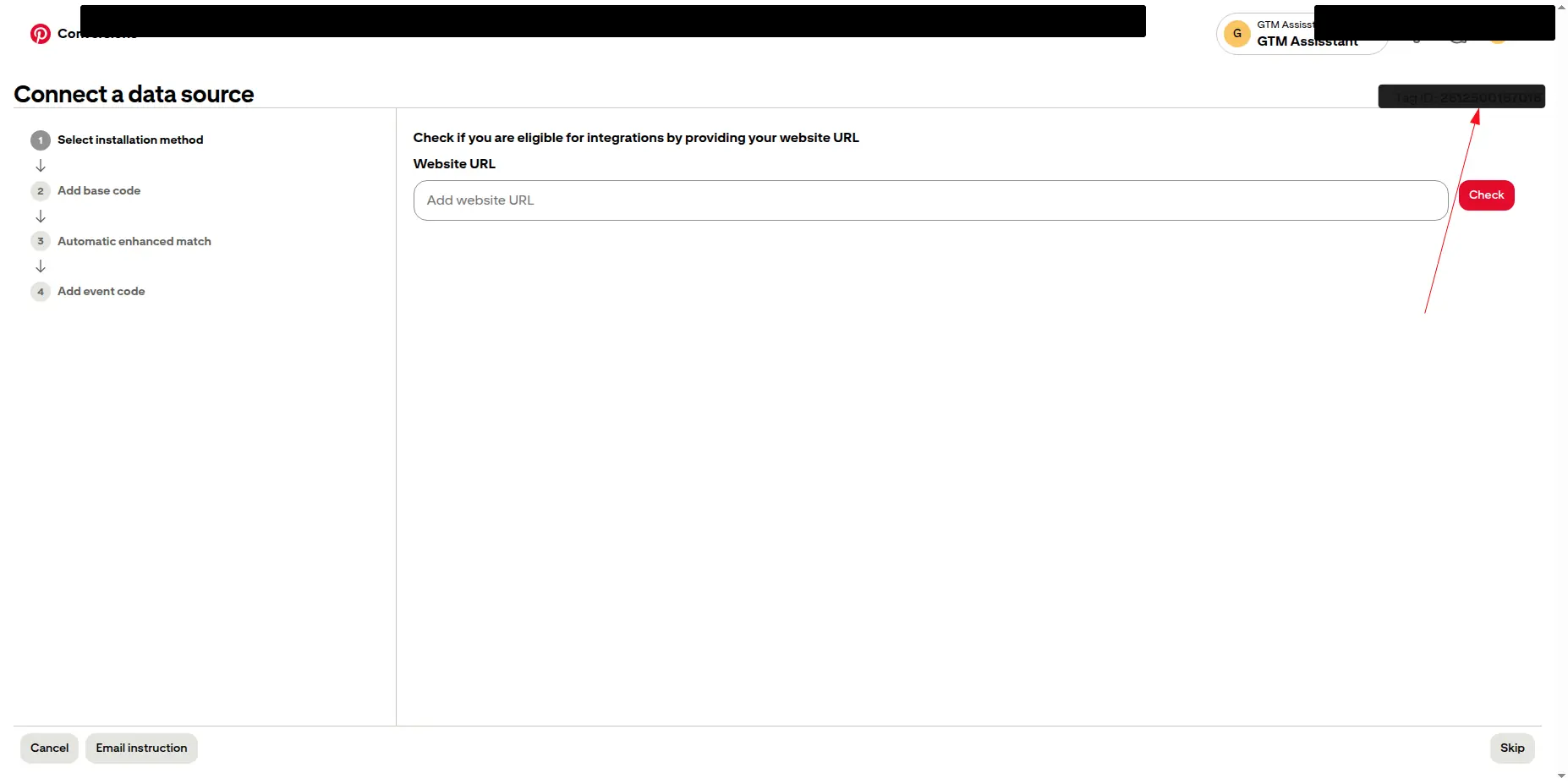
  1. In Pinterest Ads, go to Ads > Conversions > Tag Manager and copy the Tag ID.
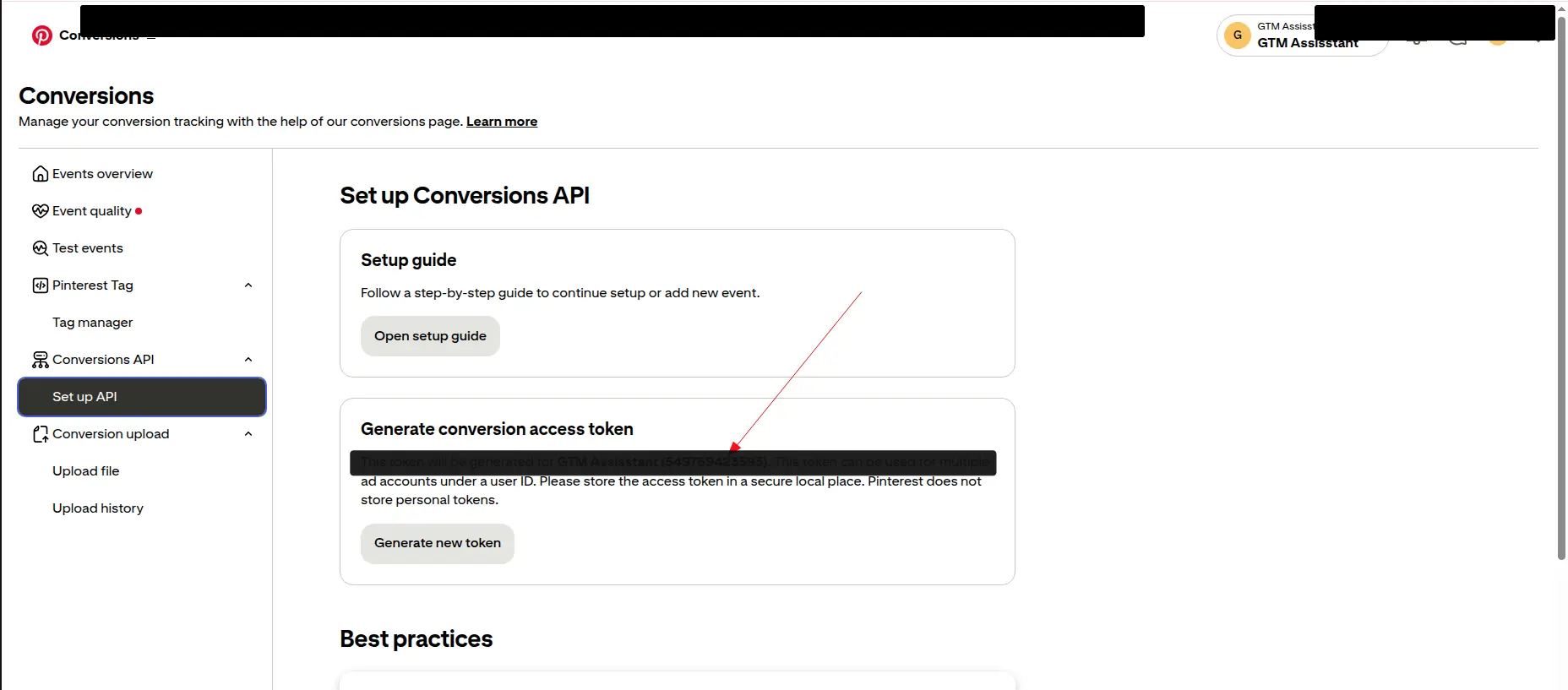
  2. Go to Conversions > Set Up API and copy your Ad Account ID.
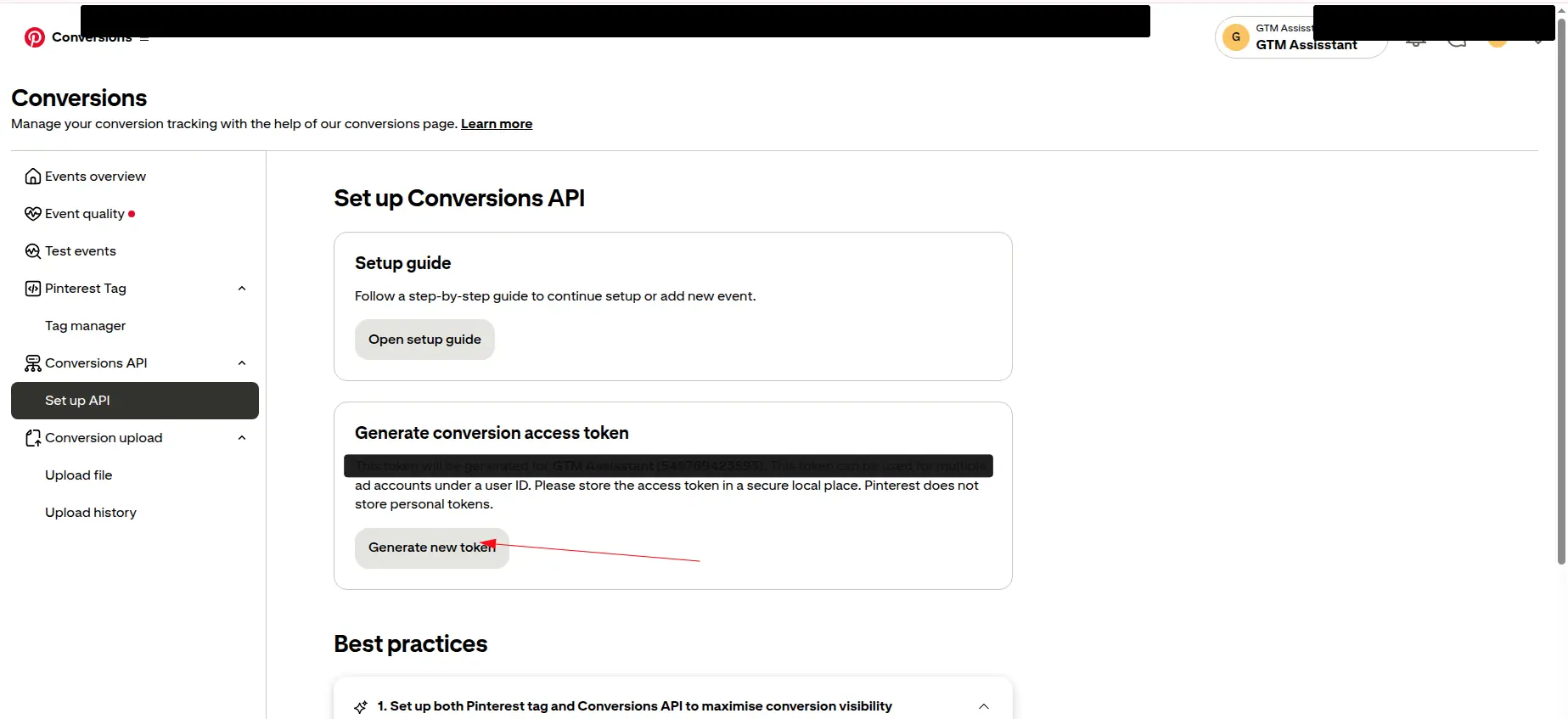
  3. In Set Up API, click Generate new token and copy the access token.

Configure Webgarh GTM Assistant

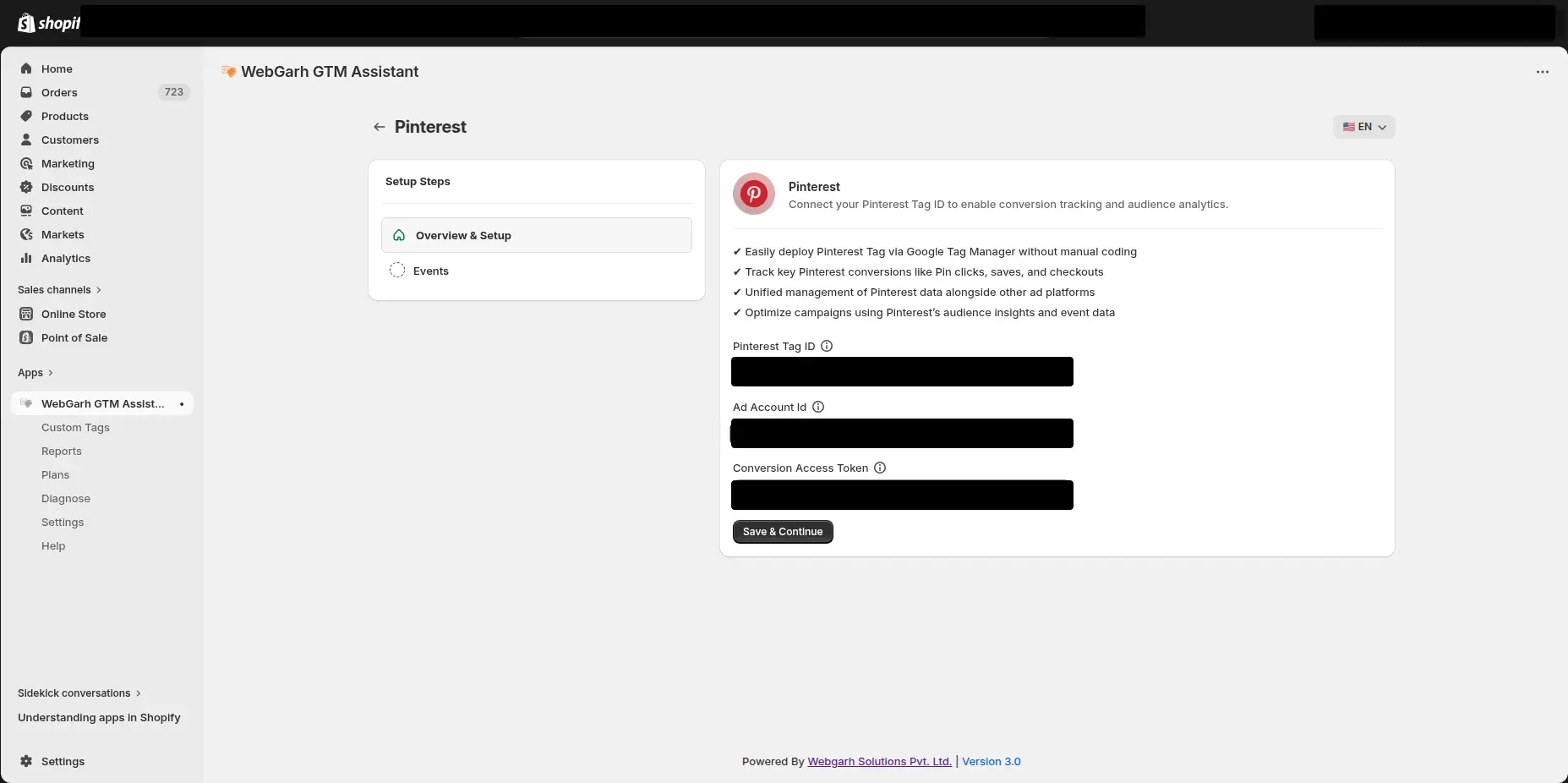
  1. Open the Pinterest tab in Webgarh GTM Assistant.
  2. Paste the Tag ID, Ad Account ID, and Access Token.
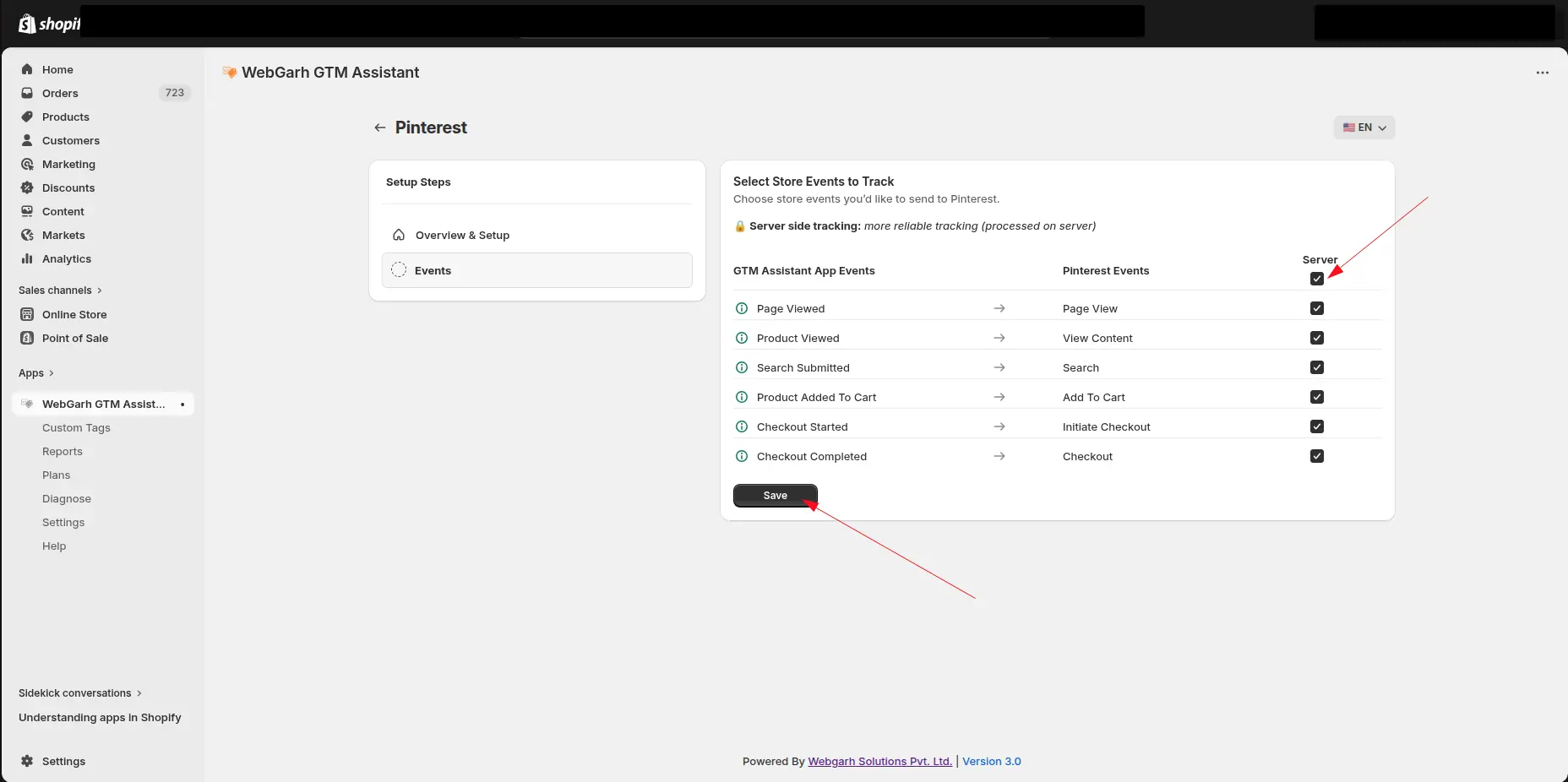
  3. Select all recommended events such as Purchase, Add to Cart, and Page Visit.
  4. Save and wait for Connected status.

Copy the access token as soon as it is generated so you can paste it into Webgarh GTM Assistant.

Visual walkthrough

Use the screenshots below alongside the steps above to match each instruction with the correct screen in the platform.

Select a screenshot to open it full size.
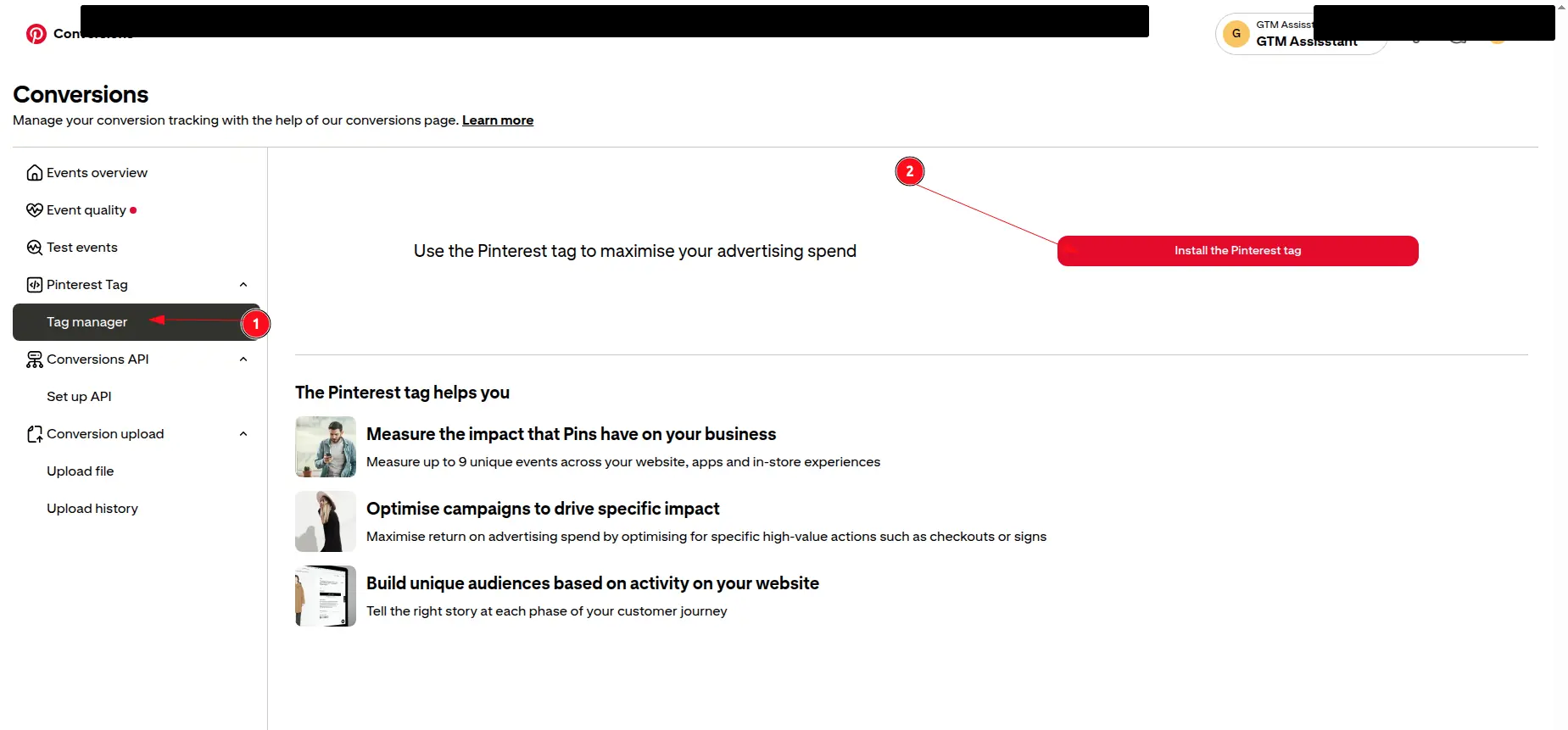
Pinterest's Conversions page: Tag manager in the left menu (1) and the Install the Pinterest tag button (2) are marked.
Open Pinterest Tag Manager to find your Tag ID.
Pinterest's Connect a data source page, with an arrow pointing to the Tag ID at the top right.
Copy the Pinterest Tag ID for your store.
Pinterest's Set up Conversions API page, with an arrow pointing to the ad account details under Generate conversion access token.
Open the Pinterest API setup screen to find your ad account details.
Pinterest's Set up Conversions API page, with an arrow pointing to the Generate new token button.
Generate and copy the Pinterest access token.
The Pinterest screen in GTM Assistant, with the Pinterest Tag ID, Ad Account Id and Conversion Access Token fields and the Save & Continue button.
Enter the Tag ID, ad account ID, and token in Webgarh GTM Assistant.
The Select Store Events to Track step for Pinterest, matching store events such as Page Viewed and Checkout Completed to Pinterest events, with arrows pointing to the Server tick box and the Save button.
Select Pinterest events and save the connection.