New: OpenAI (ChatGPT) Ads is now supported, server-side.

Connect Outbrain to Webgarh GTM Assistant

Connect Outbrain so Webgarh GTM Assistant can send Shopify events that help Outbrain optimize campaigns toward users likely to convert.

Setup steps

  1. In Webgarh GTM Assistant, find the Outbrain section and click Connect.
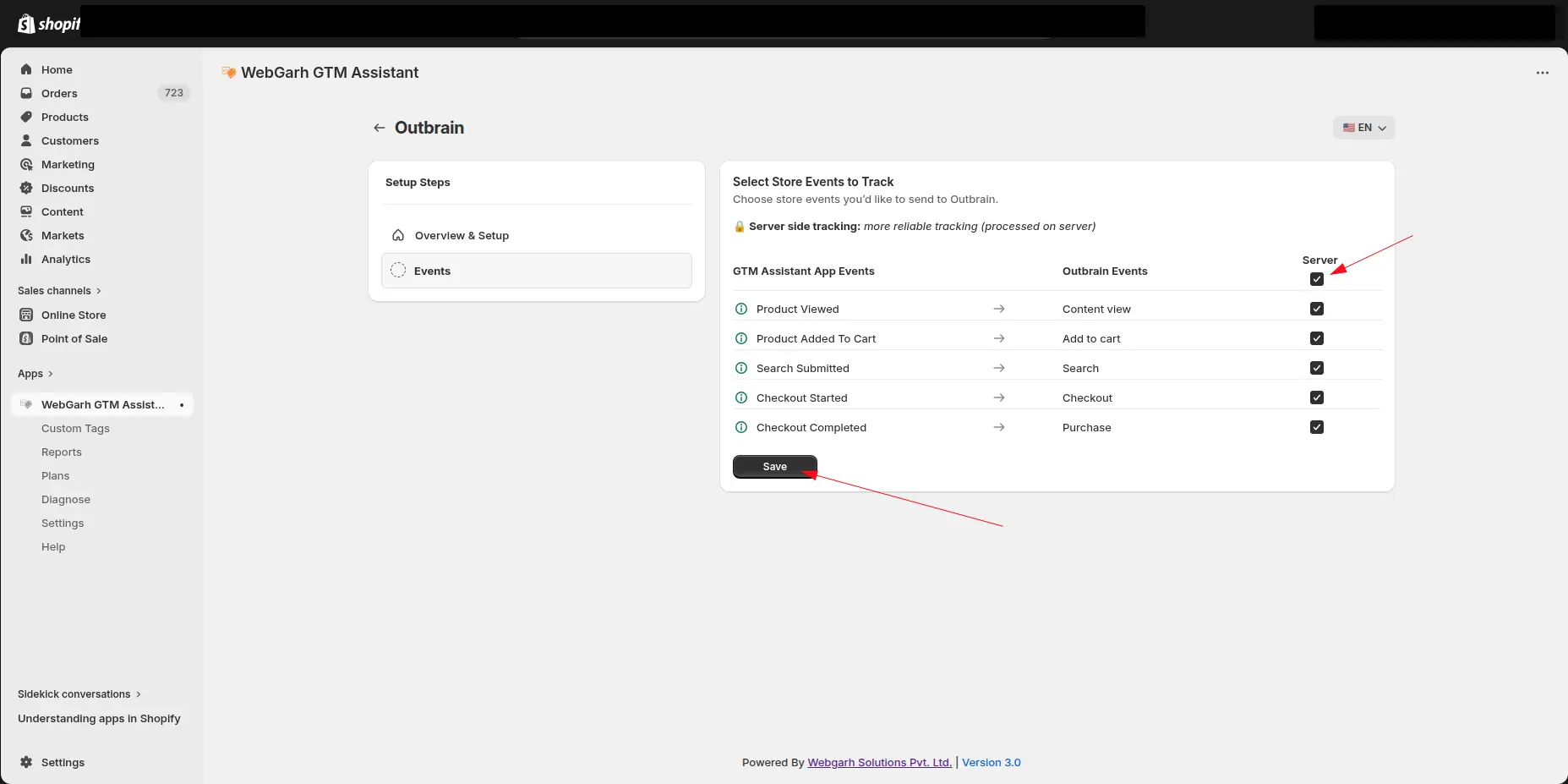
  2. Select the events you want to track.
  3. Choose all recommended events if you want Outbrain to optimize from Add to Cart and Initiate Checkout signals.
  4. Click Save.

Tracking Add to Cart and Initiate Checkout can help Outbrain Conversion Bid Strategy optimize beyond final purchases.

Visual walkthrough

Use the screenshots below alongside the steps above to match each instruction with the correct screen in the platform.

Select a screenshot to open it full size.
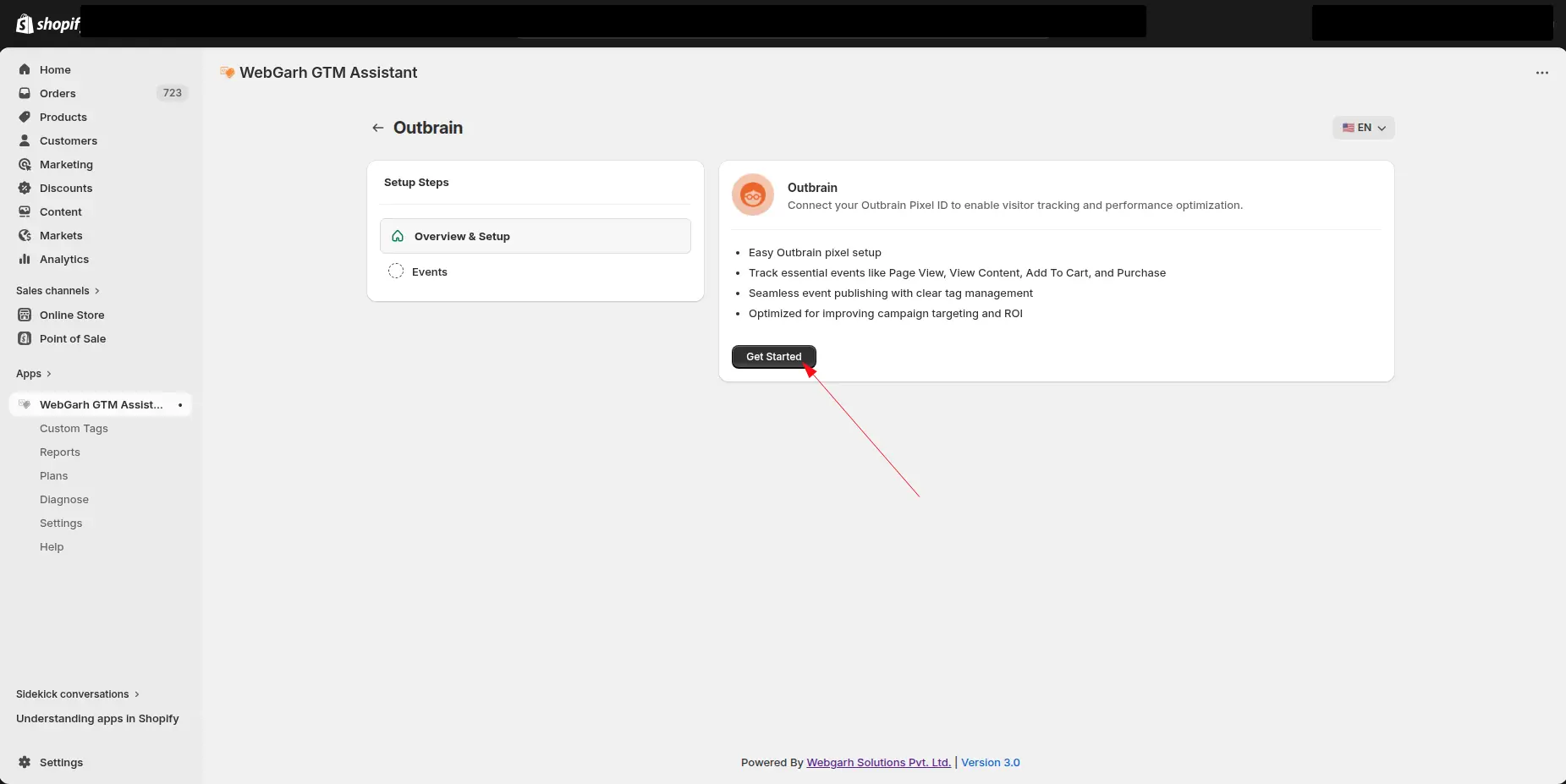
The Outbrain screen in GTM Assistant, with an arrow pointing to the Get Started button.
Open the Outbrain connection screen in Webgarh GTM Assistant.
The Select Store Events to Track step for Outbrain, matching store events such as Product Viewed and Checkout Completed to Outbrain events, with arrows pointing to the Server tick box and the Save button.
Select the Shopify events Outbrain should use for campaign optimization.