Setup steps
Check which API key you need
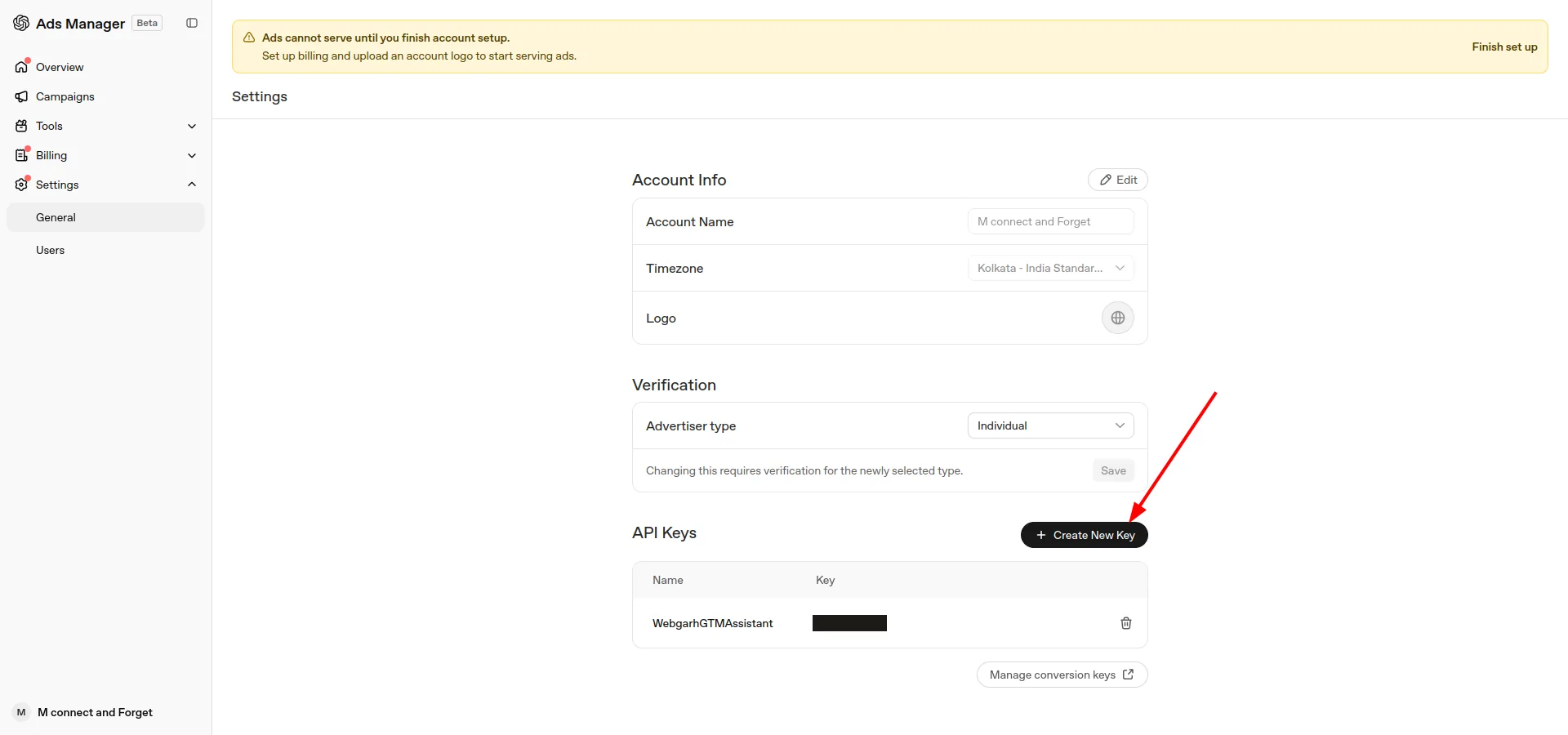
- This guide uses the Ads Account API key. You create it yourself in OpenAI Ads Manager, under Settings → General → API Keys.
- OpenAI Ads also has a separate Conversions API key. You don't need it for this setup.
Create your API key in OpenAI Ads Manager
- Sign in to OpenAI Ads Manager.
- Open Settings, then General, and scroll down to API Keys.
- Click + Create New Key.
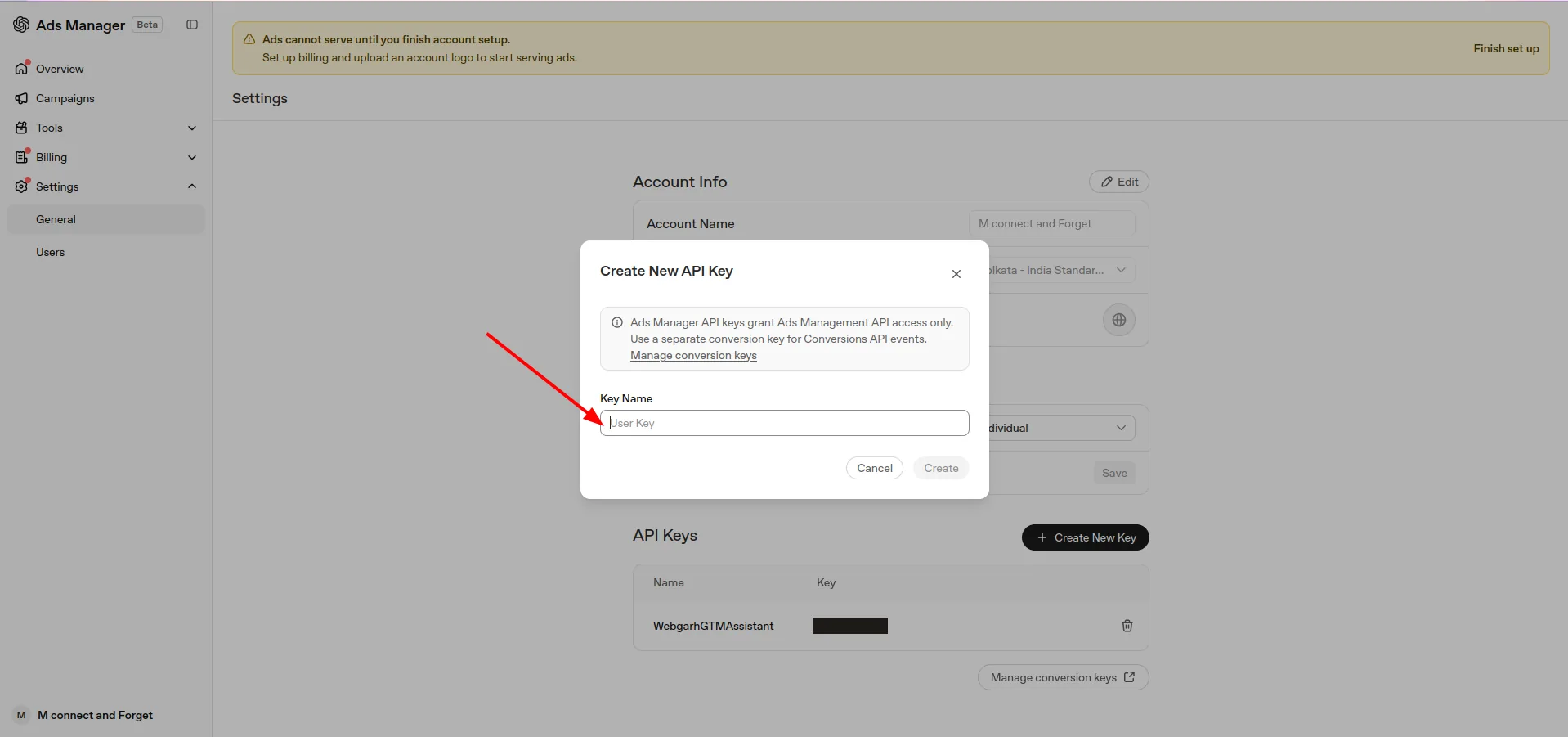
- Give the key a name you'll recognize, such as Webgarh GTM Assistant.
- Click Create.
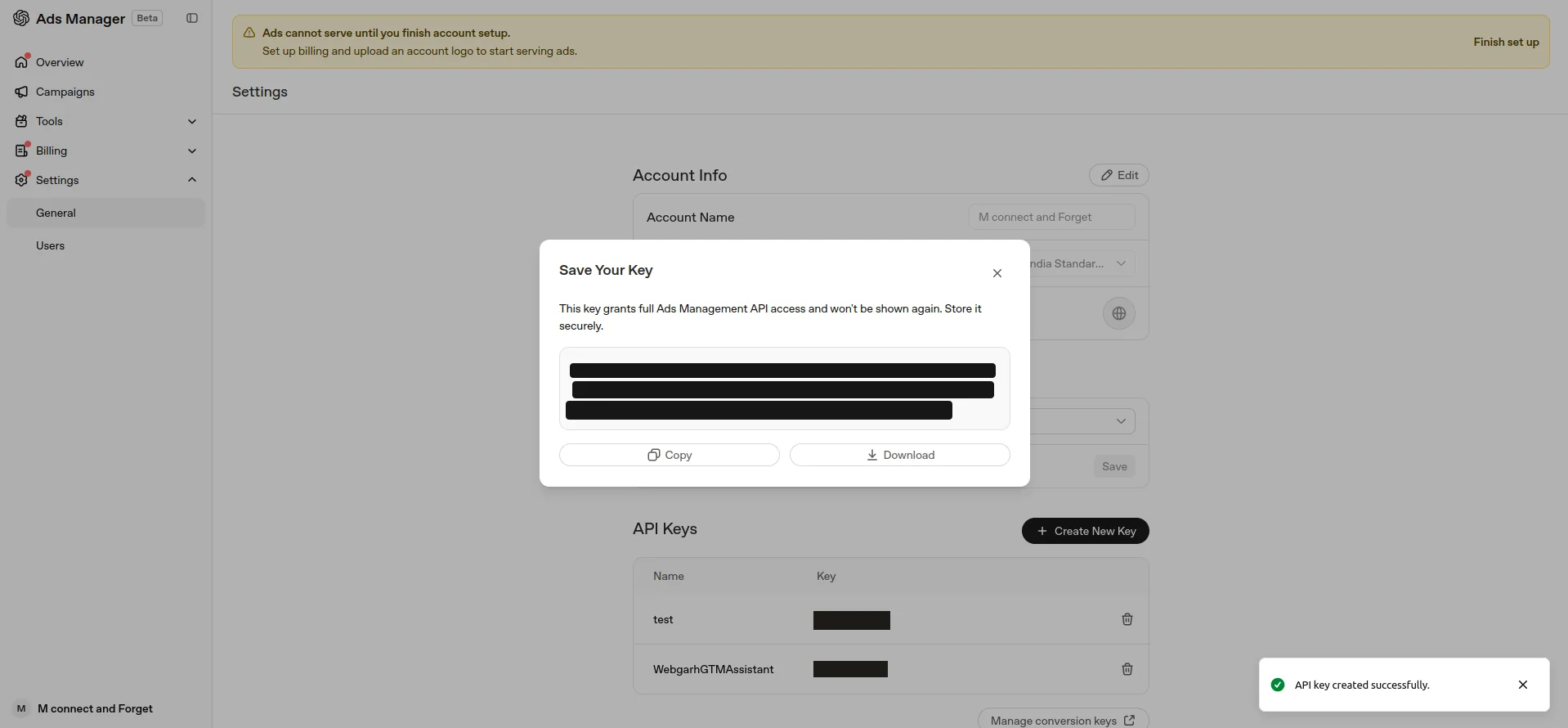
- Copy the full key before you close the window. OpenAI shows it only once.
Connect it in Webgarh GTM Assistant
- In Webgarh GTM Assistant, open the OpenAI Ads integration.
- Paste the full key into the OpenAI Ads account API key field.
- Click Save & Continue.
Choose your events
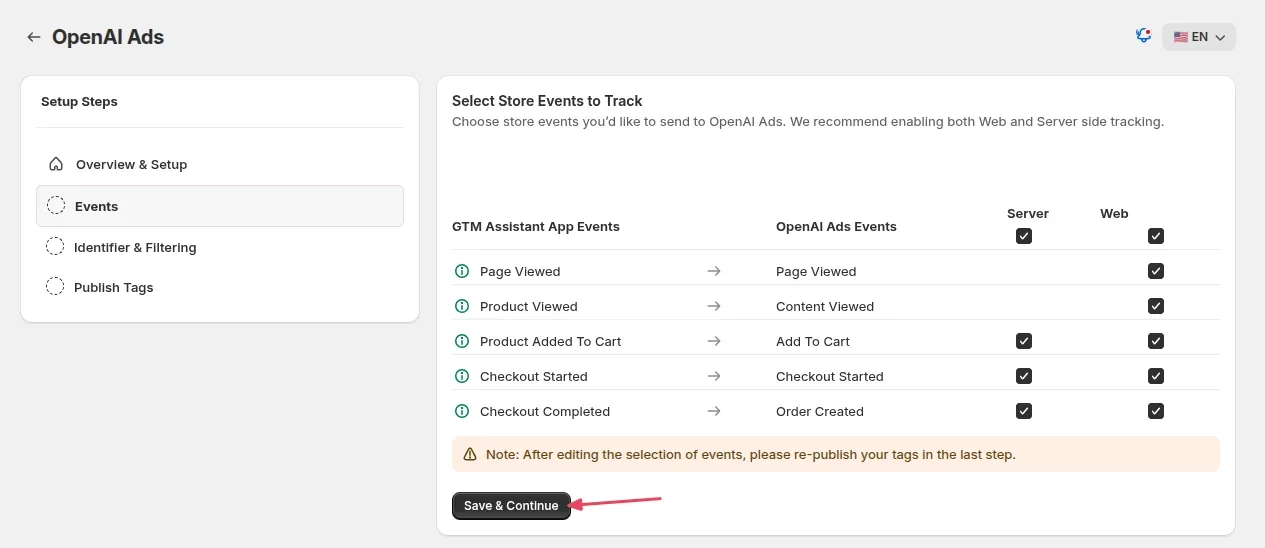
- Select the store events to send to OpenAI Ads: Page Viewed, Product Viewed, Product Added To Cart, Checkout Started and Checkout Completed.
- In OpenAI Ads, Product Viewed shows as Content Viewed and Checkout Completed shows as Order Created.
- Click Save & Continue.
- If you change your events later, publish your tags again in the last step.
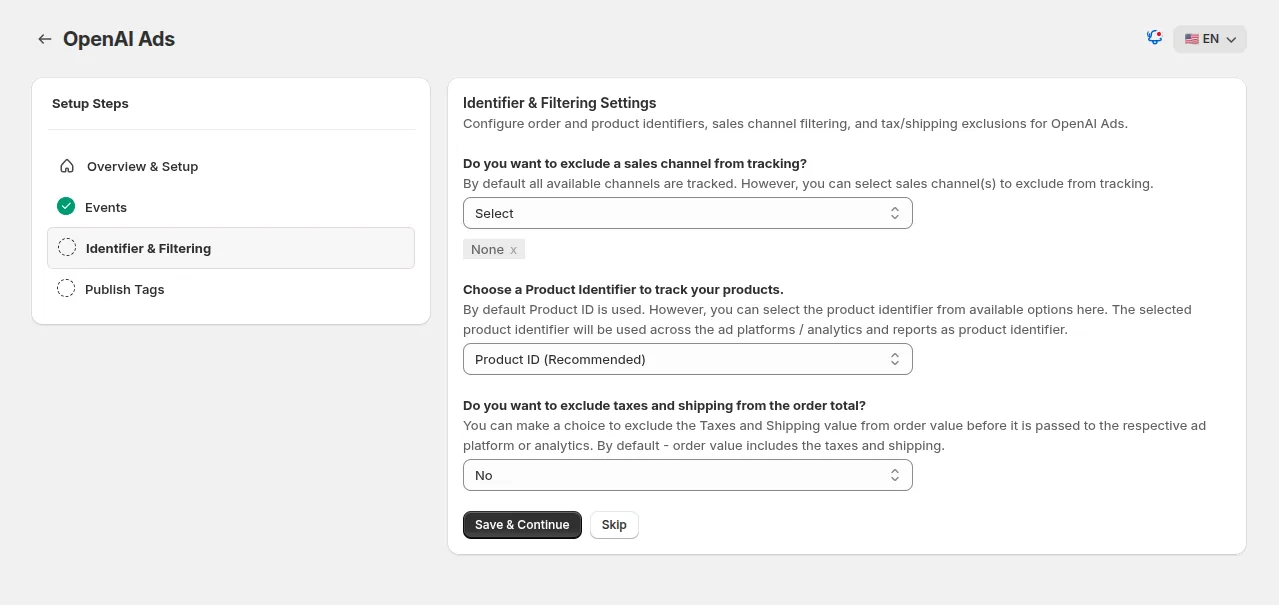
Identifier and filtering (optional)
- Choose any sales channel you don't want to track. By default, every channel is tracked.
- Choose the product identifier. Product ID is recommended.
- Choose whether to exclude taxes and shipping from the order value. By default, they're included.
- Click Save & Continue, or click Skip to keep the defaults.
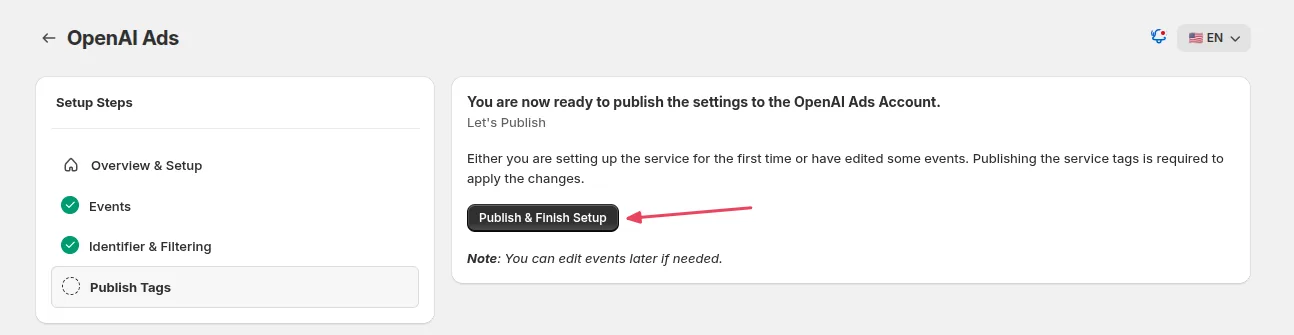
Publish
- Click Publish & Finish Setup.
- You can come back and edit your events later.
If the connection doesn't work
- You can only see a masked key: OpenAI shows the full key only when you create it. Create a new key and copy it before you close the window.
- You created a conversion key instead: go back to Settings → General → API Keys in Ads Manager and click + Create New Key.
- The connection fails: check that you pasted the complete key, that it's from the right OpenAI Ads account, and that it hasn't been deleted in Ads Manager.
Treat the API key like a password. Don't share it publicly, put it in screenshots or paste it into support messages. If you lose the full key, create a new one.
Visual walkthrough
Use the screenshots below alongside the steps above to match each instruction with the correct screen in the platform.
Select a screenshot to open it full size.