New: OpenAI (ChatGPT) Ads is now supported, server-side.

Connect Google Tag Manager to Webgarh GTM Assistant

Connect Google Tag Manager first. GTM acts as the container for client-side tags that Webgarh GTM Assistant publishes for GA4 and other platforms.

Setup steps

Connect your GTM account

  1. In the Webgarh GTM Assistant dashboard, click Connect on the Google Tag Manager platform card.
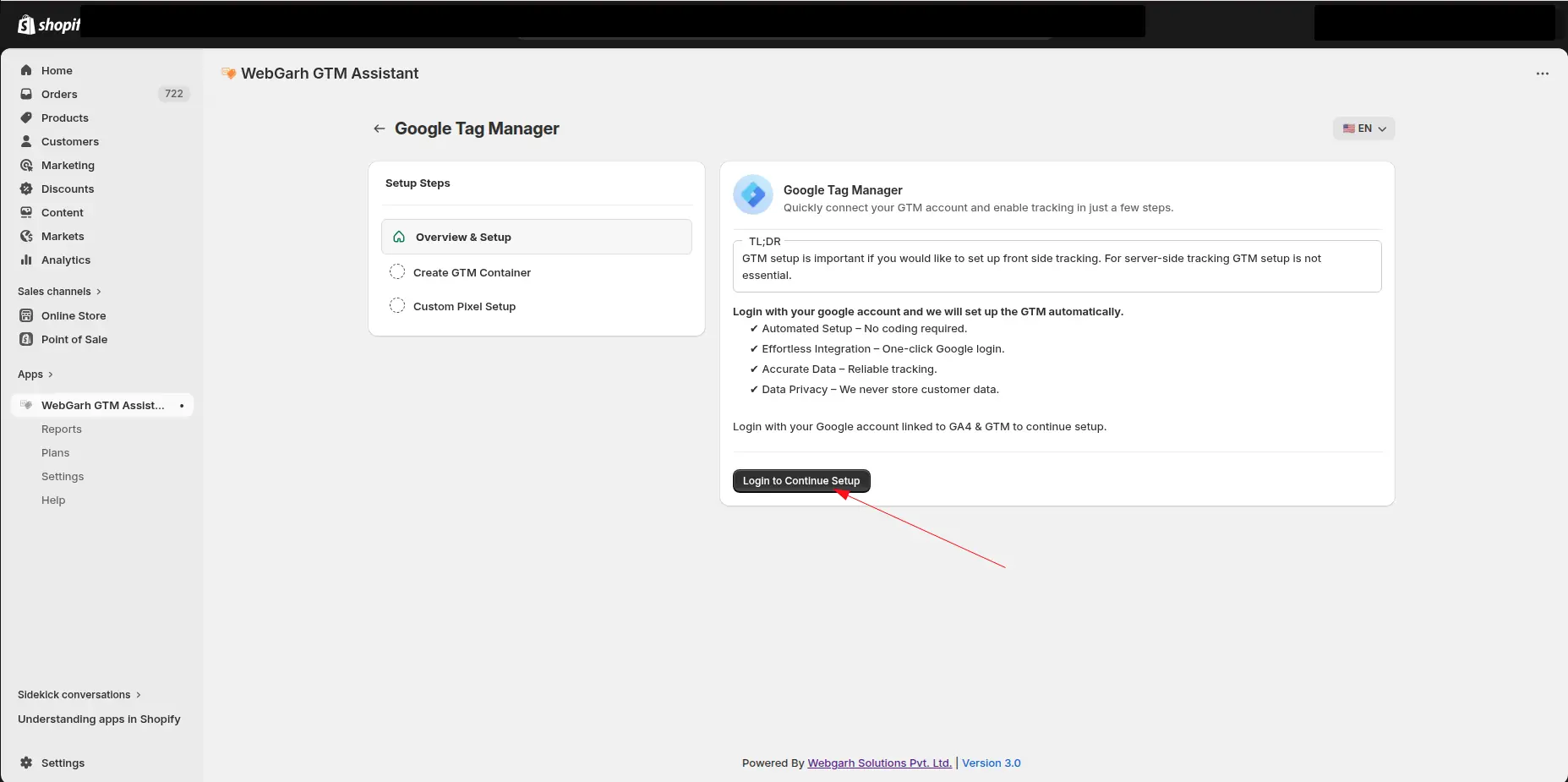
  2. Click Login and sign in with the Google account that has access to your GTM account.
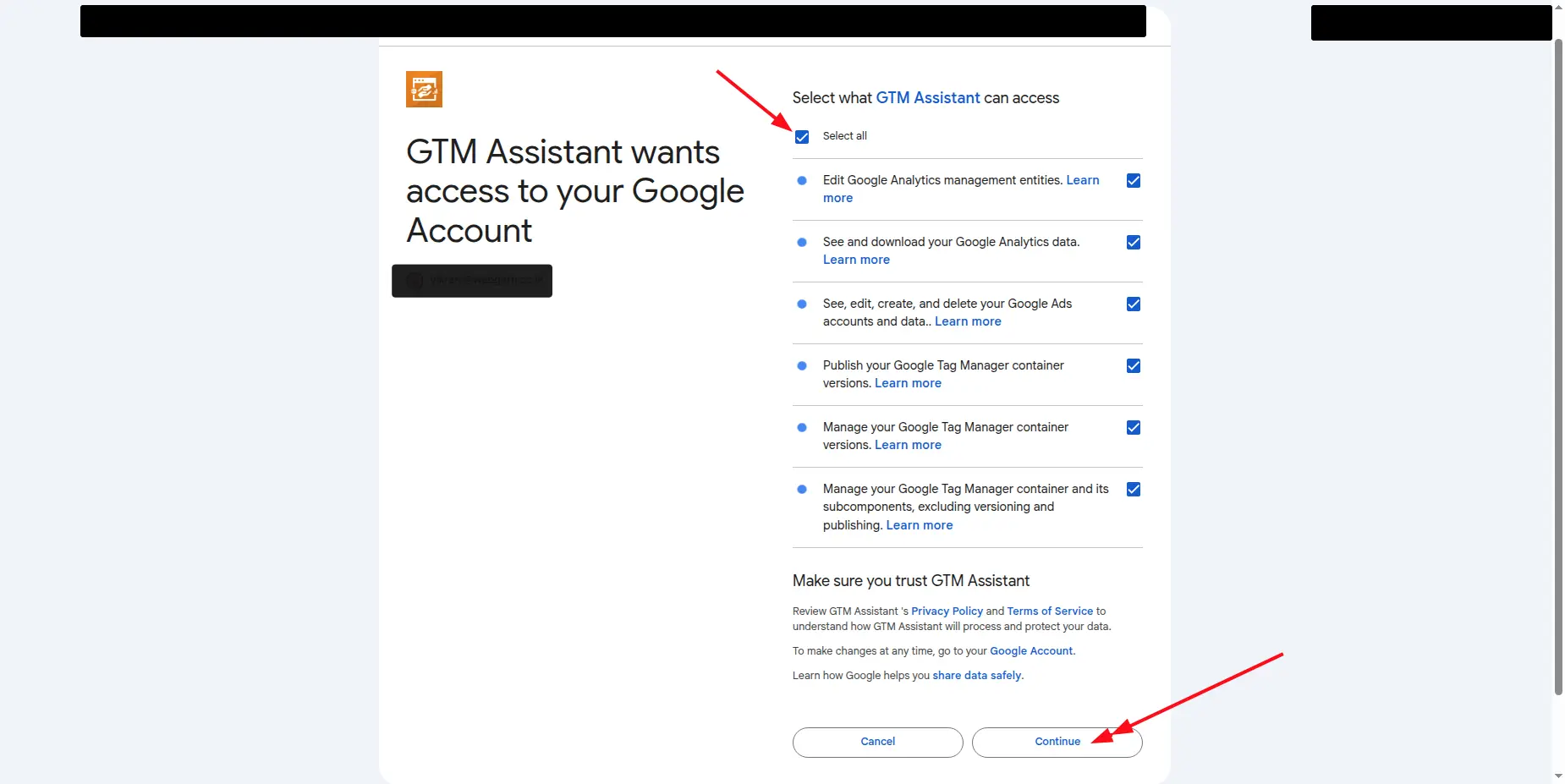
  3. Select all requested permissions during the Google login flow.
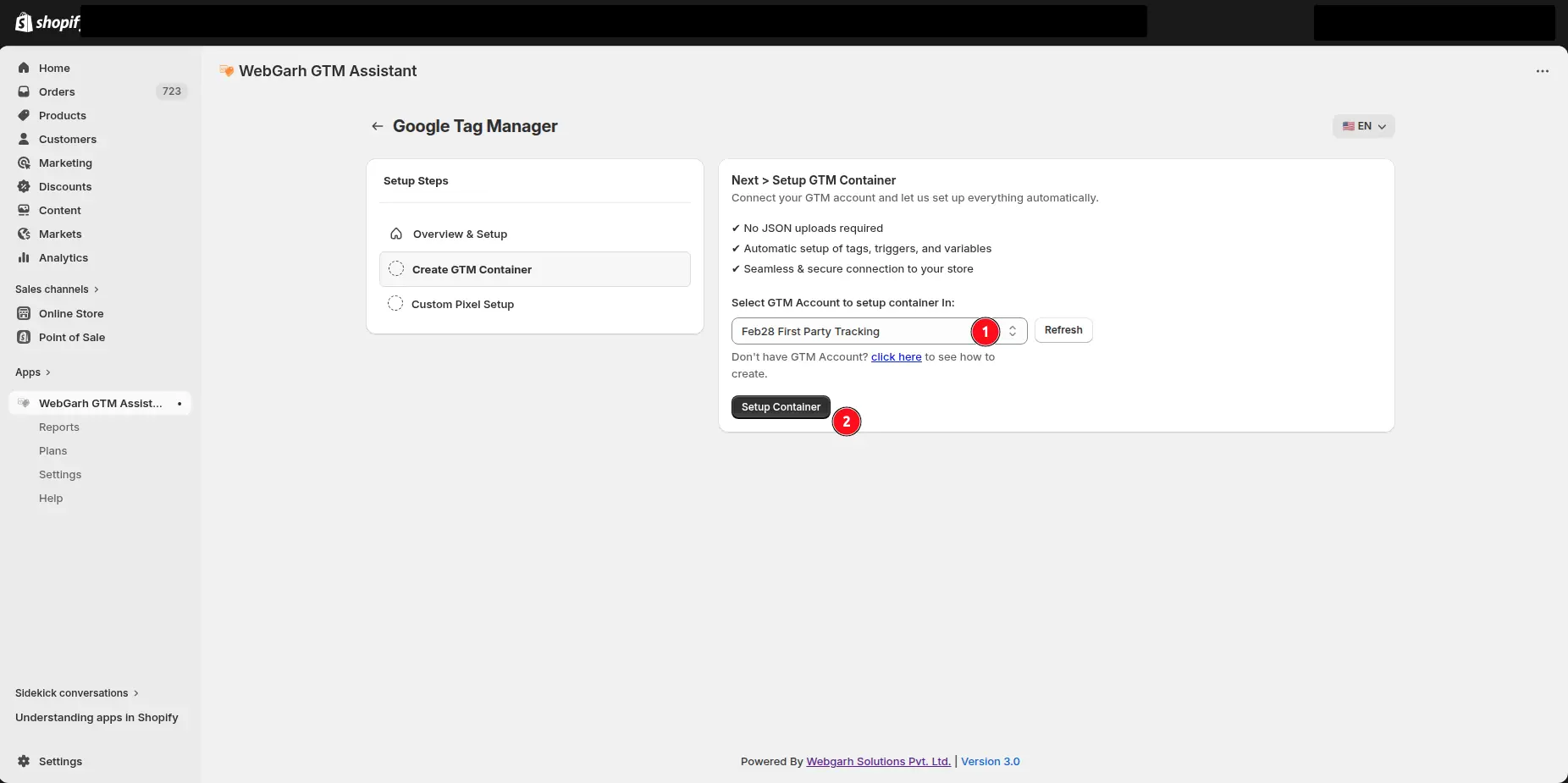
  4. Choose your GTM account and click Setup container.

Create the Shopify custom pixel

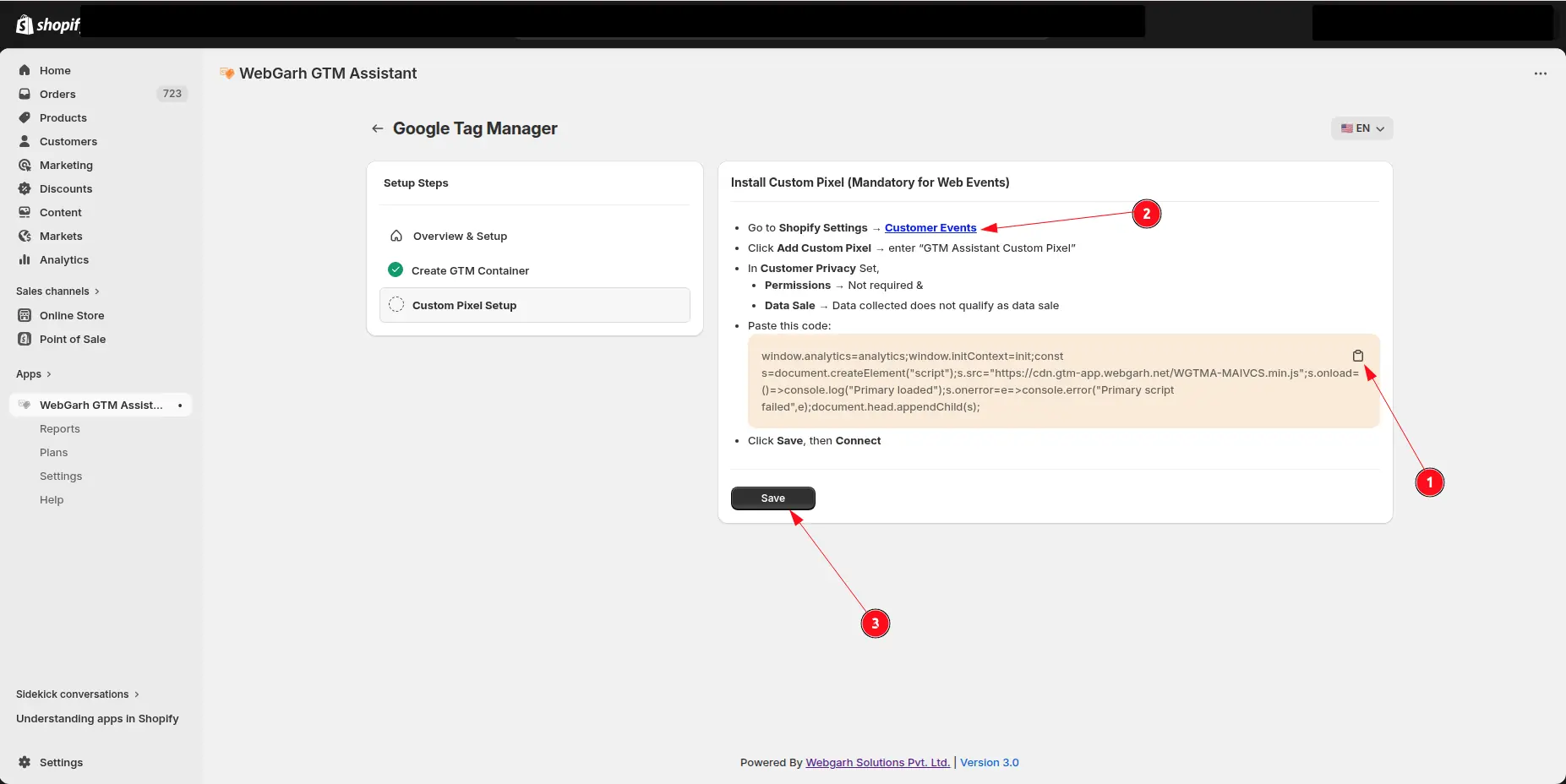
  1. Copy the pixel code shown by Webgarh GTM Assistant.
  2. Open Shopify Customer events from the link in the app.
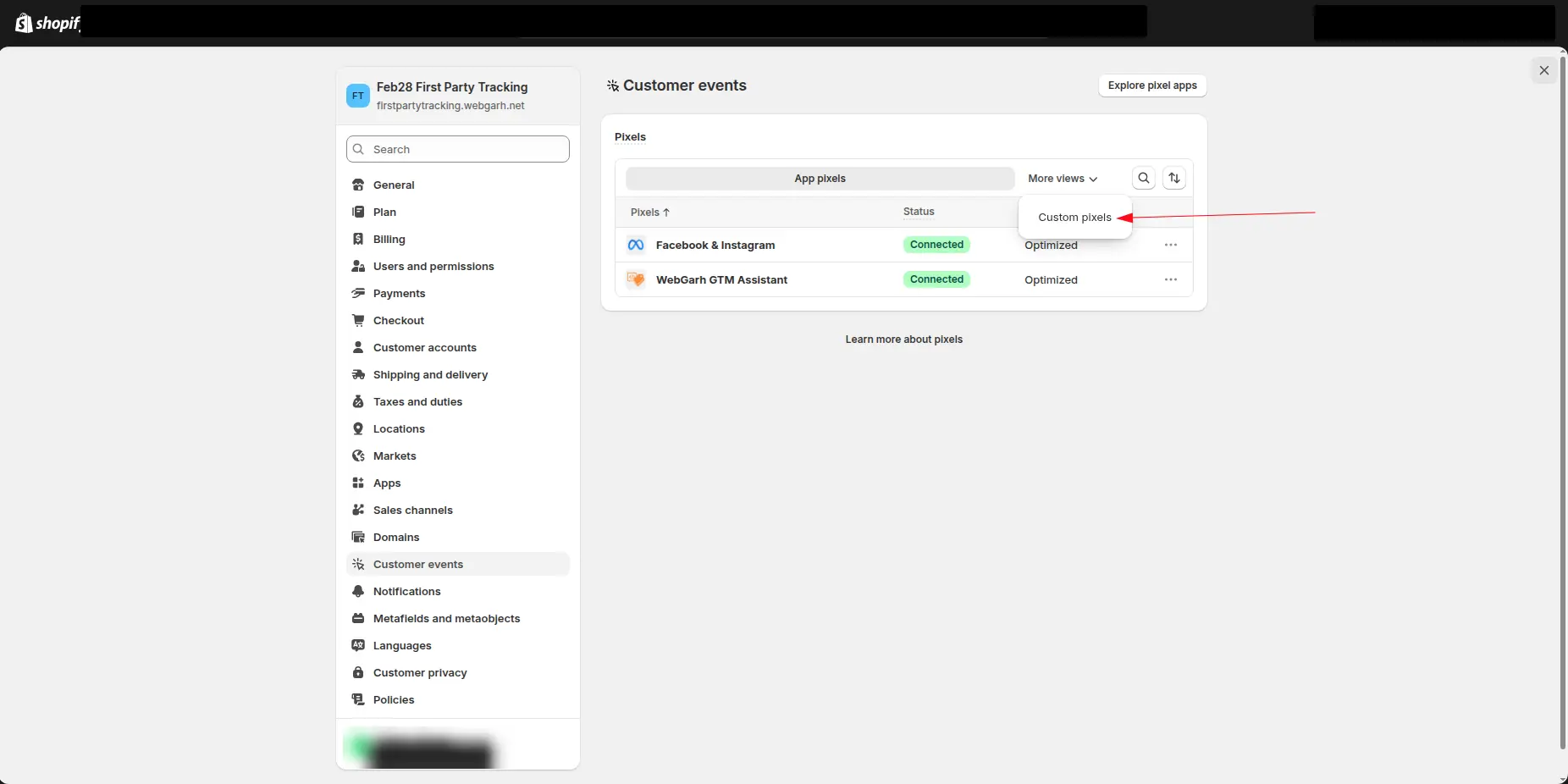
  3. Choose Custom Pixel from More views.
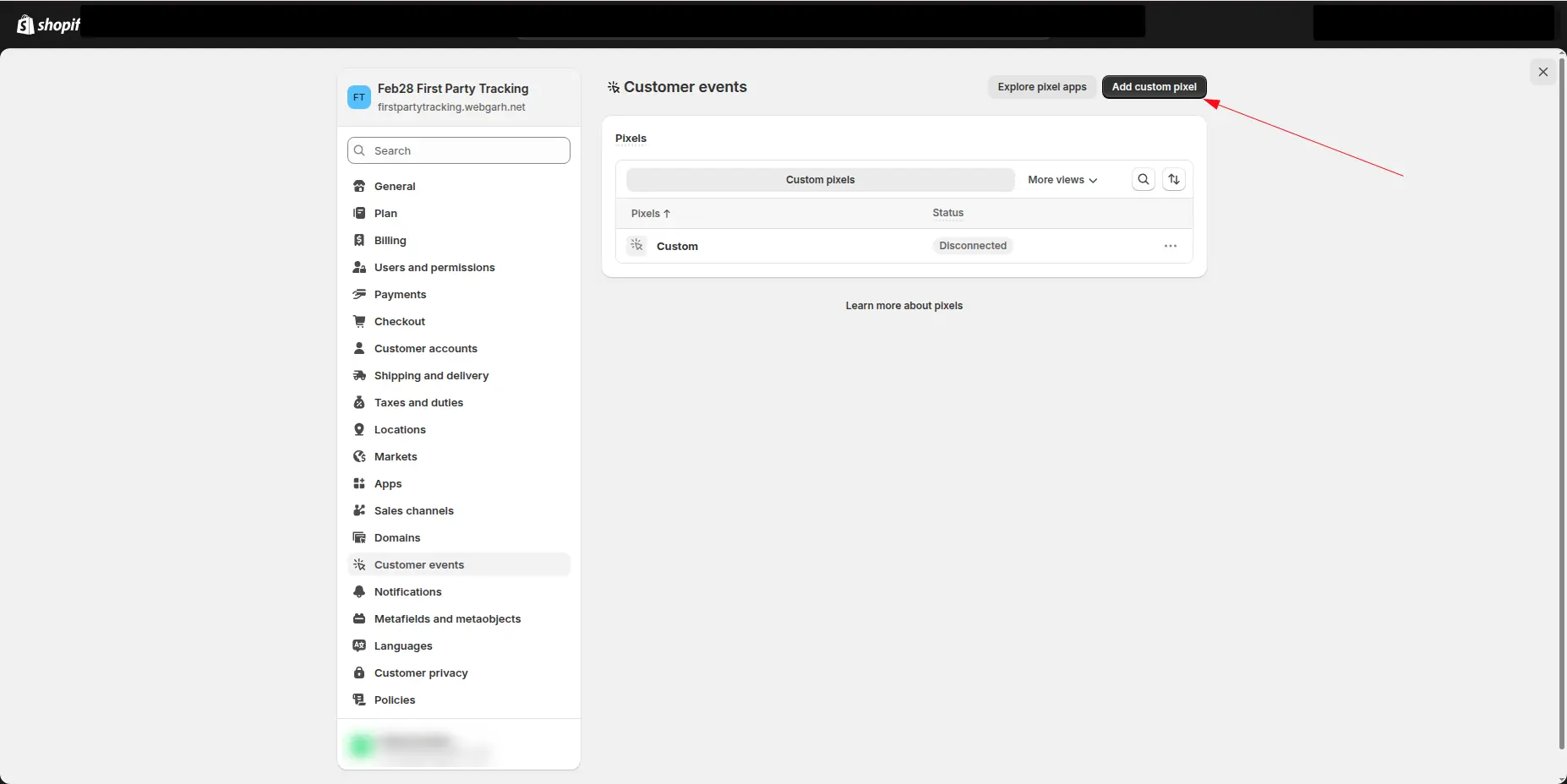
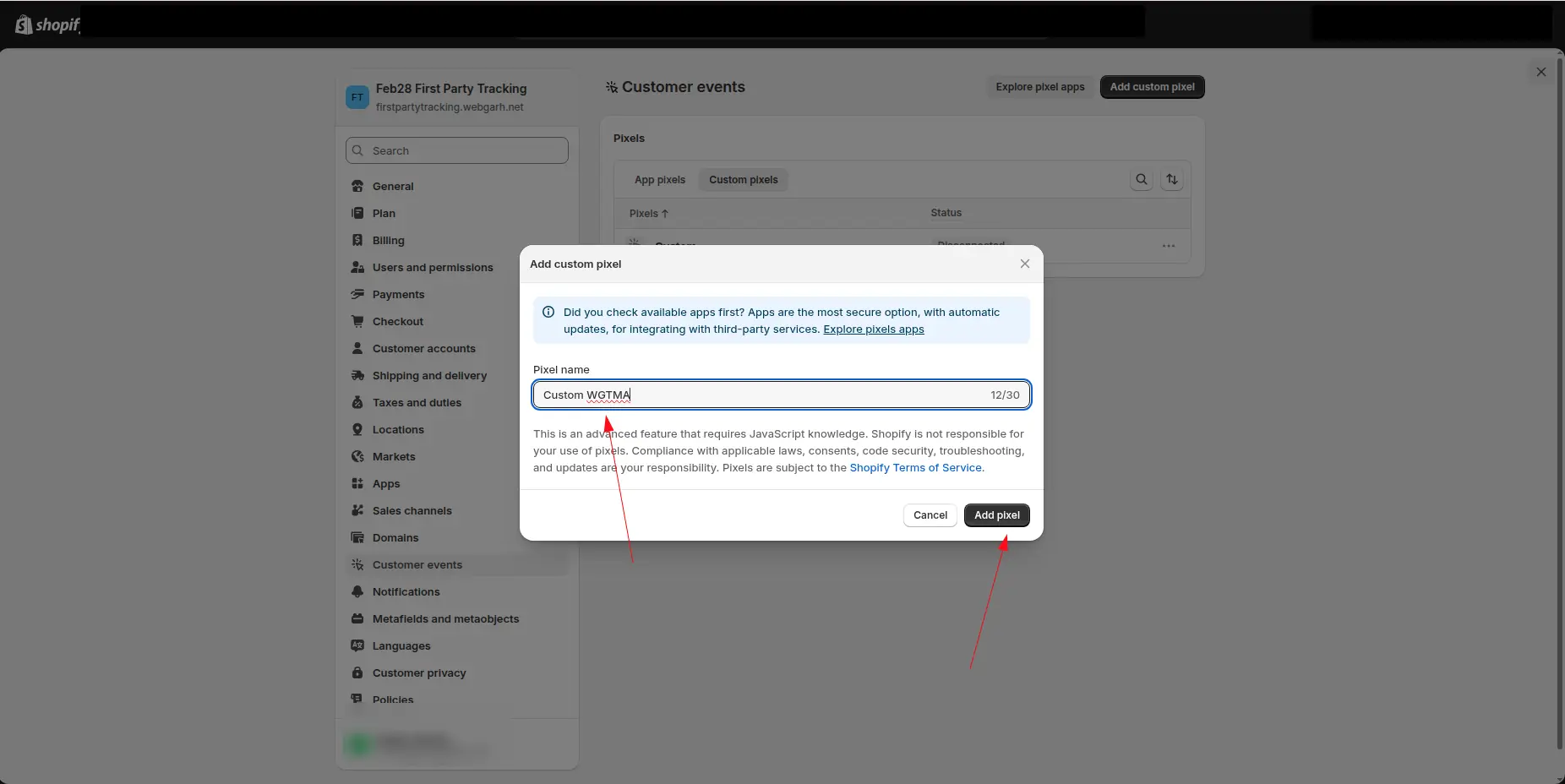
  4. Click Add custom pixel, enter a name, and add the pixel.
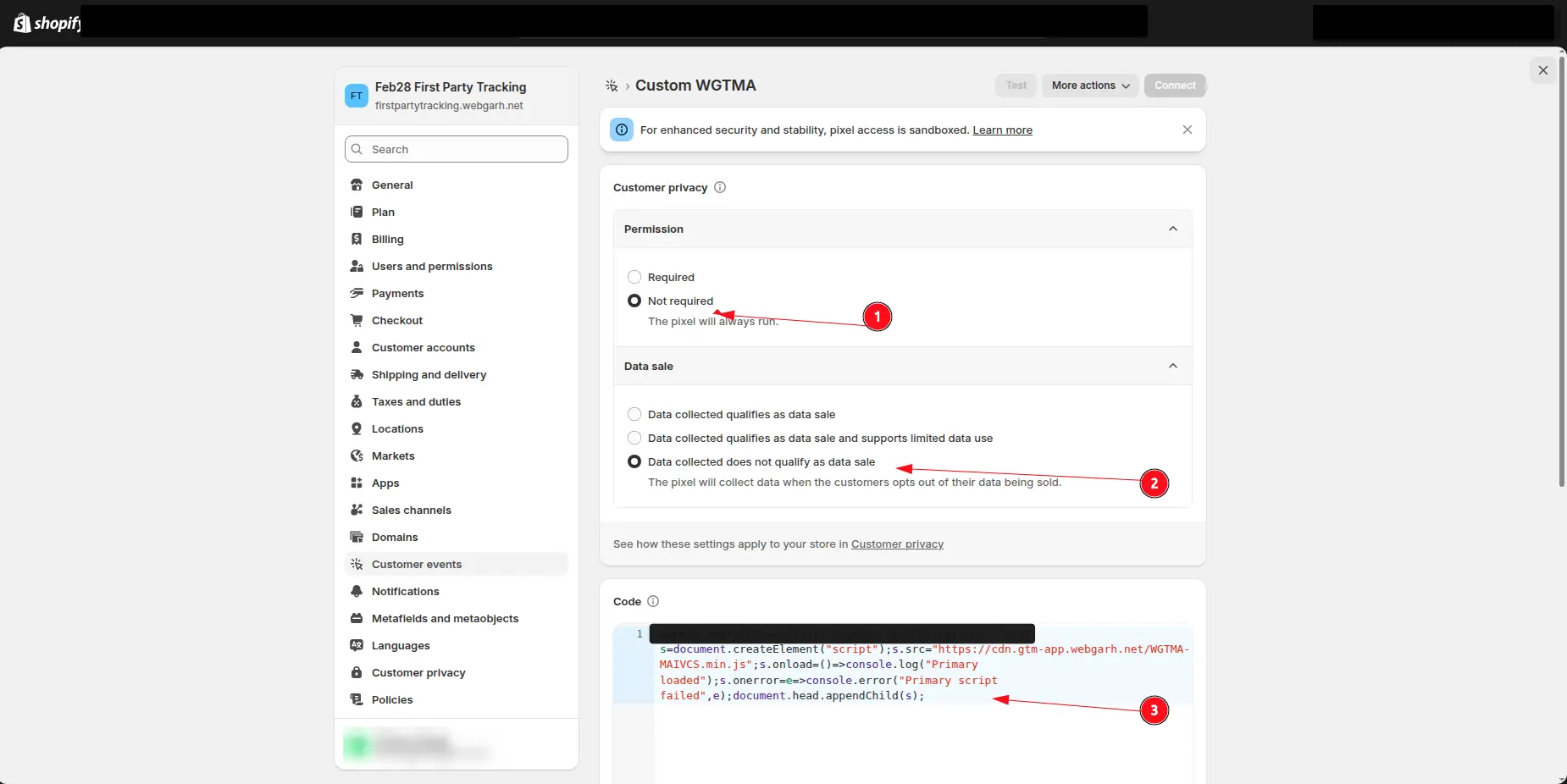
  5. Set Permission to Not required and Data sale to Data collected does not qualify as data sale.
  6. Paste the copied code into the code section and save it.

Connect and save

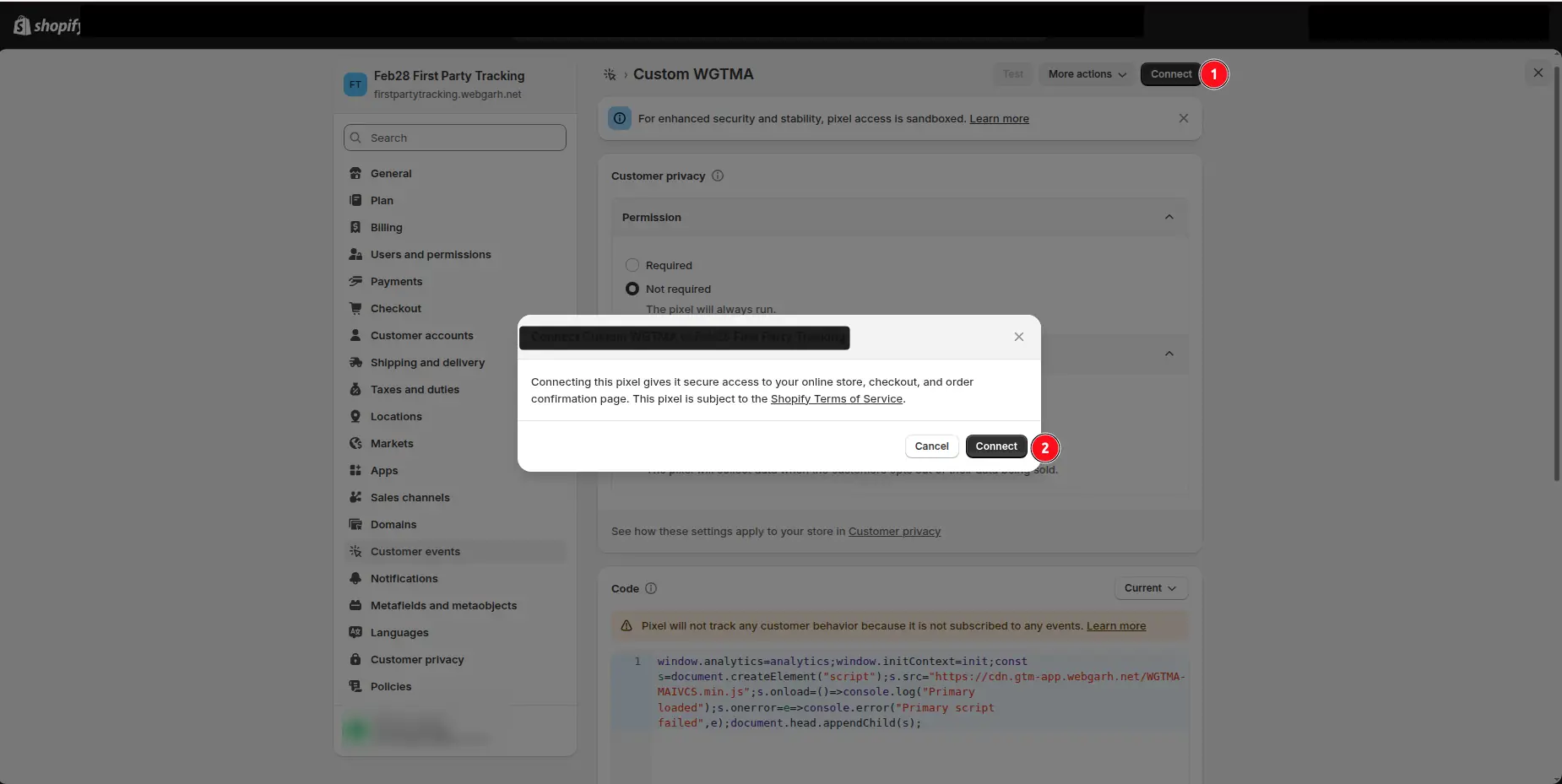
  1. After saving the pixel, click Connect in Shopify.
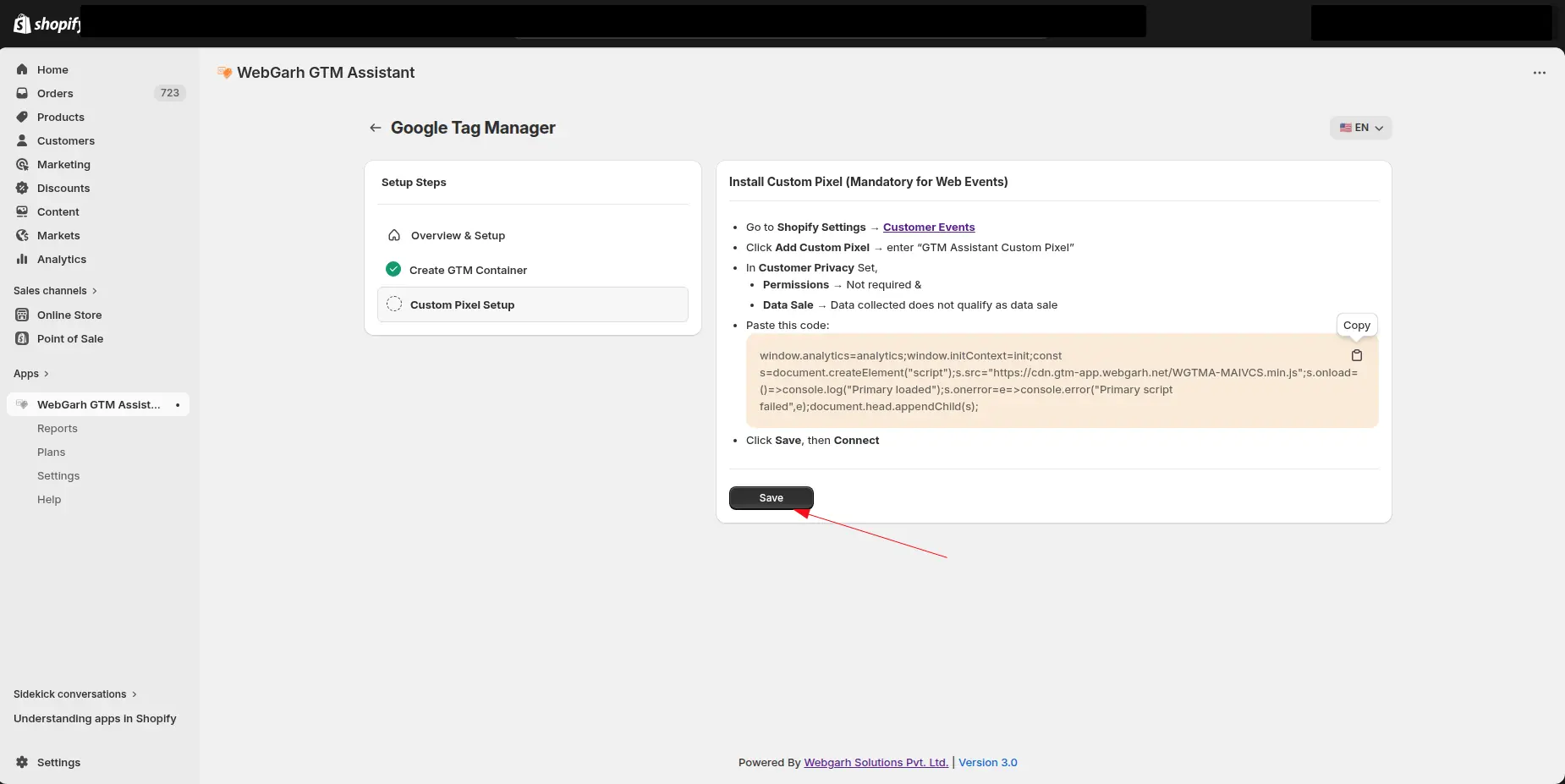
  2. Return to the Webgarh GTM Assistant tab and save GTM.

The custom pixel is mandatory. Without it, client-side tracking will not be accurate.

Visual walkthrough

Use the screenshots below alongside the steps above to match each instruction with the correct screen in the platform.

Select a screenshot to open it full size.
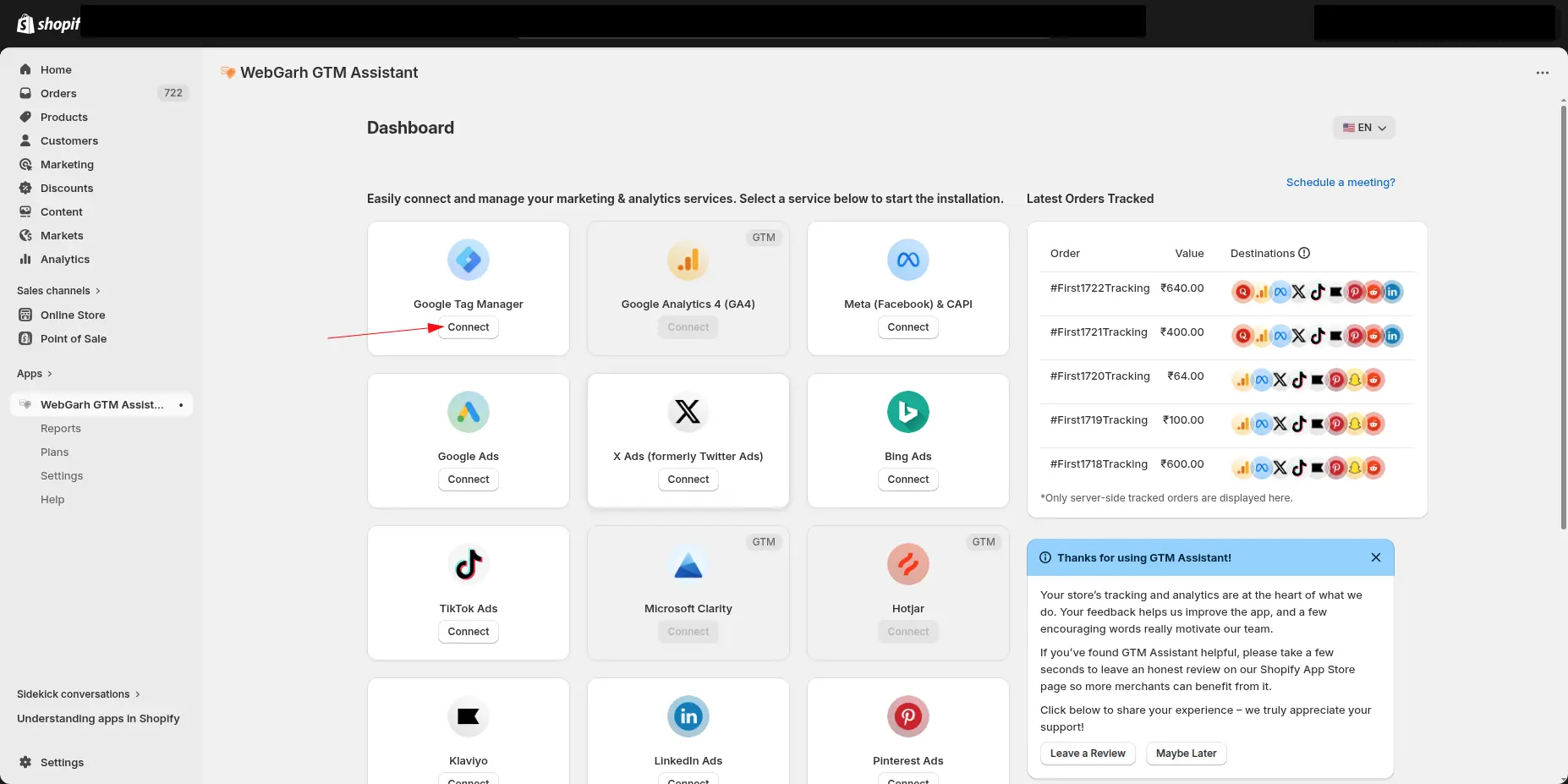
The GTM Assistant dashboard showing a card for each platform, with an arrow pointing to the Connect button on the Google Tag Manager card.
Open the Google Tag Manager connection screen in Webgarh GTM Assistant.
The Google Tag Manager screen in GTM Assistant, with an arrow pointing to the Login to Continue Setup button.
Sign in with the Google account that has access to your GTM container.
The Google sign-in screen asking what GTM Assistant can access, with arrows pointing to the Select all tick box and the Continue button.
Grant the requested Google Tag Manager permissions.
The Setup GTM Container step in GTM Assistant: the GTM account is chosen in the drop-down (1) and the Setup Container button is marked (2).
Select the GTM account and container for this Shopify store.
The Install Custom Pixel step in GTM Assistant: the copy button on the pixel code (1), the Customer Events link (2) and the Save button (3) are marked.
Copy the custom pixel code generated by Webgarh GTM Assistant.
Shopify's Customer events settings, with the More views menu open and an arrow pointing to Custom pixels.
Open Customer events in Shopify to add the custom pixel.
Shopify's Customer events settings on the Custom pixels view, with an arrow pointing to the Add custom pixel button.
Create a new custom pixel for Webgarh GTM Assistant.
Shopify's Add custom pixel window, with arrows pointing to the Pixel name field and the Add pixel button.
Set the custom pixel permissions required for storefront tracking.
The custom pixel's settings in Shopify: Permission set to Not required (1), Data sale set to Data collected does not qualify as data sale (2), and the pasted code in the Code box (3).
Paste the Webgarh GTM Assistant pixel code into Shopify.
The custom pixel in Shopify with the Connect button at the top (1) and the confirmation window's Connect button (2) marked.
Connect the saved Shopify custom pixel back to Webgarh GTM Assistant.
The Install Custom Pixel step in GTM Assistant, with an arrow pointing to the Save button.
Confirm Google Tag Manager is connected and saved.