New: OpenAI (ChatGPT) Ads is now supported, server-side.

Connect Meta Ads to Webgarh GTM Assistant

Webgarh GTM Assistant uses Meta Conversion API to reduce signal loss from iOS privacy changes and ad blockers.

Setup steps

Find your Meta credentials

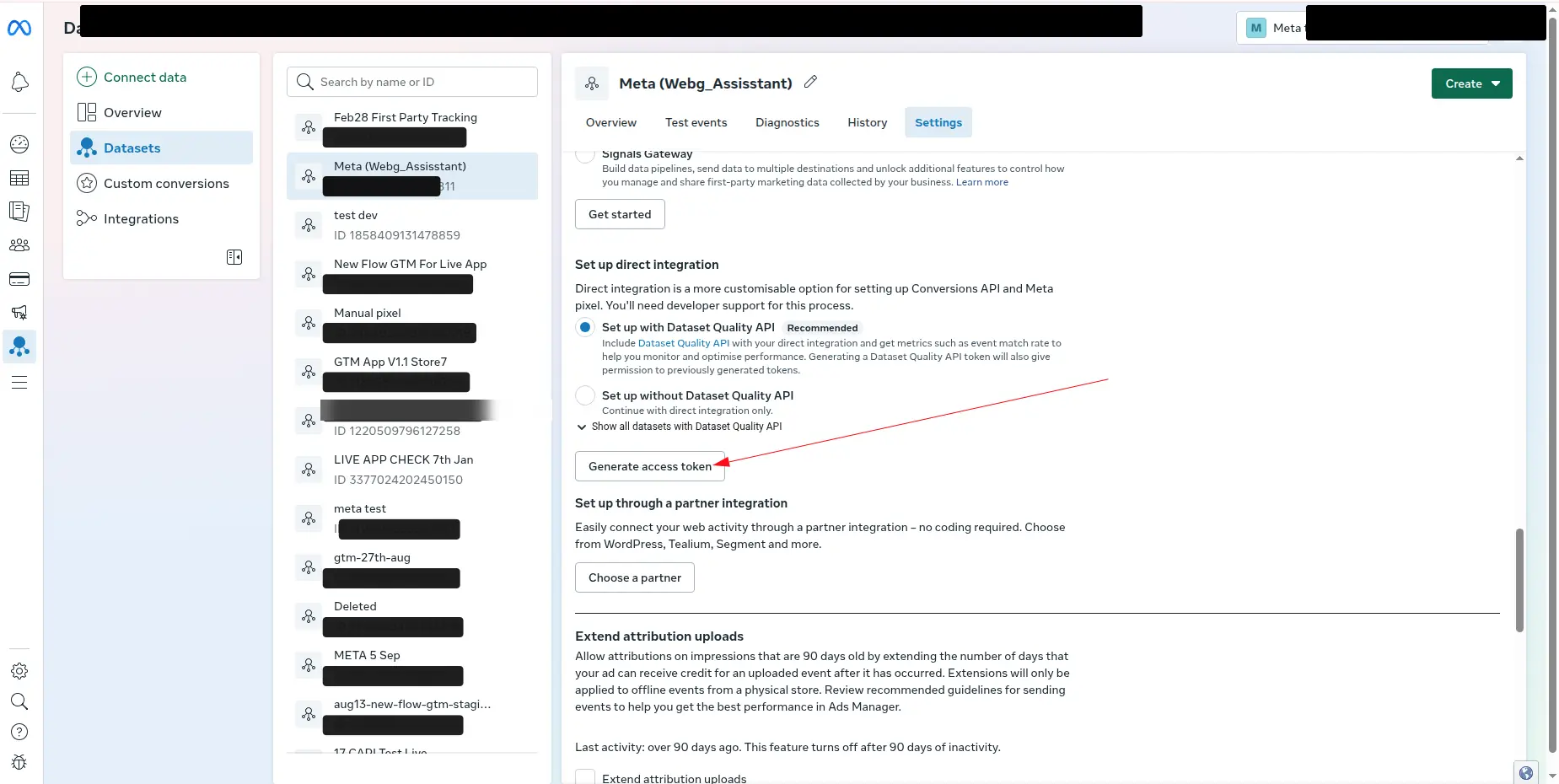
  1. Open Meta Events Manager.
  2. Select your Dataset or Pixel.
  3. Go to Settings.
  4. Copy the Dataset ID.
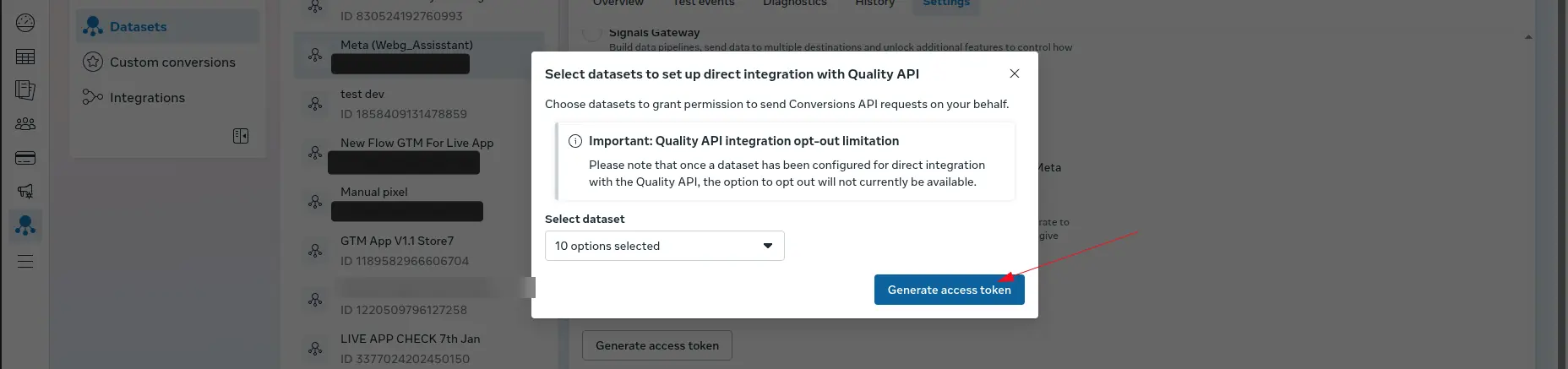
  5. Scroll to Set up direct integration and generate an access token.
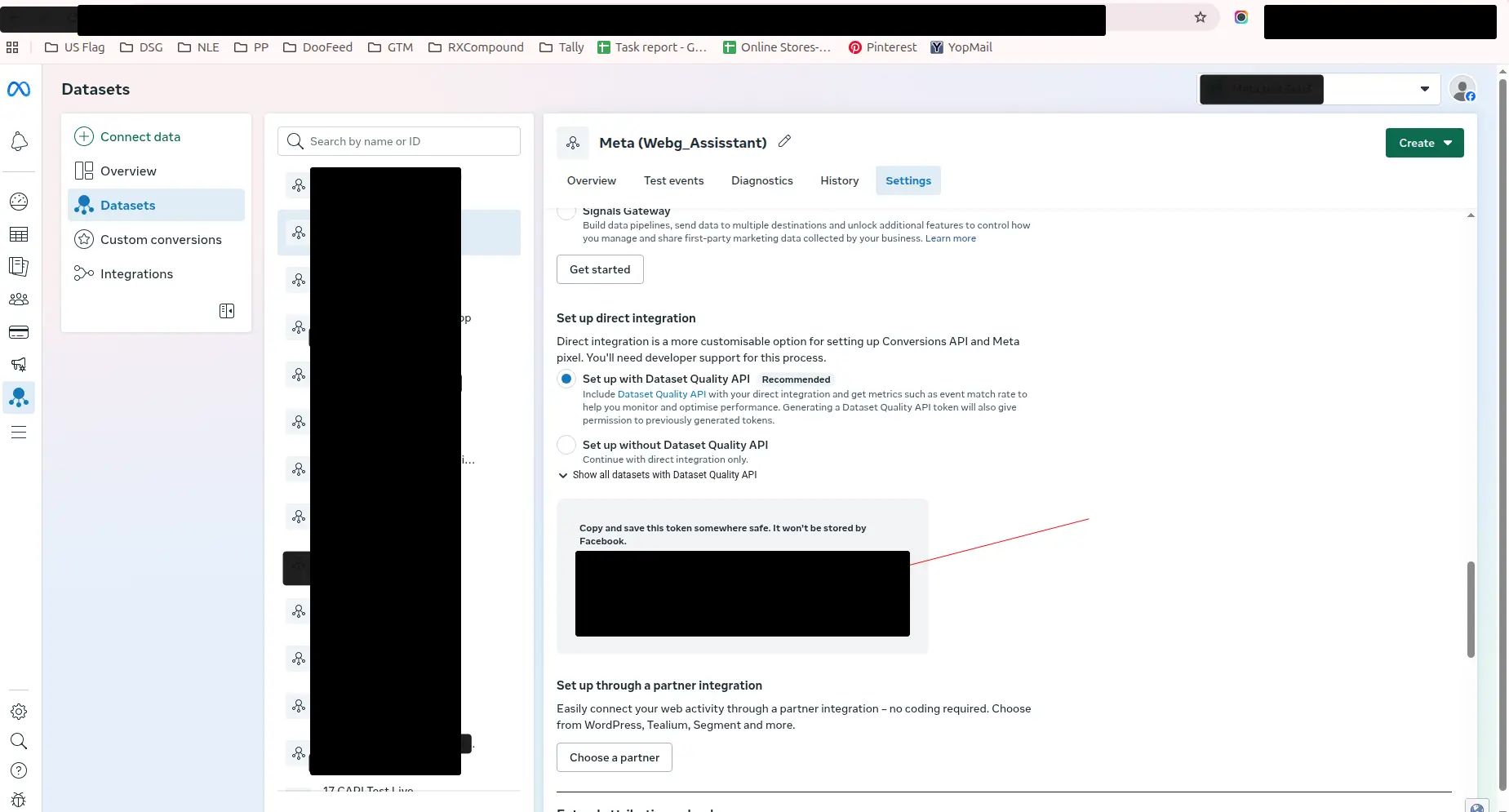
  6. Copy the Conversion API token.

Connect in Webgarh GTM Assistant

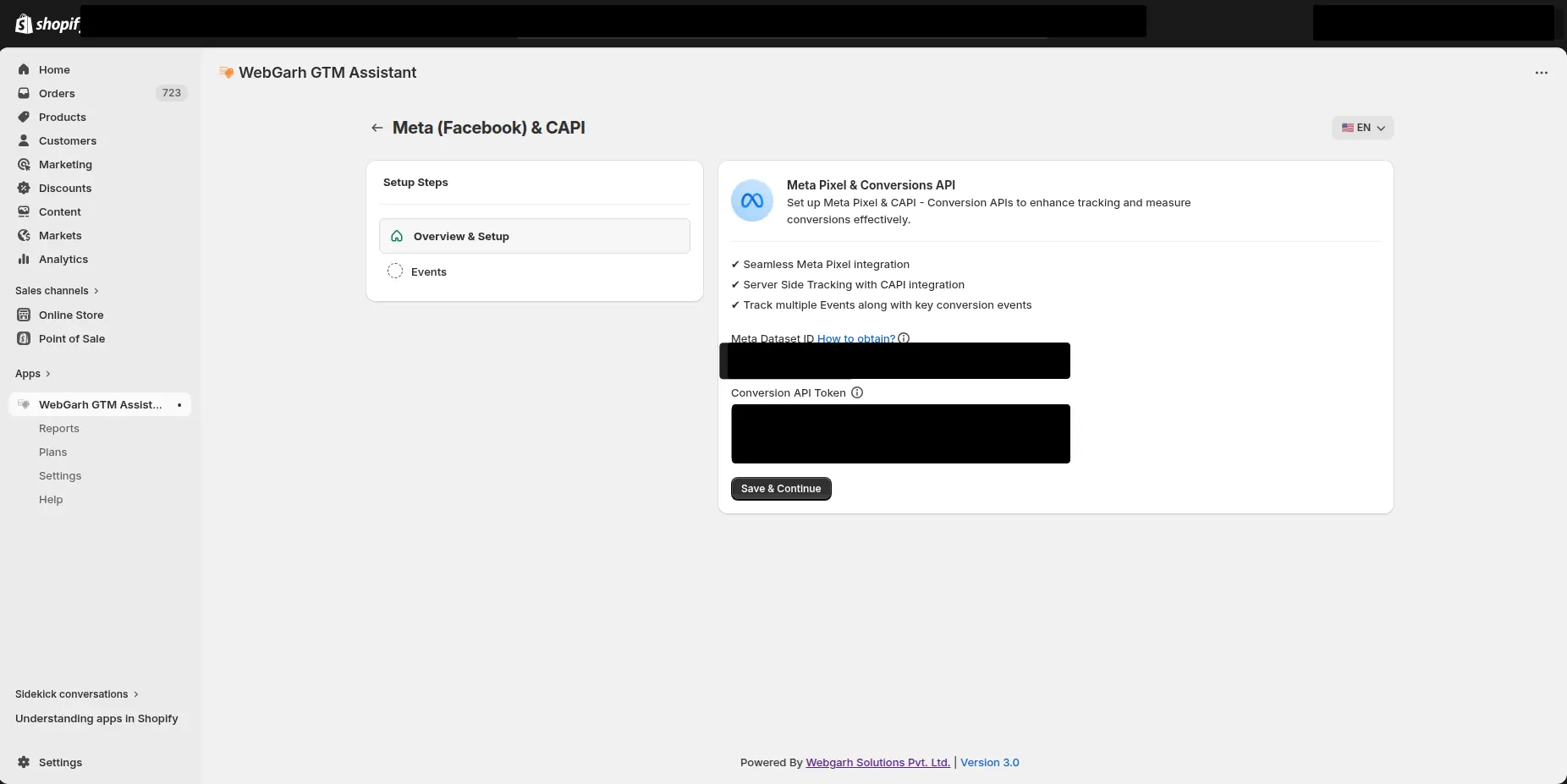
  1. In Webgarh GTM Assistant, click Connect for Meta.
  2. Paste your Dataset ID and Conversion API token.
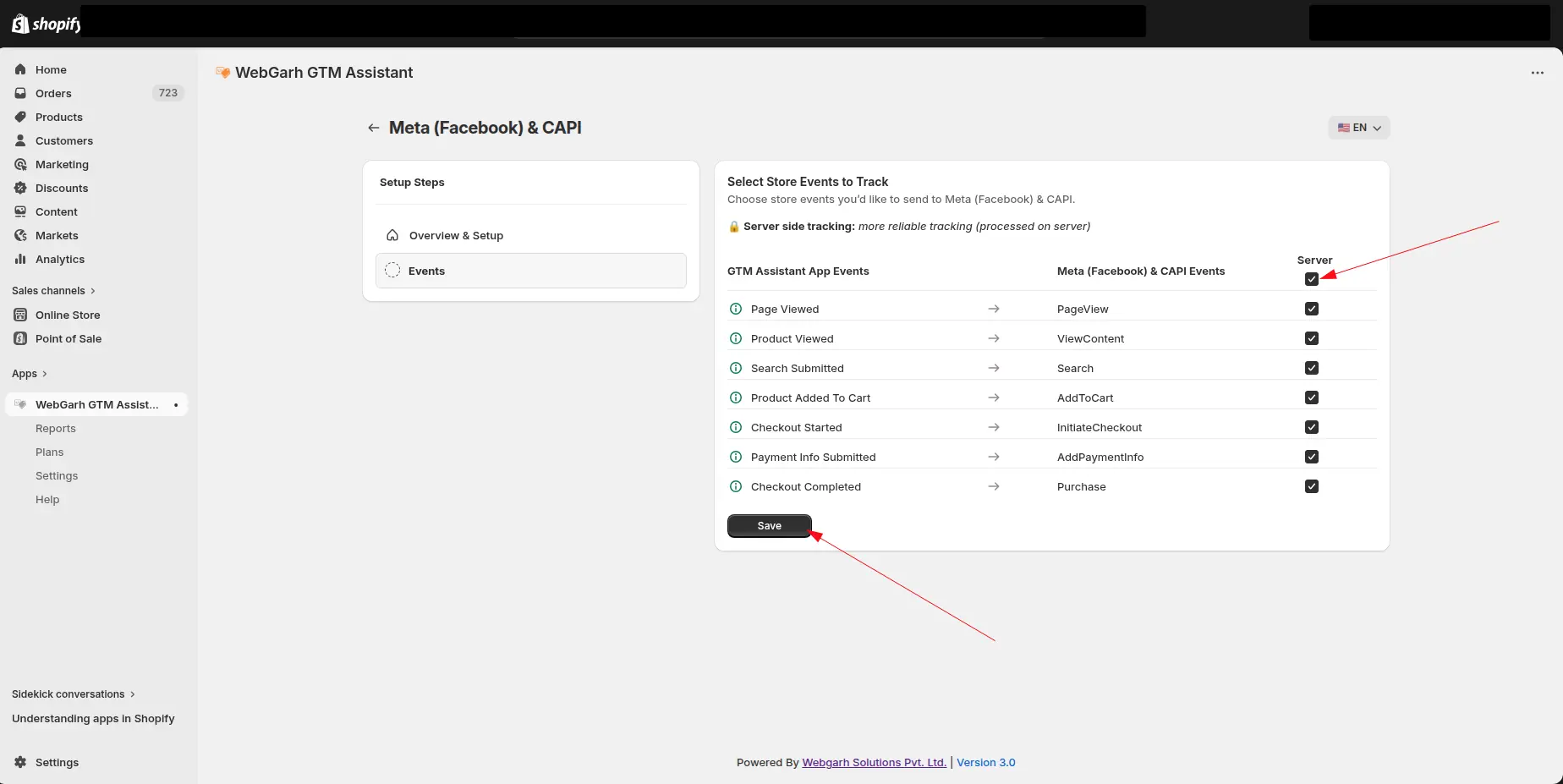
  3. Select the events you want to track, such as Add to Cart, Initiate Checkout, and Purchase.
  4. Click Save.

New datasets may take around 12 hours to show activity. Existing datasets usually sync immediately, though Meta reporting can still lag.

Visual walkthrough

Use the screenshots below alongside the steps above to match each instruction with the correct screen in the platform.

Select a screenshot to open it full size.
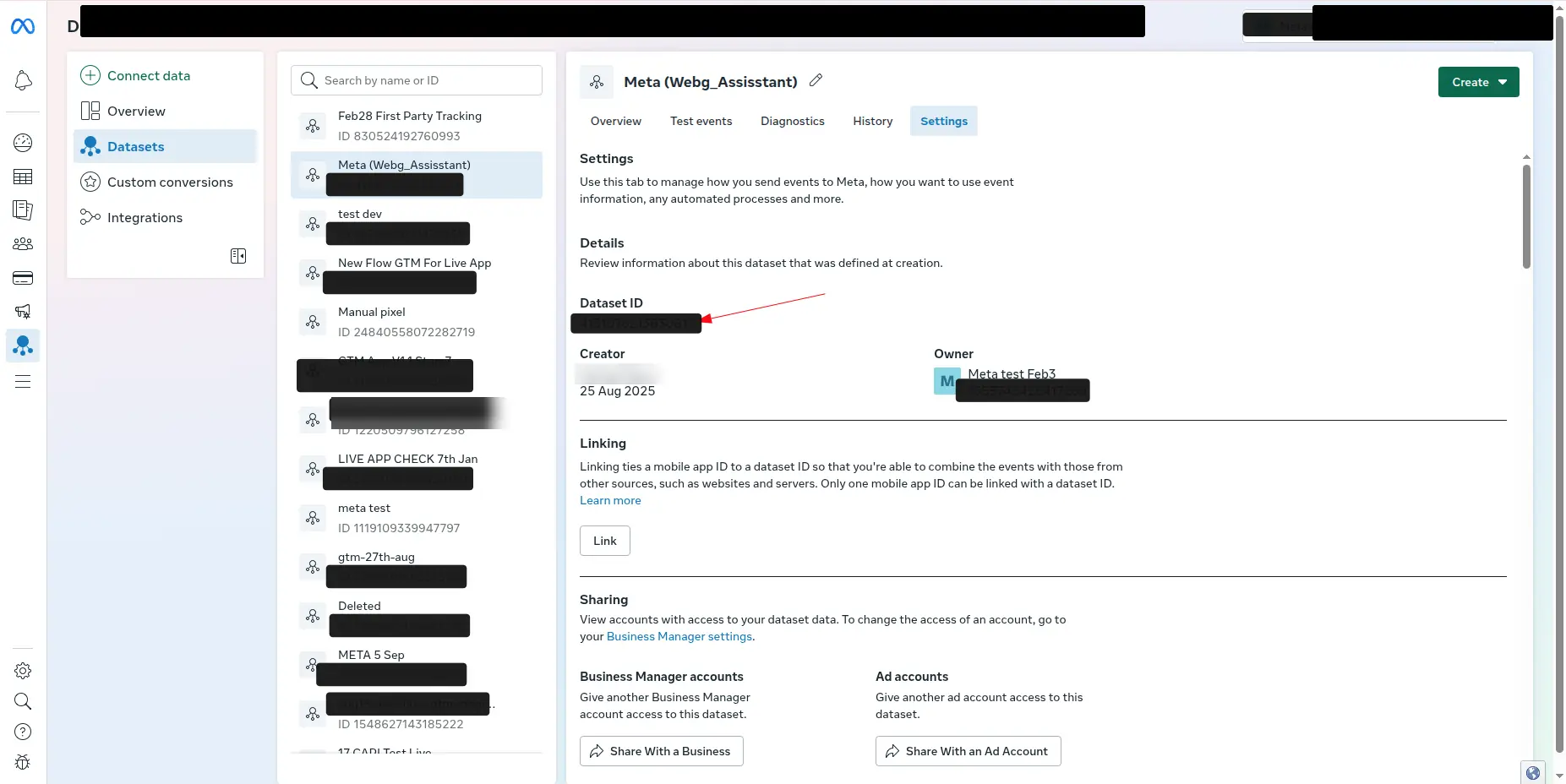
Meta Events Manager with a dataset selected and its Settings tab open, with an arrow pointing to the Dataset ID.
Open Meta Events Manager and select the dataset for your store.
The dataset's Settings tab in Meta Events Manager, with an arrow pointing to the Generate access token button under Set up direct integration.
Find the Meta Dataset ID in dataset settings.
Meta's Select datasets to set up direct integration with Quality API window, with an arrow pointing to the Generate access token button.
Generate the Conversion API access token in Meta.
The dataset's Settings tab in Meta Events Manager showing the generated token under "Copy and save this token somewhere safe", with an arrow pointing to it.
Copy the Conversion API token for Webgarh GTM Assistant.
The Meta (Facebook) & CAPI screen in GTM Assistant, with the Meta Dataset ID and Conversion API Token fields and the Save & Continue button.
Paste the Dataset ID and token into Webgarh GTM Assistant.
The Select Store Events to Track step for Meta, matching store events such as Page Viewed and Checkout Completed to Meta events, with arrows pointing to the Server tick box and the Save button.
Select Meta events and save the connection.