New: OpenAI (ChatGPT) Ads is now supported, server-side.

Connect GA4 to Webgarh GTM Assistant

Use this guide to connect Google Analytics 4 after Google Tag Manager has been connected in Webgarh GTM Assistant.

Setup steps

Select your GA4 property

  1. In the Webgarh GTM Assistant dashboard, open the GA4 section.
  2. Click Start setup.
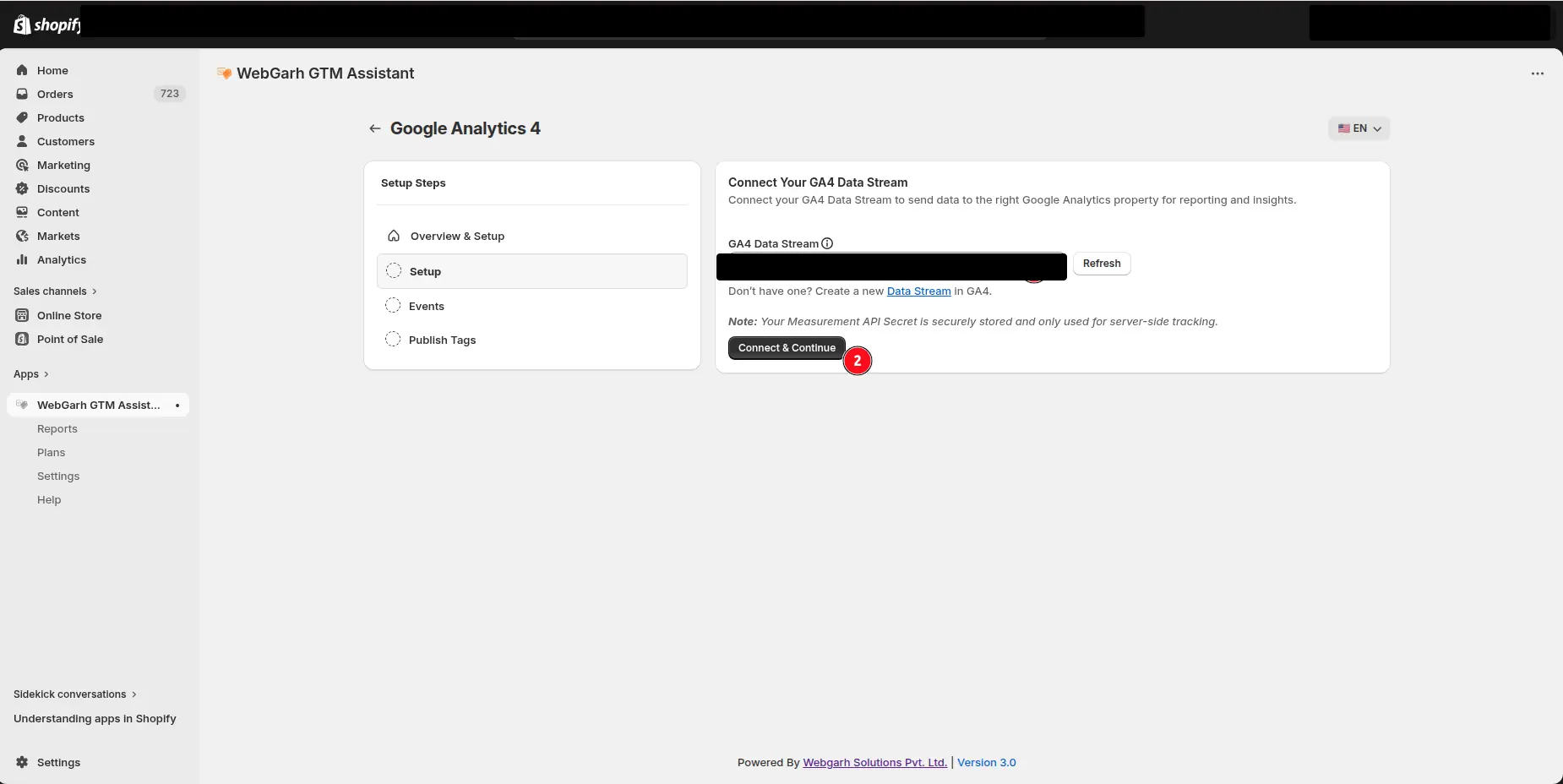
  3. Choose the GA4 property you want to connect.
  4. Click Connect & Continue.

Choose events

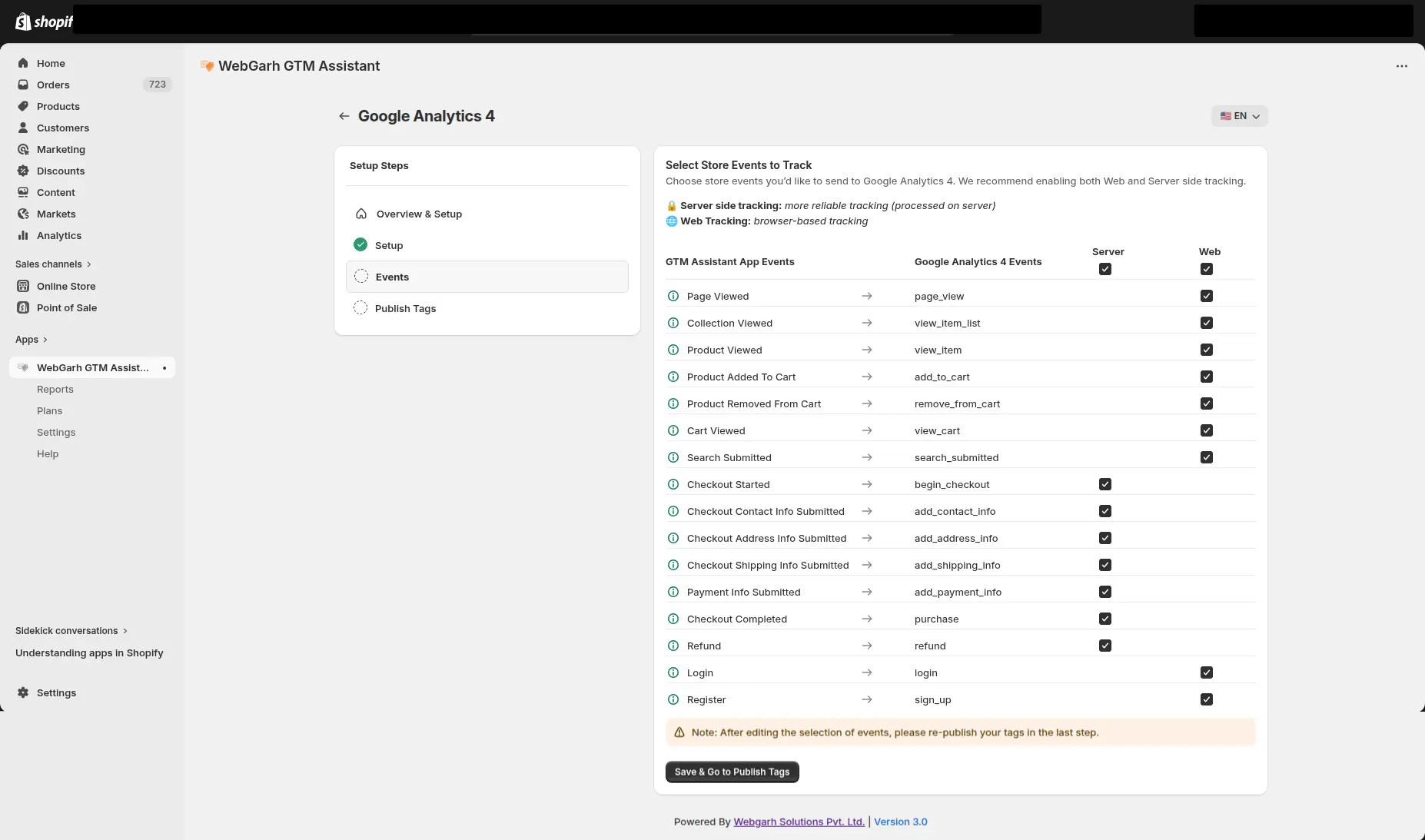
  1. Select the Shopify events you want to track in GA4.
  2. For best reporting, choose all recommended events such as View Item, Add to Cart, Begin Checkout, and Purchase.

Publish the setup

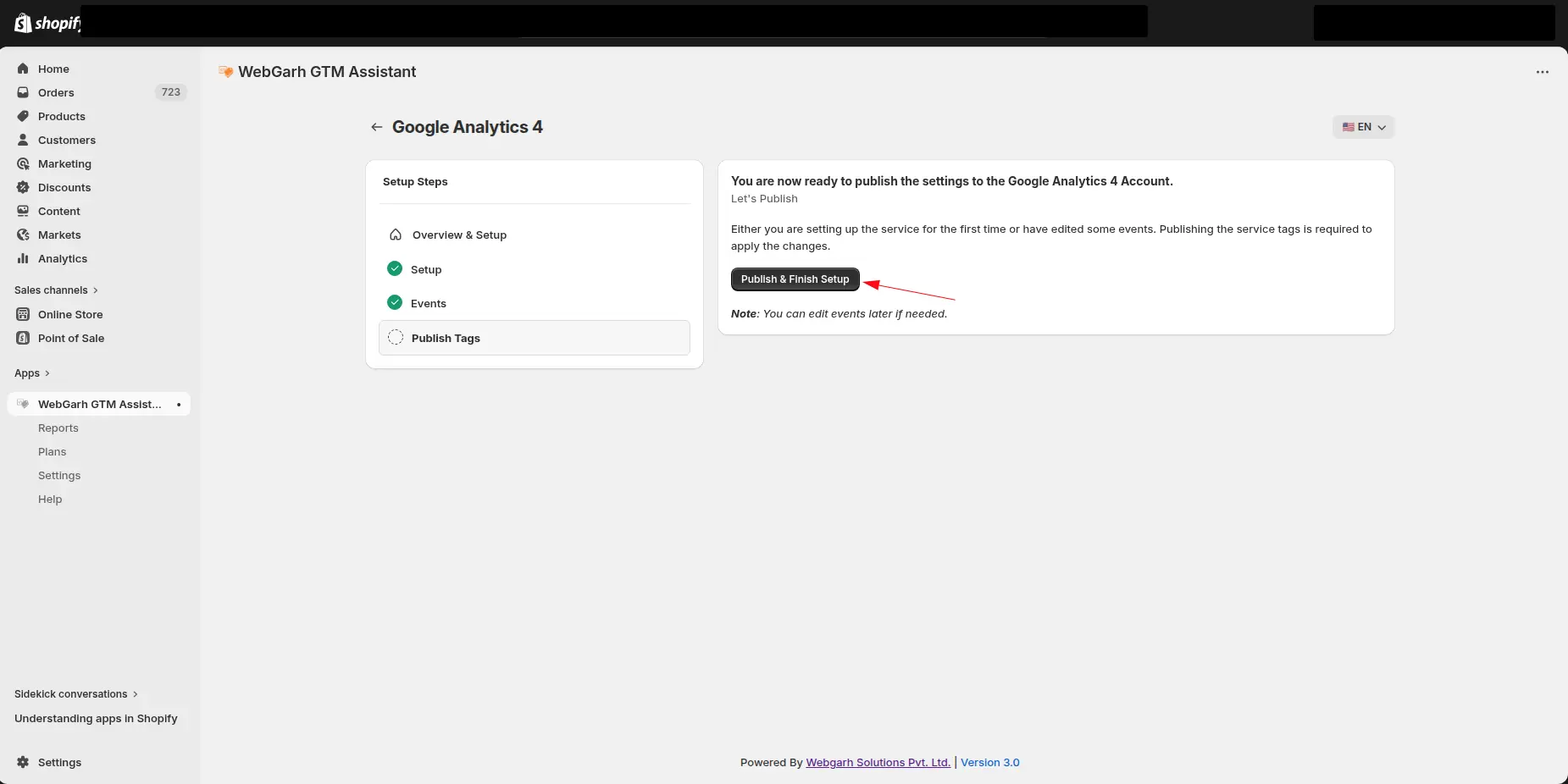
  1. Click Publish & Finish Setup.
  2. Server-side tracking starts immediately.
  3. Browser tags may take a few minutes to sync until all tags are created in the connected GTM container.

GA4 setup depends on GTM being connected first because GTM holds the client-side tags.

Visual walkthrough

Use the screenshots below alongside the steps above to match each instruction with the correct screen in the platform.

Select a screenshot to open it full size.
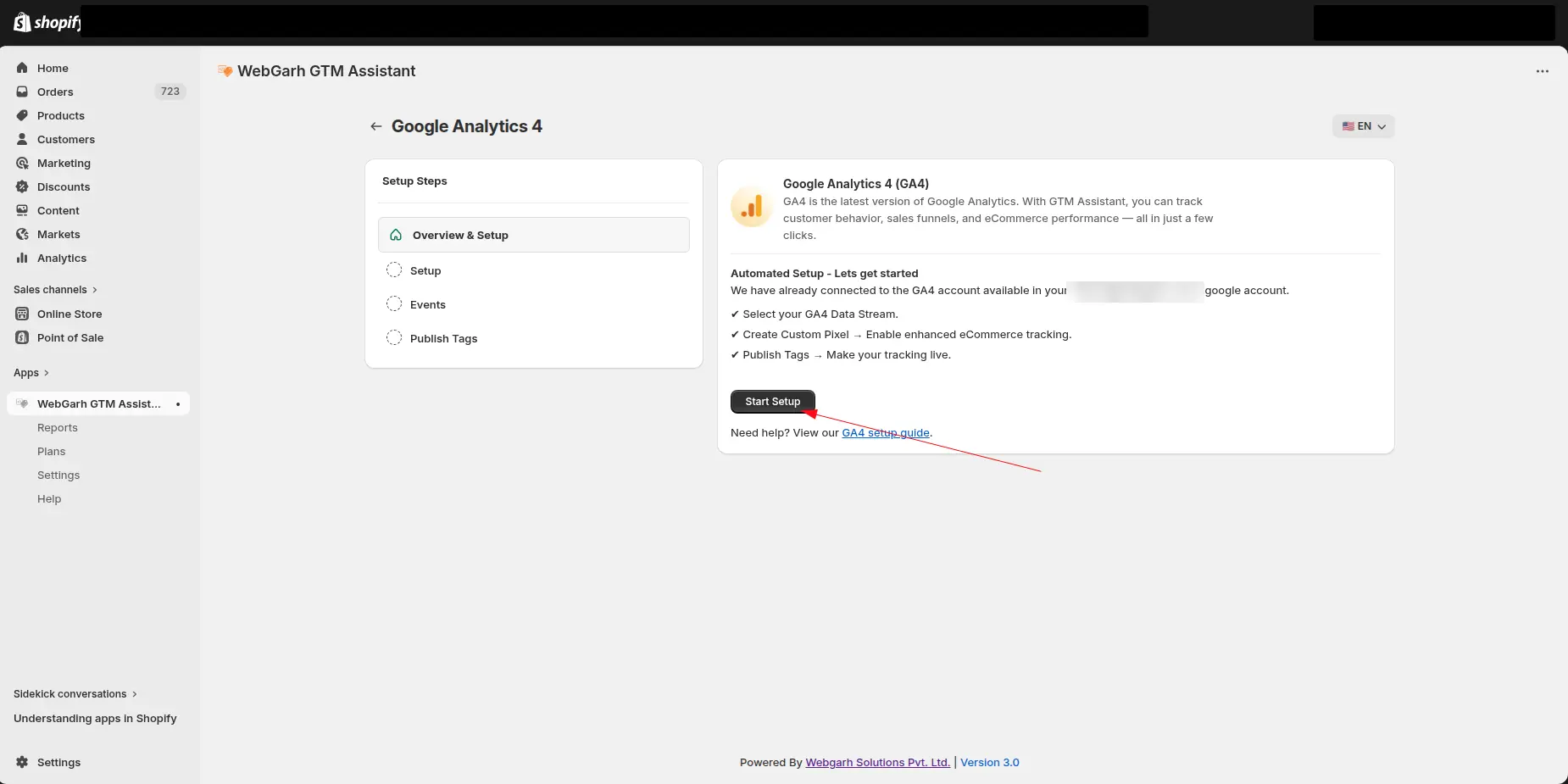
The Google Analytics 4 screen in GTM Assistant, with an arrow pointing to the Start Setup button.
Start the GA4 setup after Google Tag Manager is connected.
The Connect Your GA4 Data Stream step in GTM Assistant, with the GA4 data stream field and the Connect & Continue button marked.
Choose the GA4 property for this Shopify store.
The Select Store Events to Track step for GA4: a table matching each GTM Assistant event, such as Page Viewed and Checkout Completed, to its GA4 event, with Server and Web tick boxes, and a Save & Go to Publish Tags button.
Select the Shopify events you want to send to GA4.
The Publish Tags step for GA4 in GTM Assistant, with an arrow pointing to the Publish & Finish Setup button.
Publish the GA4 setup and wait for the connected status.