New: OpenAI (ChatGPT) Ads is now supported, server-side.

Connect Google Ads to Webgarh GTM Assistant

Connect Google Ads to send conversion events from Shopify through Webgarh GTM Assistant and improve attribution quality with enhanced conversions.

Setup steps

Connect your account

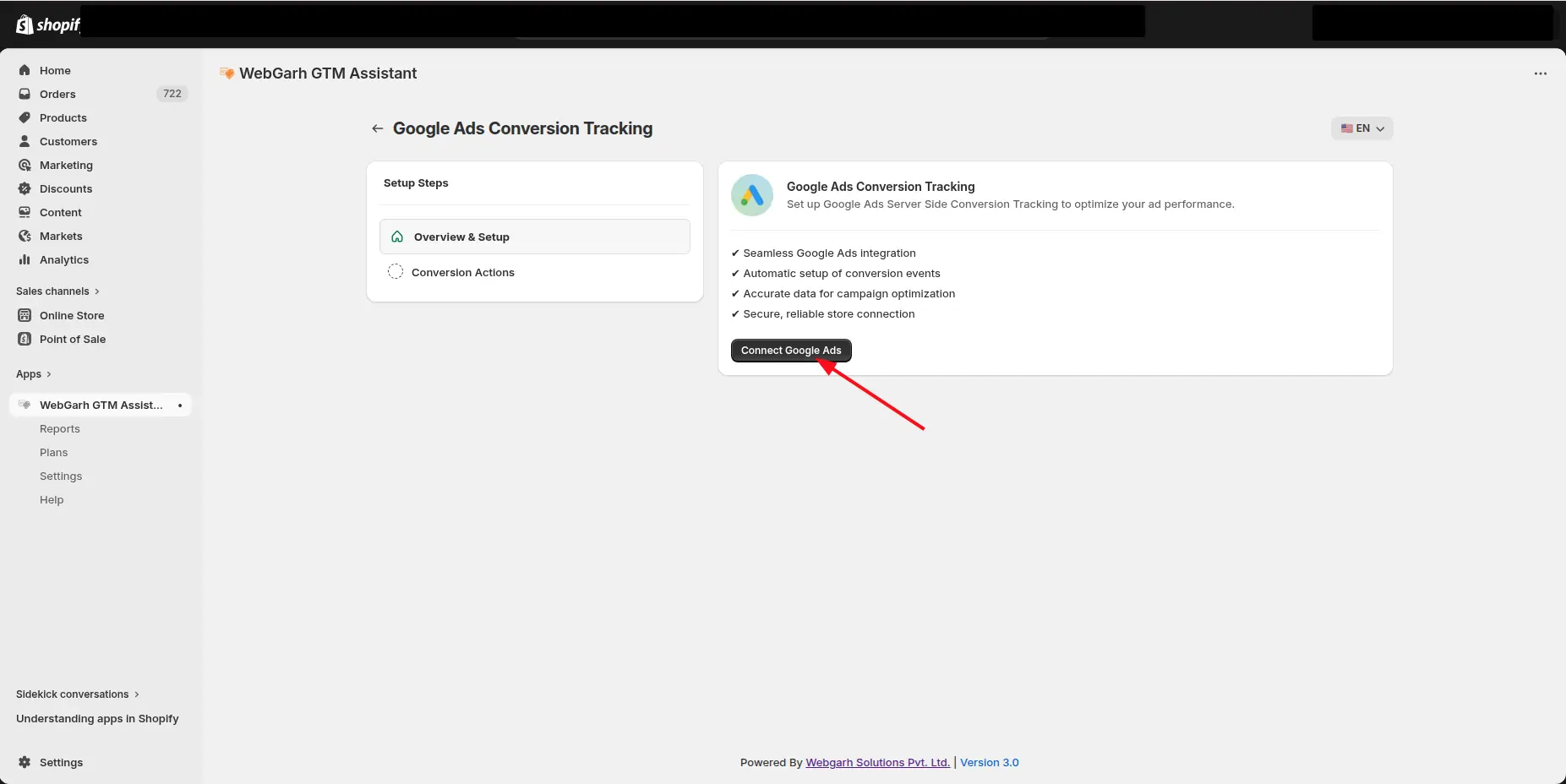
  1. Click Connect on the Google Ads platform card.
  2. Click Login and sign in with the Google Ads email that has access to your ad account.
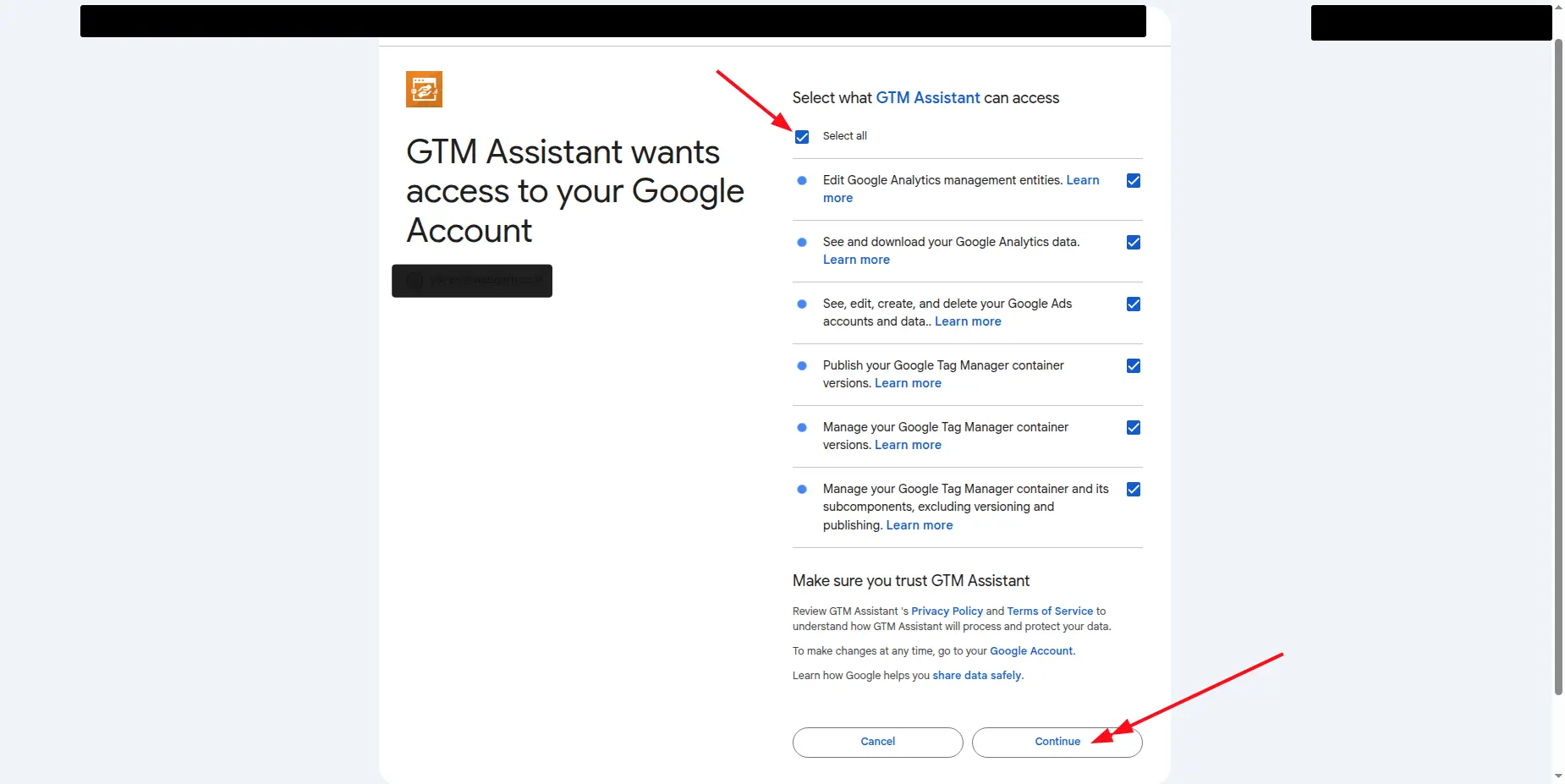
  3. Select all requested permissions during Google login.
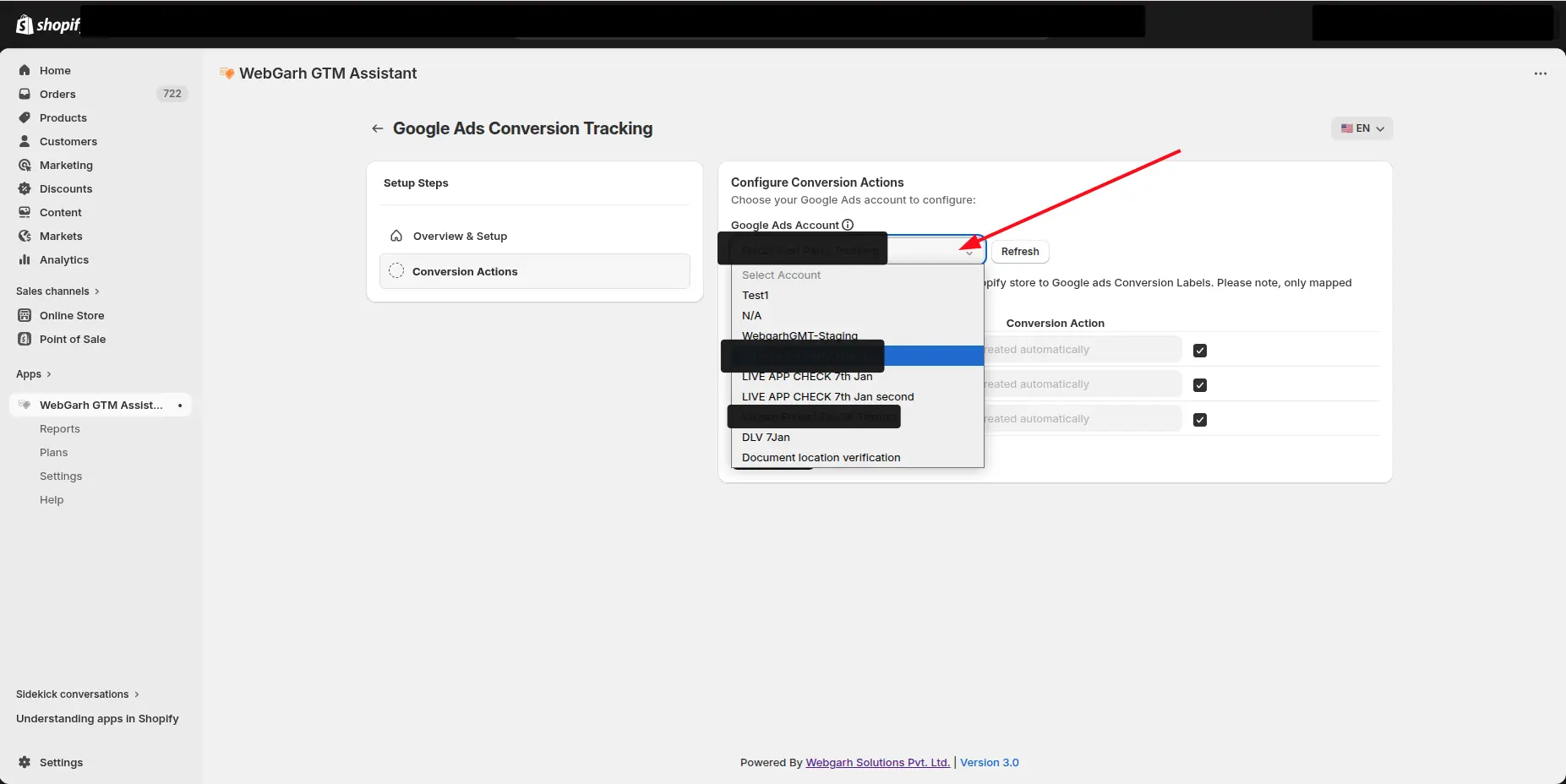
  4. Choose your store ad account from the list.

Select conversion events

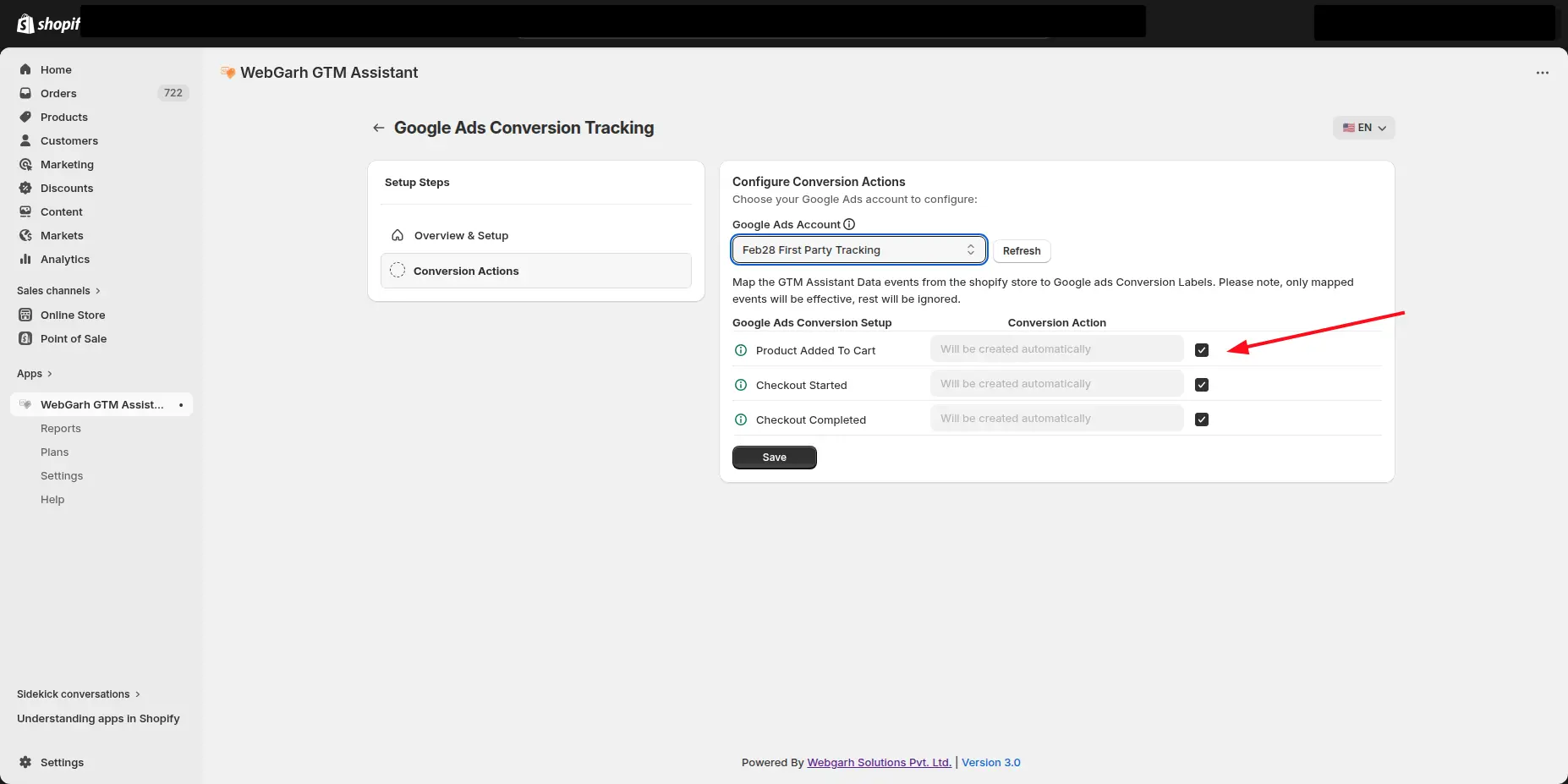
  1. Select the events you want Google Ads to receive.
  2. For full-funnel tracking, select All Events so Google receives signals from Add to Cart through Purchase.
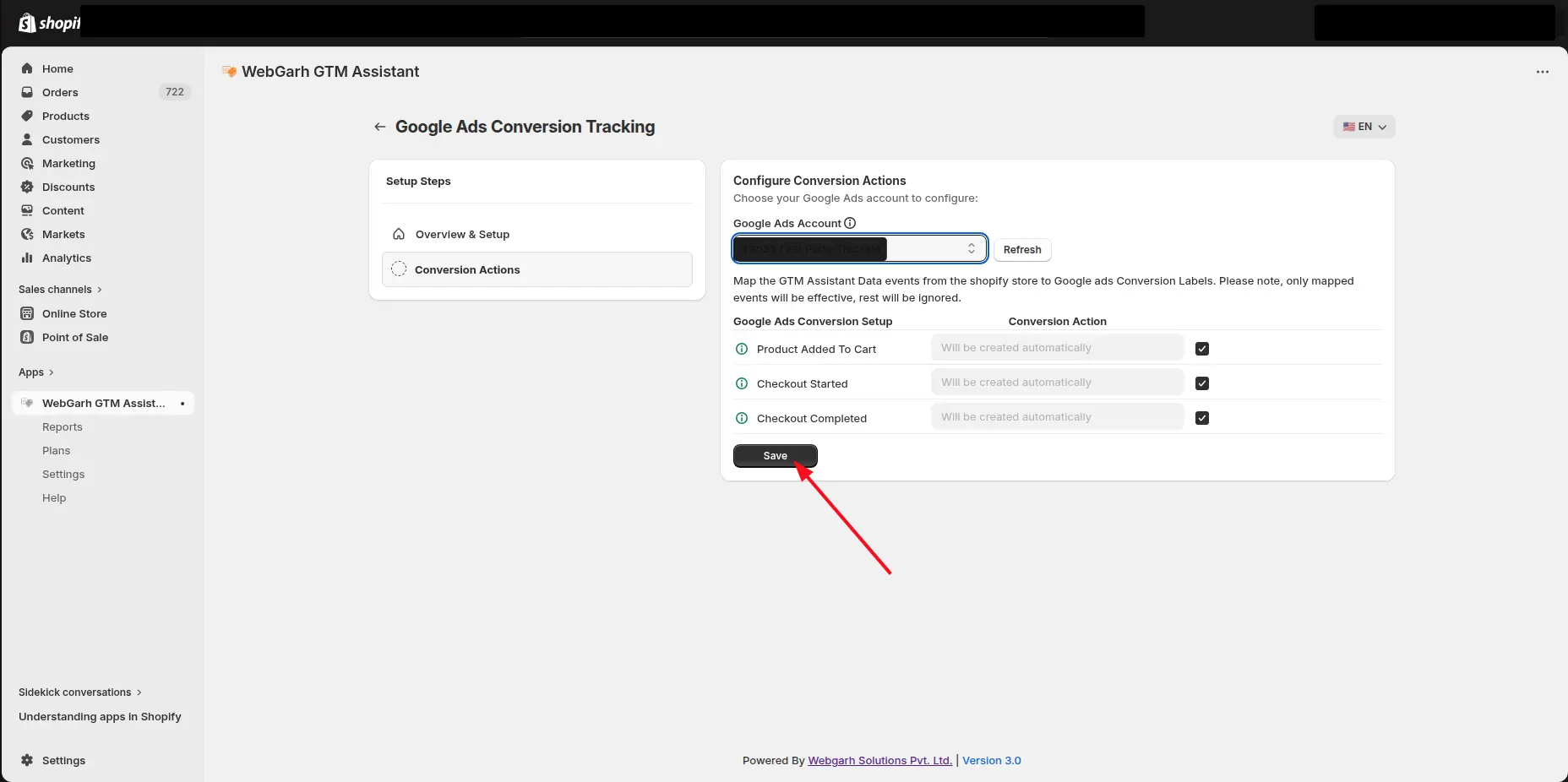
  3. Click Save.

Complete required Google Ads settings

  1. Open your Google Ads account in a new tab.
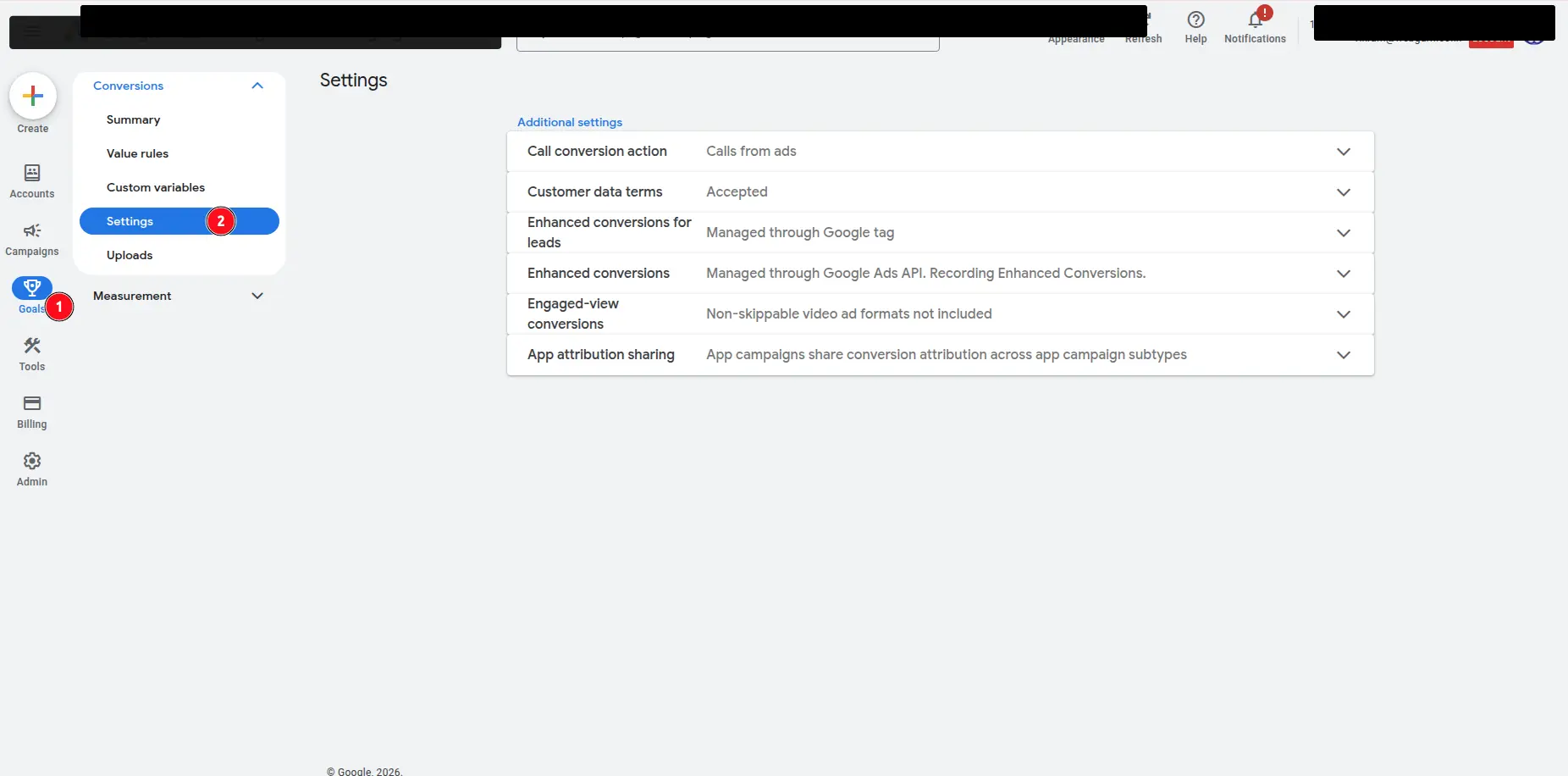
  2. Go to Goals settings.
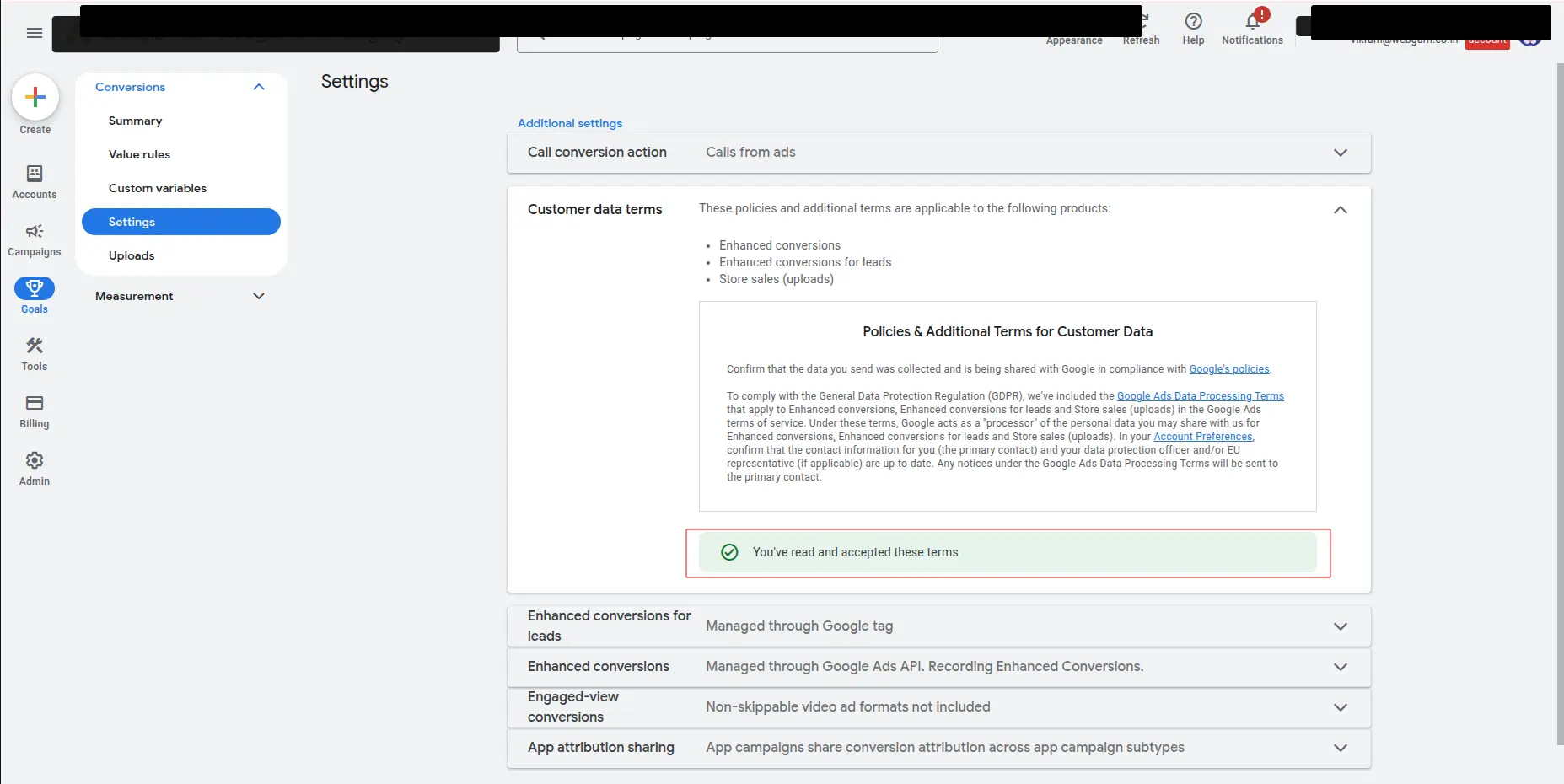
  3. Accept the customer data terms.
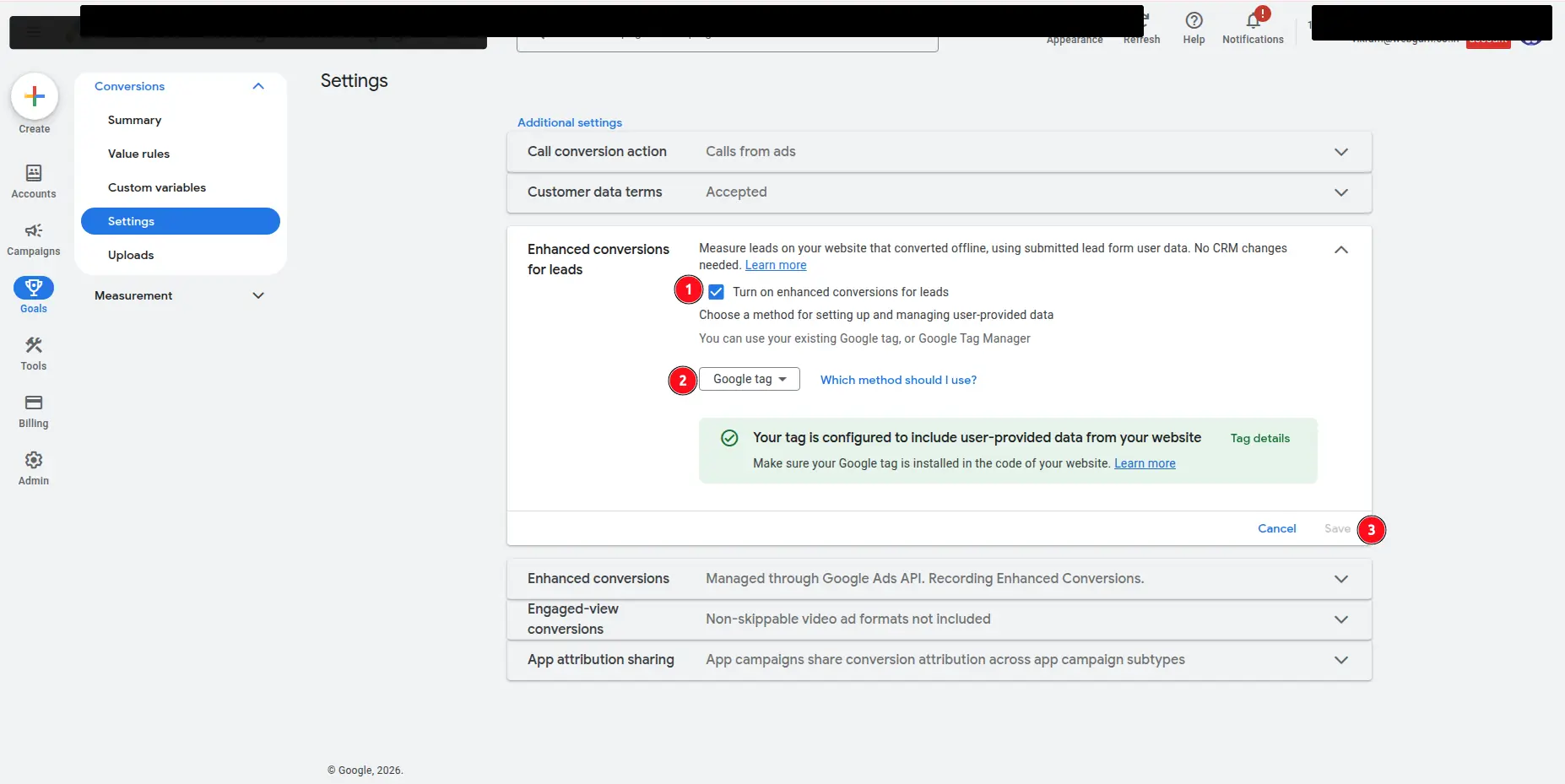
  4. Turn on enhanced conversions for leads if required by your setup.
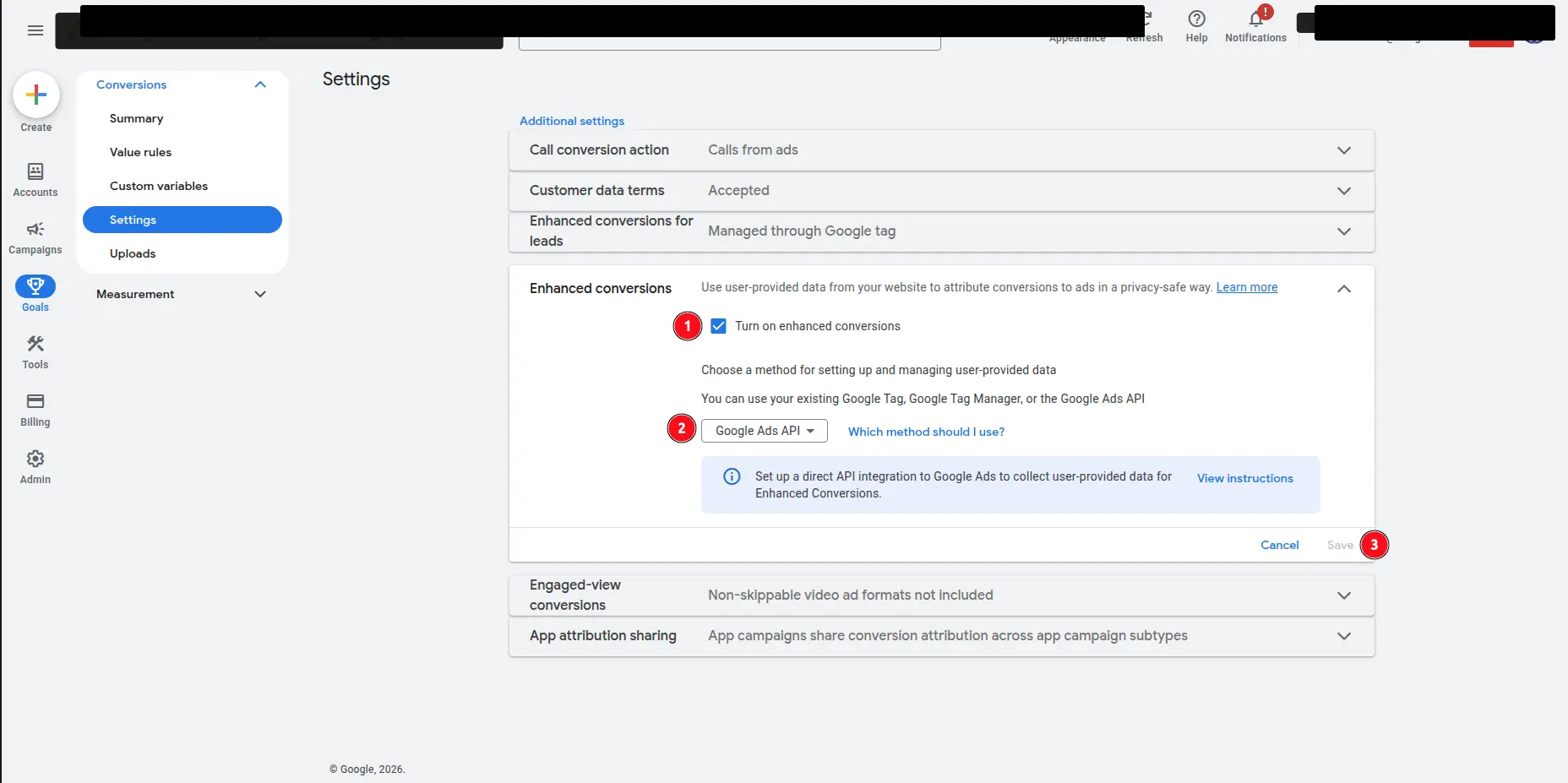
  5. Turn on Enhanced Conversions.

Enhanced Conversions is the important manual step inside Google Ads. The connection is not fully optimized until this is enabled.

Visual walkthrough

Use the screenshots below alongside the steps above to match each instruction with the correct screen in the platform.

Select a screenshot to open it full size.
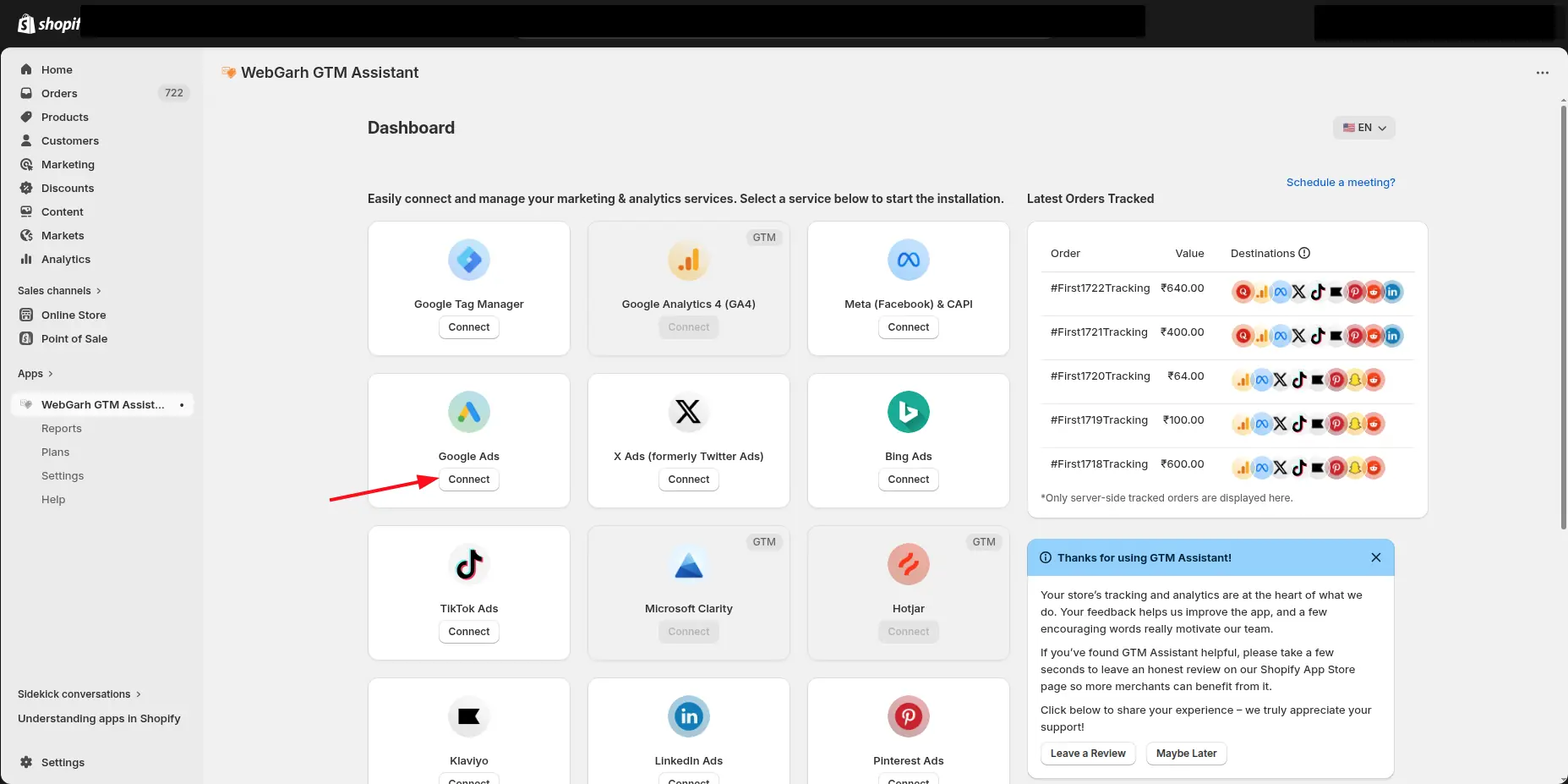
The GTM Assistant dashboard showing a card for each platform, with an arrow pointing to the Connect button on the Google Ads card.
Open the Google Ads connection screen in Webgarh GTM Assistant.
The Google Ads Conversion Tracking screen in GTM Assistant, with an arrow pointing to the Connect Google Ads button.
Sign in with the Google account that has access to your ad account.
The Google sign-in screen asking what GTM Assistant can access, with arrows pointing to the Select all tick box and the Continue button.
Grant the requested Google Ads permissions.
The Configure Conversion Actions step in GTM Assistant, with the Google Ads Account drop-down open to choose the store's ad account.
Choose the Google Ads account used for this Shopify store.
The Configure Conversion Actions step with a Google Ads account chosen, and an arrow pointing to the tick boxes for Product Added To Cart, Checkout Started and Checkout Completed.
Select the conversion events Google Ads should receive.
The same Configure Conversion Actions step, with an arrow pointing to the Save button.
Save the selected Google Ads conversion events.
Google Ads with Goals selected in the left menu (marked 1) and Settings selected under Conversions (marked 2).
Open Google Ads goal settings to complete enhanced conversion setup.
The Customer data terms section in Google Ads conversion settings, with the message "You've read and accepted these terms" highlighted.
Review the customer data terms before enabling enhanced conversions.
The Enhanced conversions for leads section in Google Ads settings: the Turn on enhanced conversions for leads tick box (1), the Google tag method (2) and the Save button (3) are marked.
Turn on enhanced conversions in Google Ads.
The Enhanced conversions section in Google Ads settings: the Turn on enhanced conversions tick box (1), the Google Ads API method (2) and the Save button (3) are marked.
Confirm the Google Ads connection shows as saved in Webgarh GTM Assistant.