New: OpenAI (ChatGPT) Ads is now supported, server-side.

Connect LinkedIn Ads to Webgarh GTM Assistant

Connect LinkedIn Ads by collecting the required account details from Campaign Manager and saving them in Webgarh GTM Assistant.

Setup steps

Find your LinkedIn details

  1. Open LinkedIn Campaign Manager.
  2. Find and copy your LinkedIn Ad Account ID.
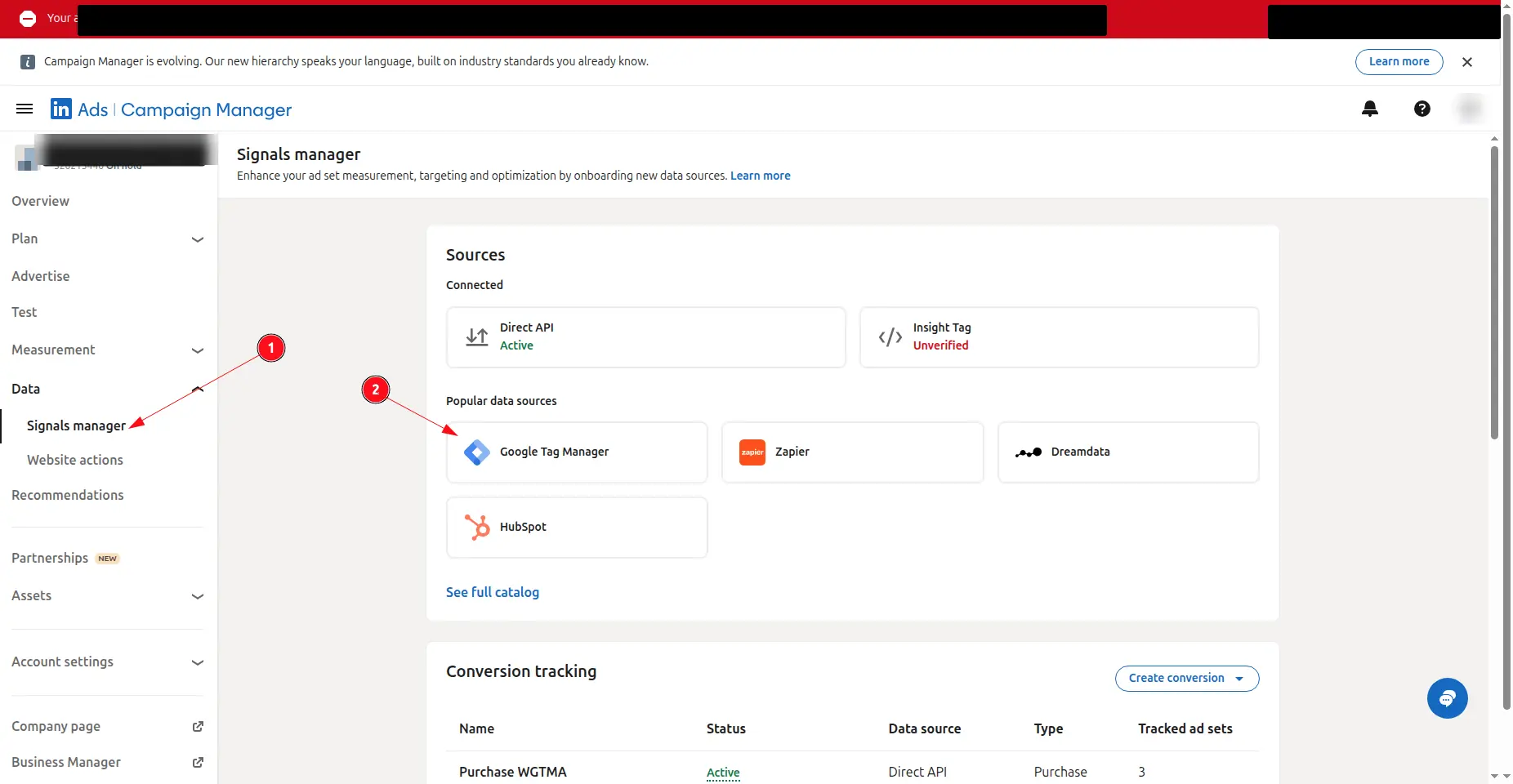
  3. Navigate to Data > Signal Manager > Google Tag Manager.
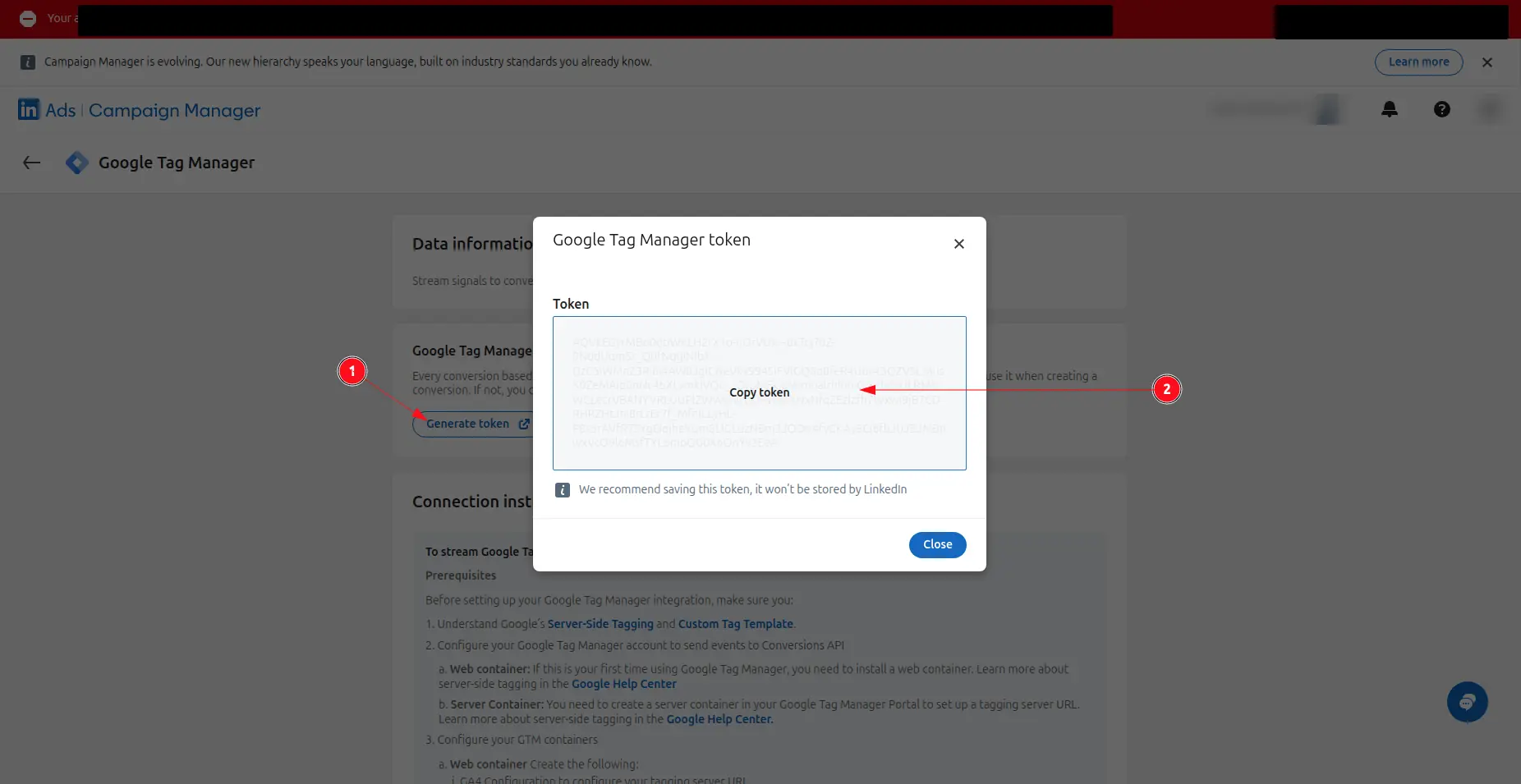
  4. Generate an access token and copy it.

Connect in Webgarh GTM Assistant

  1. Open the LinkedIn Ads section in Webgarh GTM Assistant and click Connect.
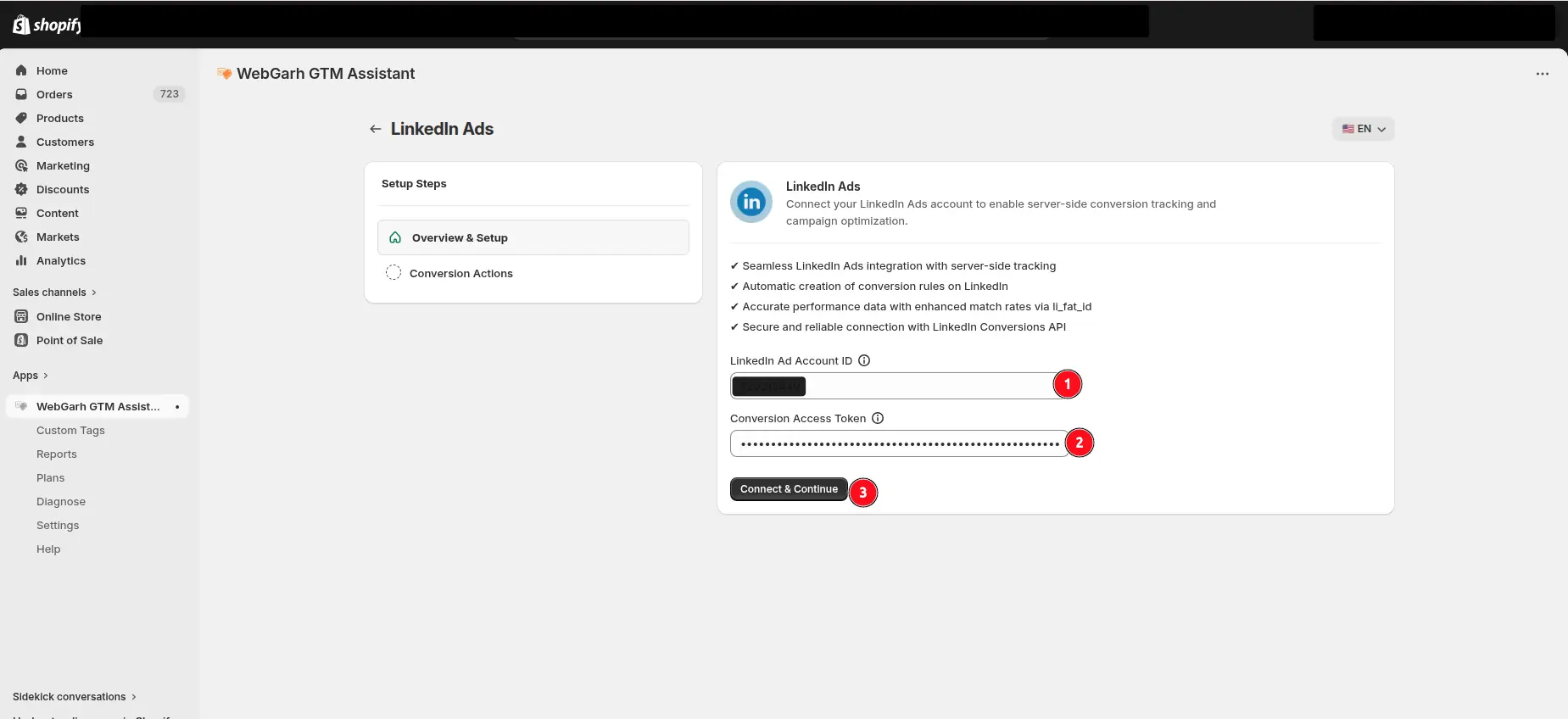
  2. Enter your Ad Account ID and Access Token.
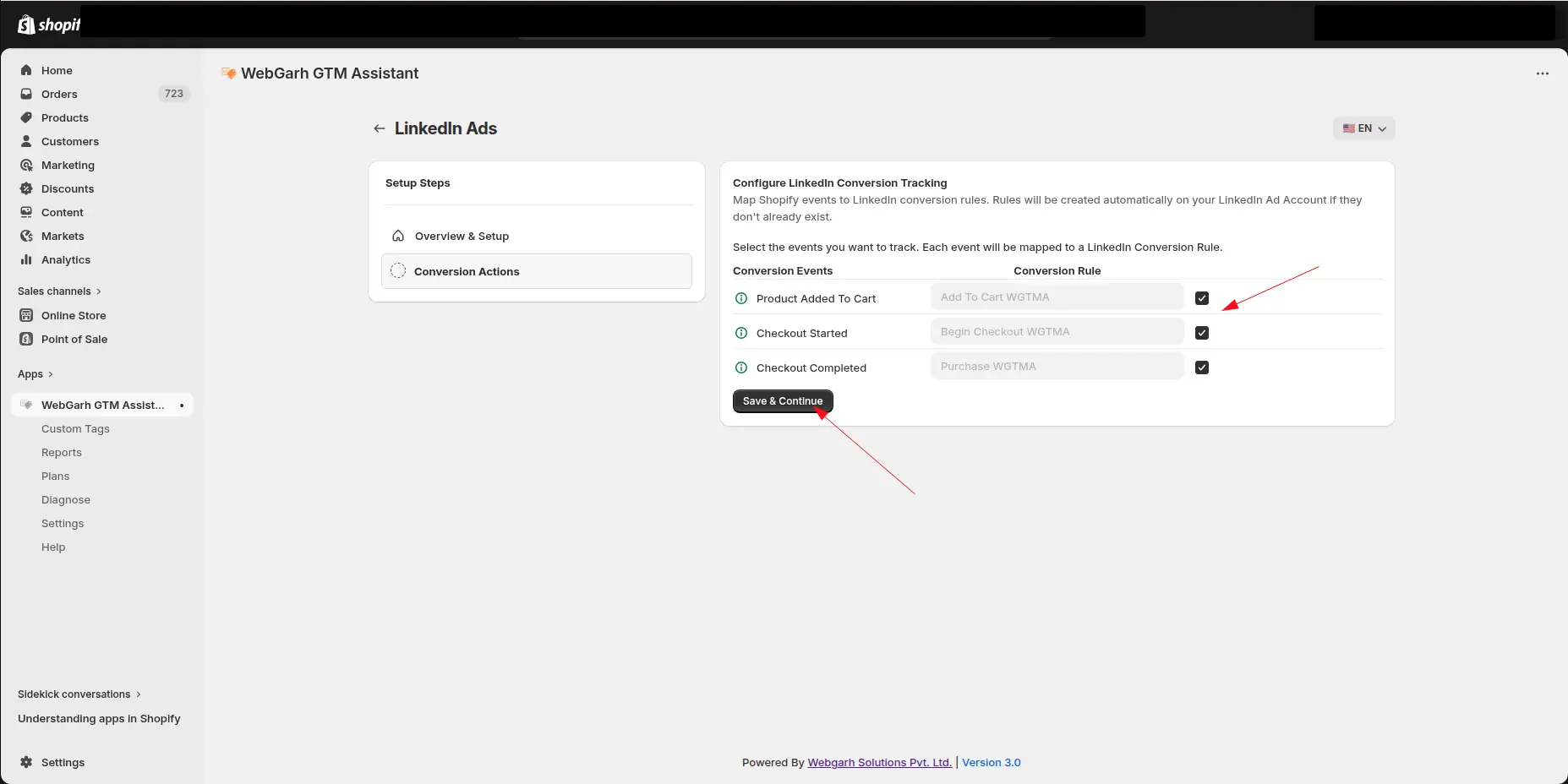
  3. Select the events you want to track.
  4. Click Save and wait for Connected status.

Select all recommended events so LinkedIn can learn from Add to Cart and Begin Checkout signals, not only purchases.

Visual walkthrough

Use the screenshots below alongside the steps above to match each instruction with the correct screen in the platform.

Select a screenshot to open it full size.
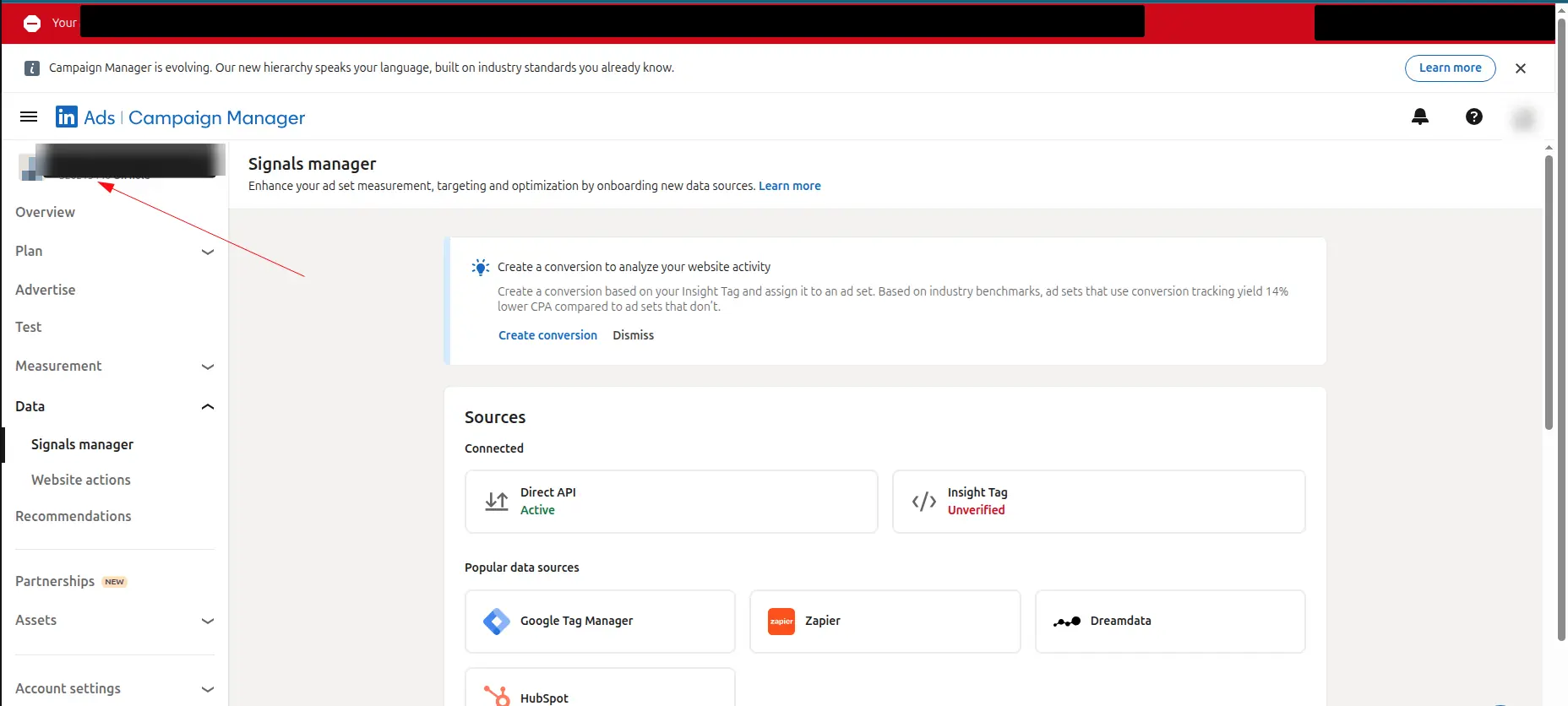
LinkedIn Campaign Manager, with an arrow pointing to the ad account name and ID at the top of the left menu.
Open LinkedIn Campaign Manager for the ad account you want to connect.
LinkedIn Campaign Manager: Signals manager under Data (1) and the Google Tag Manager data source (2) are marked.
Copy the LinkedIn ad account ID.
LinkedIn's Google Tag Manager page: Generate token (1) and the Copy token box in the token window (2) are marked.
Open Signal Manager to generate the Google Tag Manager access token.
The LinkedIn Ads screen in GTM Assistant: the LinkedIn Ad Account ID field (1), the Conversion Access Token field (2) and the Connect & Continue button (3) are marked.
Enter the ad account ID and access token in Webgarh GTM Assistant.
The Configure LinkedIn Conversion Tracking step, with arrows pointing to the event tick boxes and the Save & Continue button.
Select LinkedIn conversion events and save the connection.