Setup steps
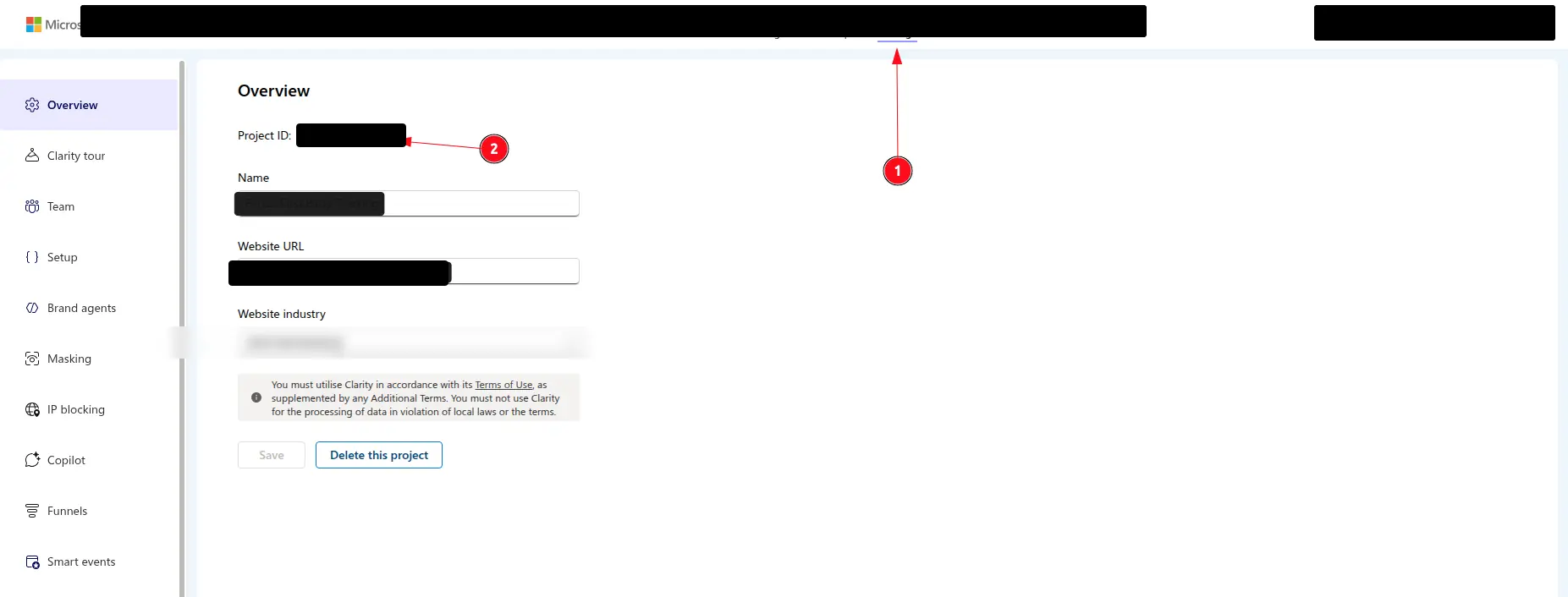
Find your Project ID
- Log in to Microsoft Clarity.
- Select your store project or create a new one.
- Open Settings.
- In the Overview section, copy the Project ID.
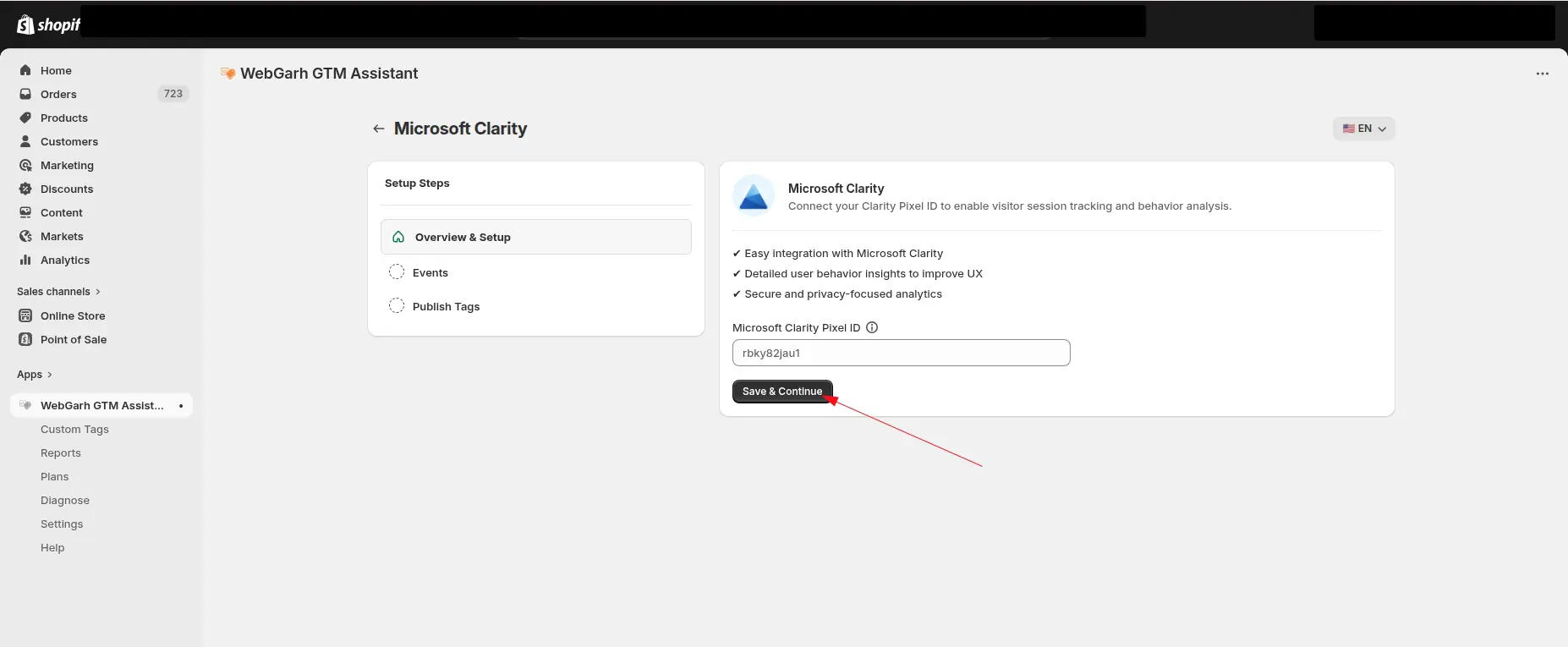
Connect in Webgarh GTM Assistant
- Open the Microsoft Clarity section in Webgarh GTM Assistant and click Connect.
- Enter your Clarity Project ID.
- Click Next.
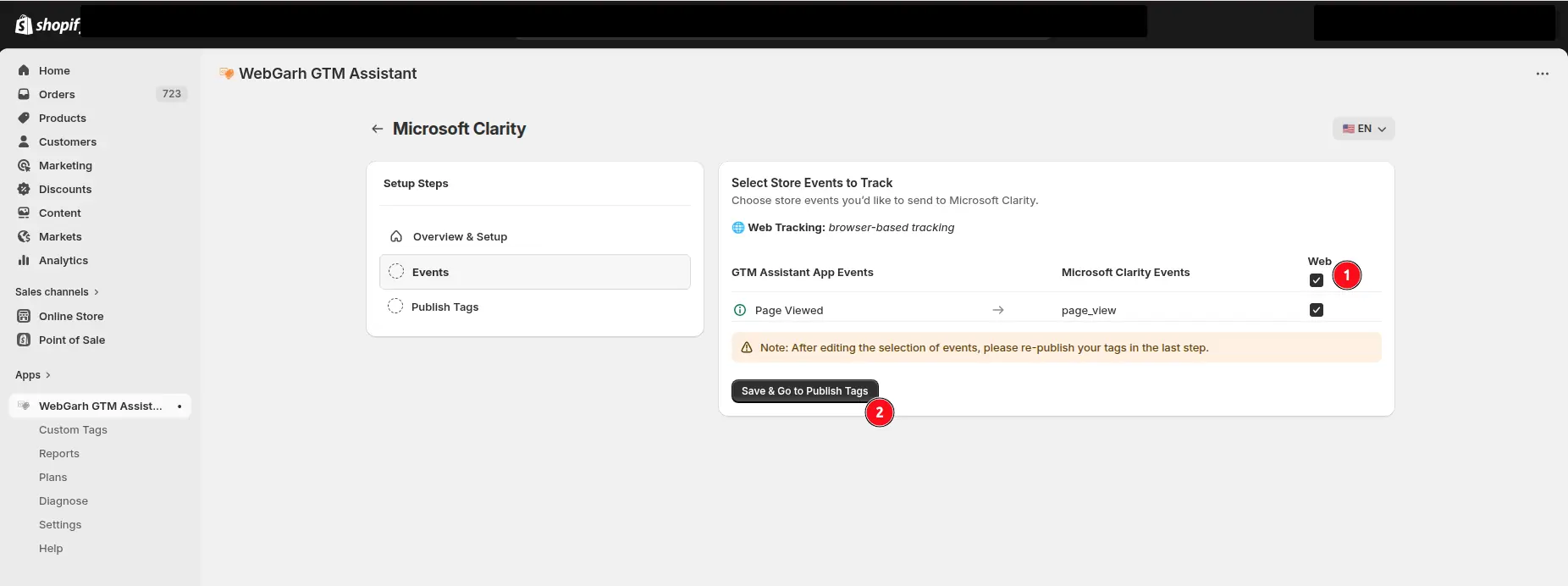
- Select the Page View event.
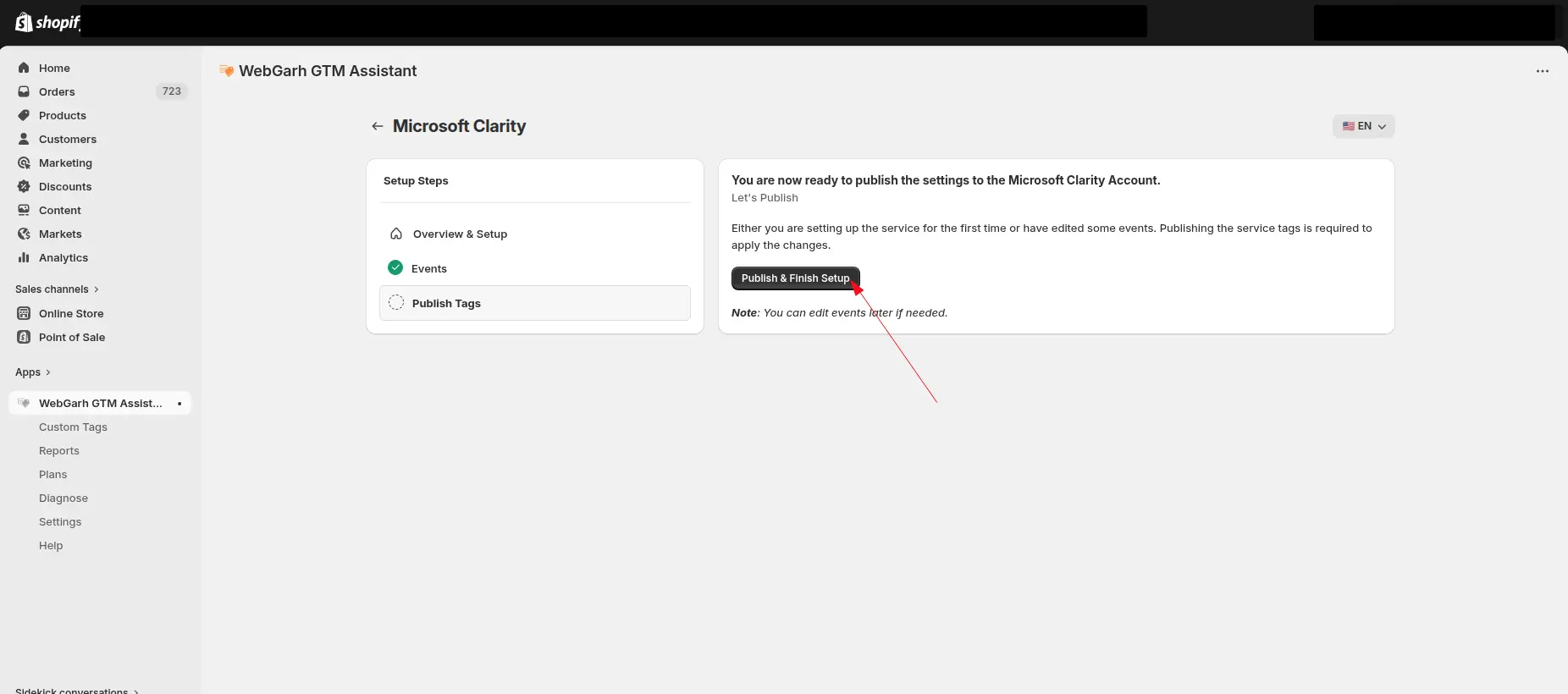
- Click Save.
Tracking starts once the connection status displays as Connected.
Visual walkthrough
Use the screenshots below alongside the steps above to match each instruction with the correct screen in the platform.
Select a screenshot to open it full size.