New: OpenAI (ChatGPT) Ads is now supported, server-side.

Connect Hotjar to Webgarh GTM Assistant

Connect Hotjar so recordings and behavior analytics can be filtered by key Shopify actions.

Setup steps

Find your Site ID

  1. Log in to Hotjar.
  2. Open the site you want to connect to Shopify.
  3. Click your profile or avatar and open Organization Settings.
  4. Find your site in the list and copy the Site ID.

Connect in Webgarh GTM Assistant

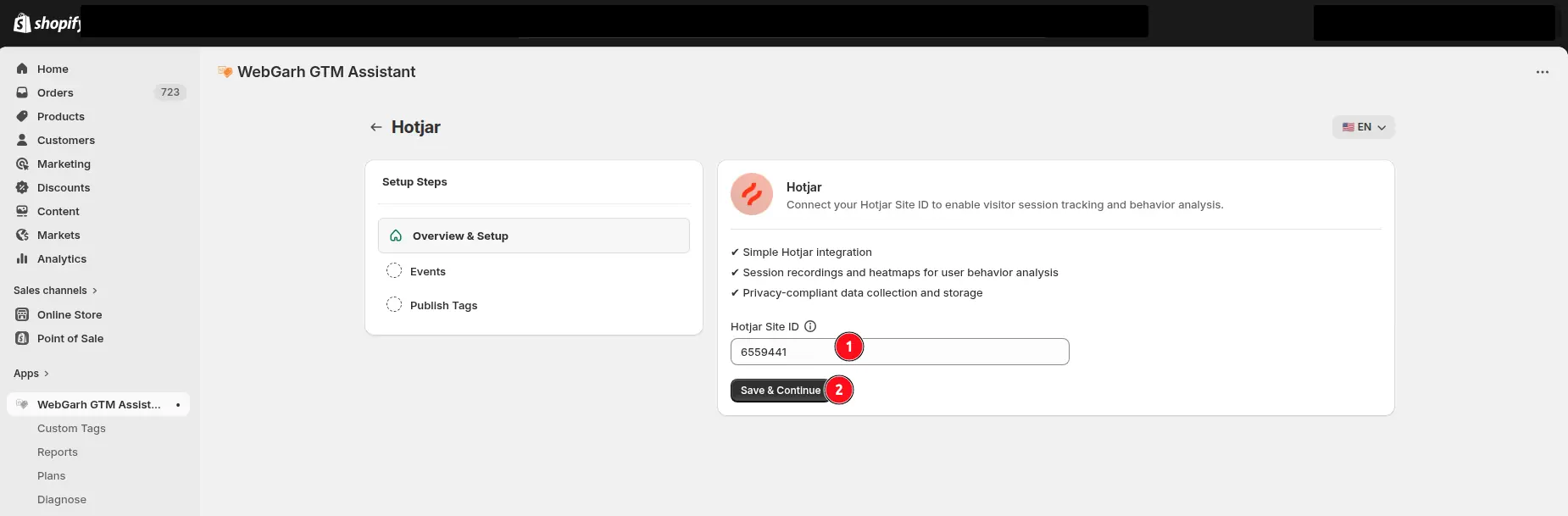
  1. Open the Hotjar section in Webgarh GTM Assistant and click Connect.
  2. Enter your Hotjar Site ID.
  3. Click Next.
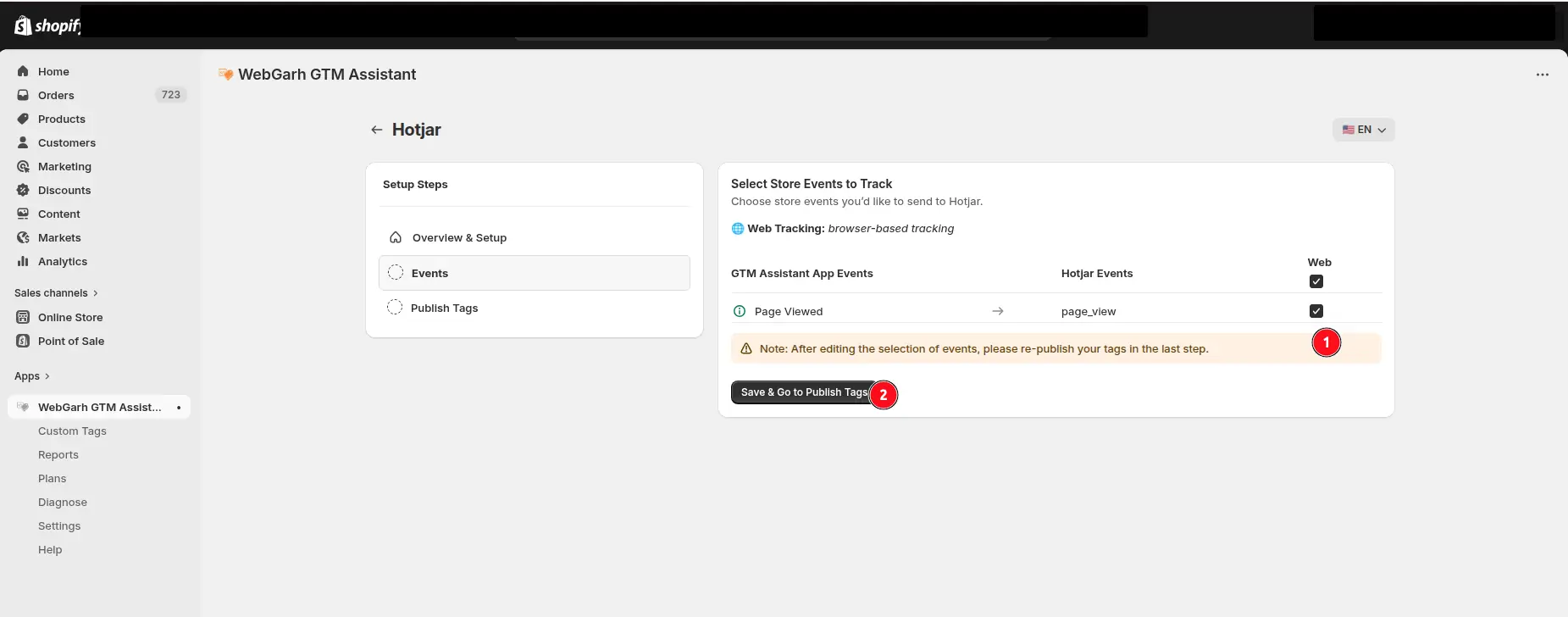
  4. Select the events you want to track.
  5. Click Save and wait for Connected status.

Select all recommended events if you want to filter recordings by actions such as checkout clicks or add-to-cart behavior.

Visual walkthrough

Use the screenshots below alongside the steps above to match each instruction with the correct screen in the platform.

Select a screenshot to open it full size.
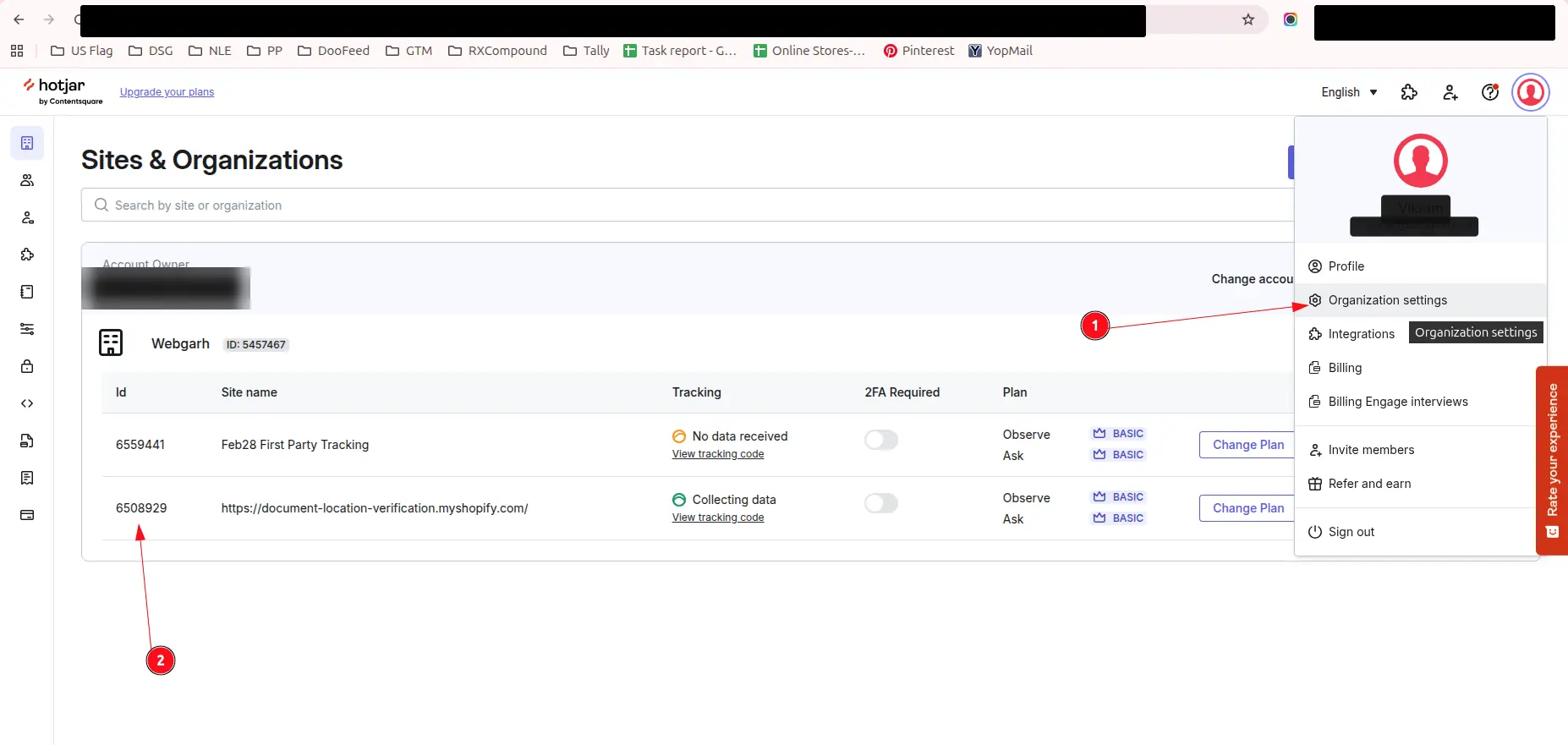
Hotjar's Sites & Organizations page, with the profile menu open and arrows pointing to Organization settings (1) and the Id column of the site list (2).
Open your Hotjar site settings to find the Site ID.
The Hotjar screen in GTM Assistant, with the Hotjar Site ID field (1) and the Save & Continue button (2) marked.
Copy the Hotjar Site ID for the Shopify store.
The Select Store Events to Track step for Hotjar, with the Page Viewed event ticked (1) and the Save & Go to Publish Tags button (2) marked.
Paste the Site ID into the Hotjar connection screen.
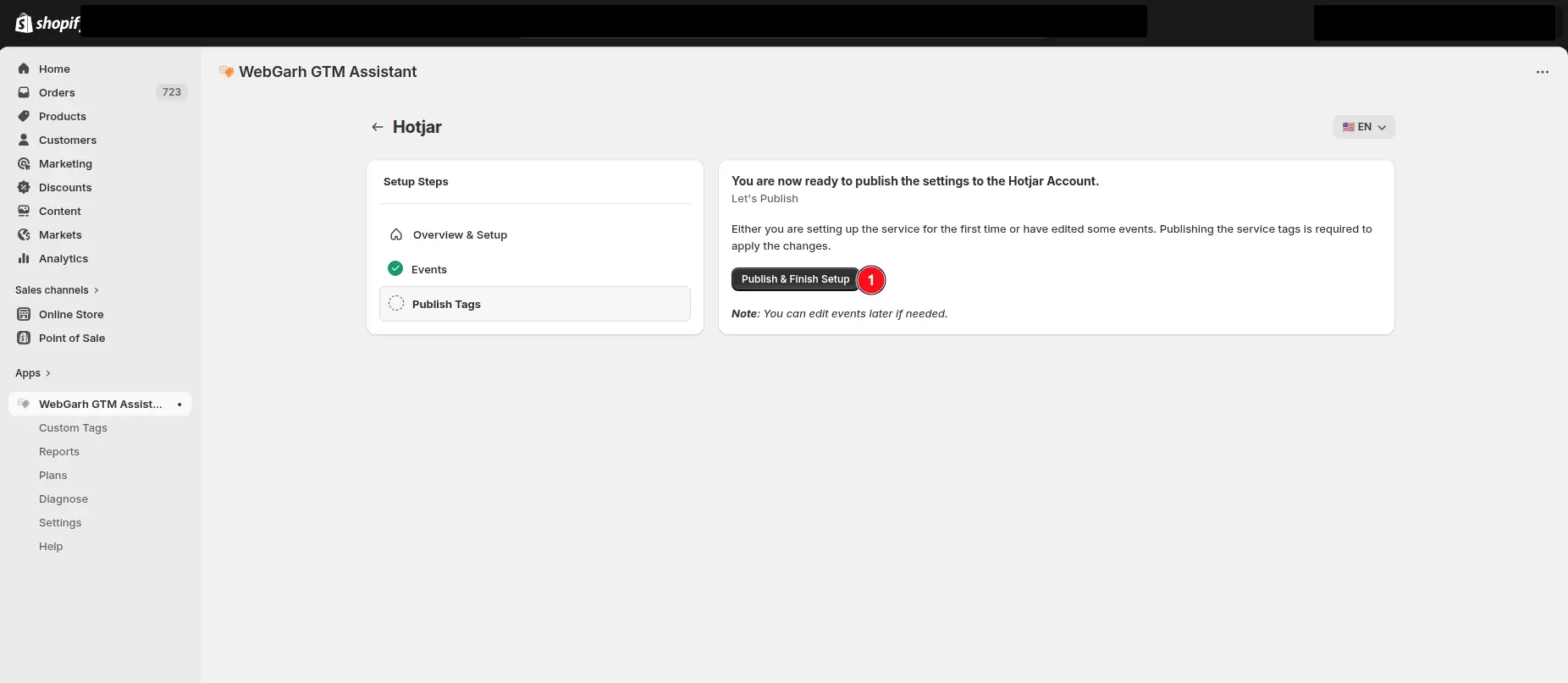
The Publish Tags step for Hotjar in GTM Assistant, with the Publish & Finish Setup button marked.
Select the Shopify events you want to use in Hotjar recordings.