Use this guide to connect X Ads so Shopify actions can be mapped to your X conversion actions.
Setup Steps
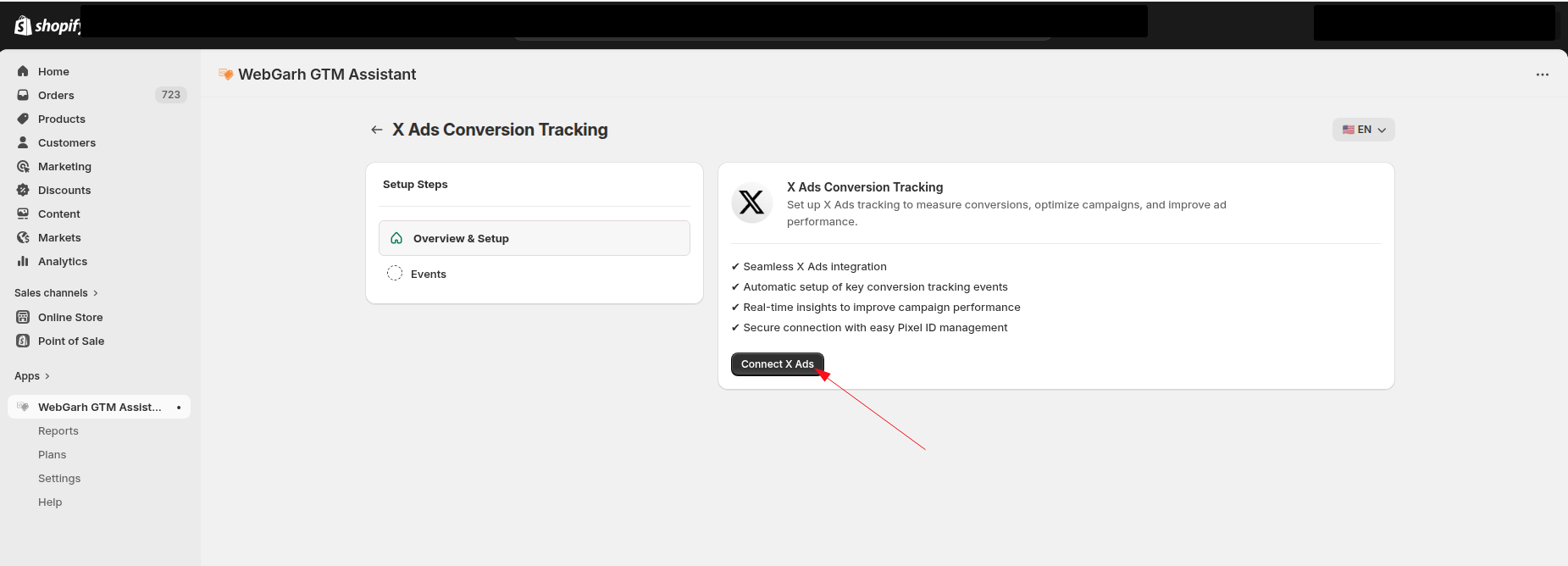
Connect your X Ads account
- Click Login inside Webgarh GTM Assistant using your X Ads account credentials.
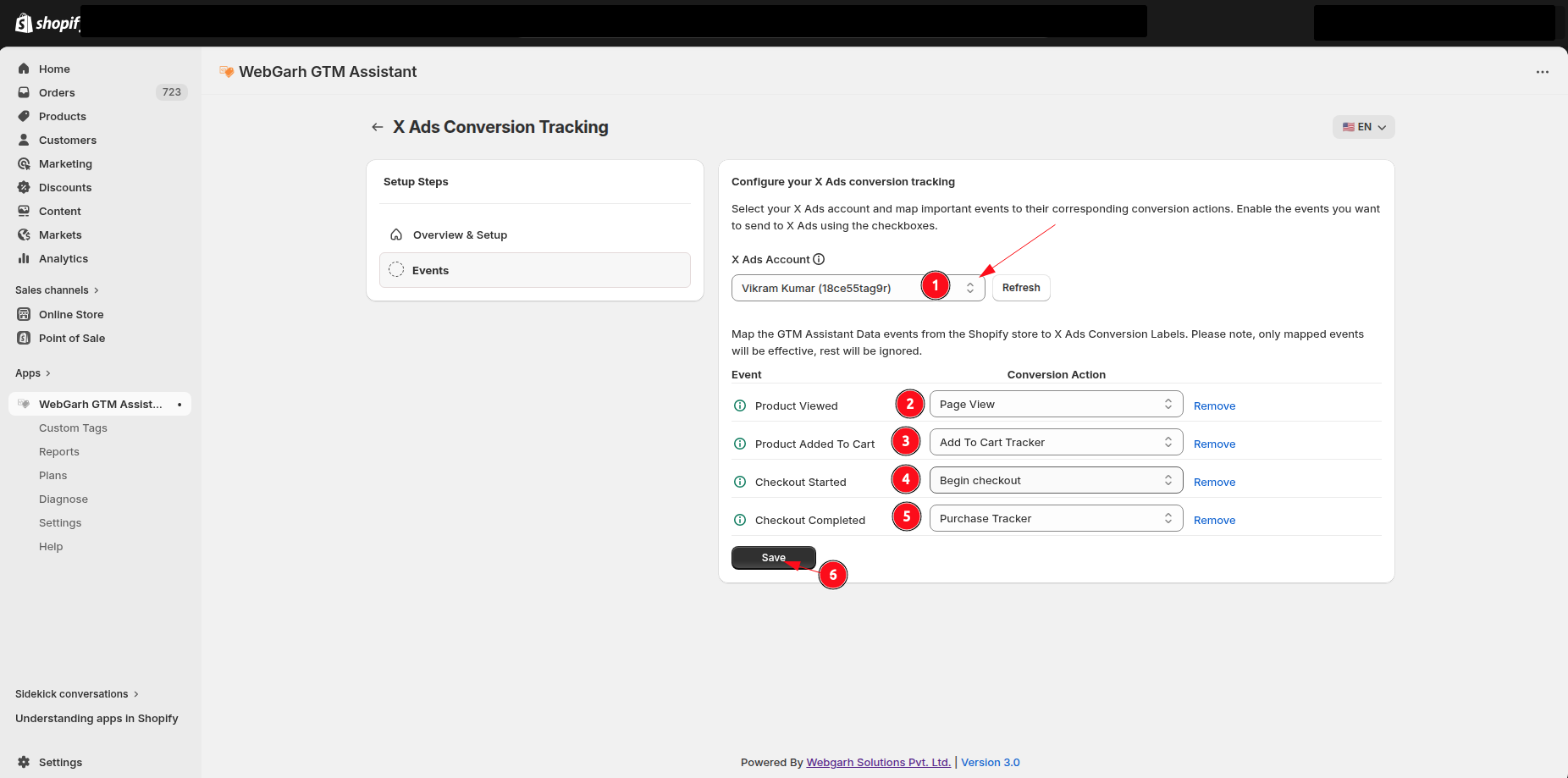
- Select the ad account you want to track.
Map and save events
- Map Shopify actions such as Purchase and Add to Cart to your existing X conversion actions.
- If you do not have conversion actions yet, Webgarh can help you create offline conversions.
- Click Save to finalize the setup.
New conversion goals usually take about 12 hours to start receiving data. Older goals may begin tracking immediately, with dashboard reporting delay.
Visual Walkthrough
Use the screenshots below alongside the steps above to match each instruction with the correct screen in the platform.
Still need help?
Our team can walk you through this. Contact support or message us on WhatsApp.