Webgarh GTM Assistant uses Meta Conversion API to reduce signal loss from iOS privacy changes and ad blockers.
Setup Steps
Find your Meta credentials
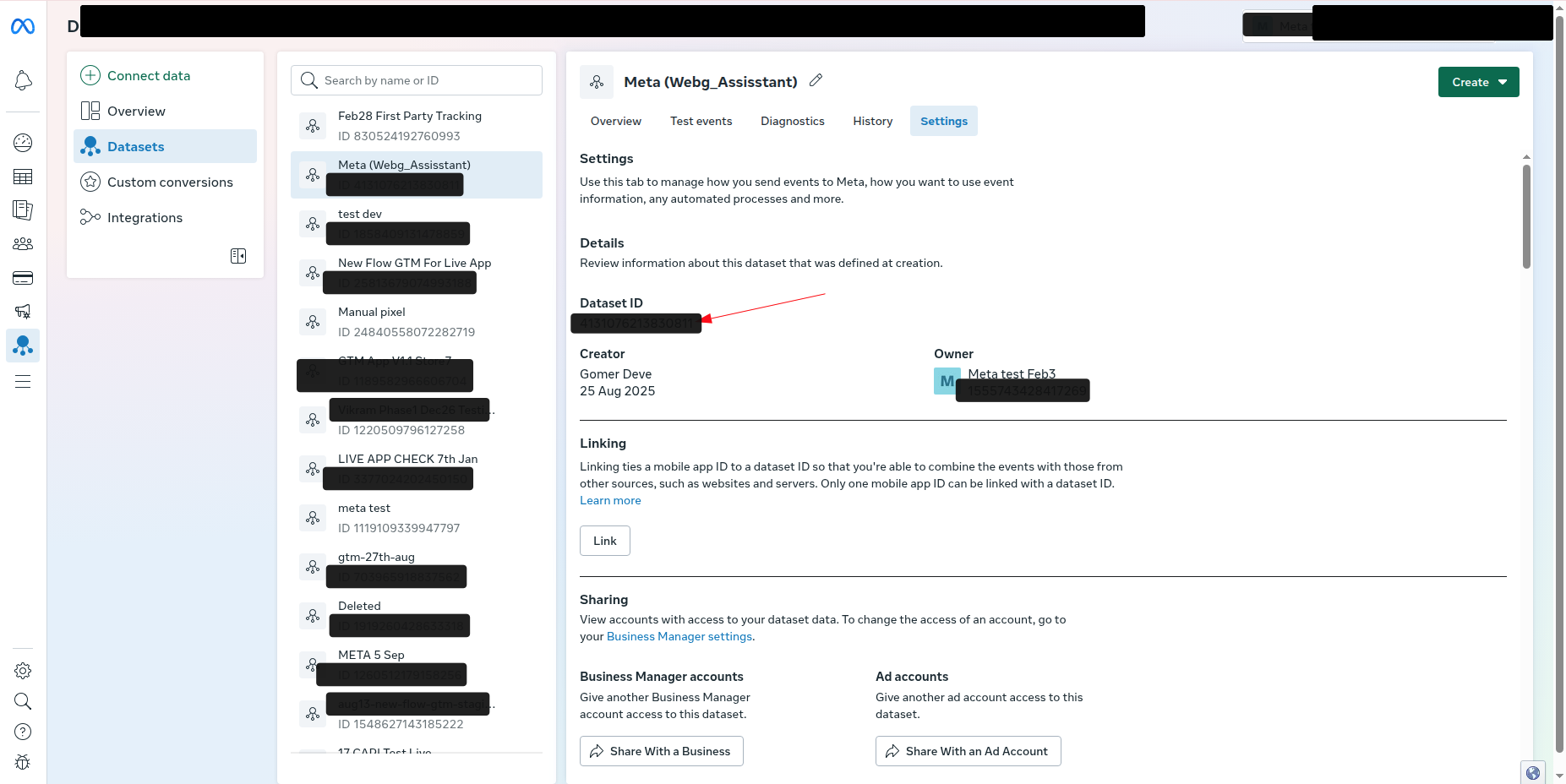
- Open Meta Events Manager.
- Select your Dataset or Pixel.
- Go to Settings.
- Copy the Dataset ID.
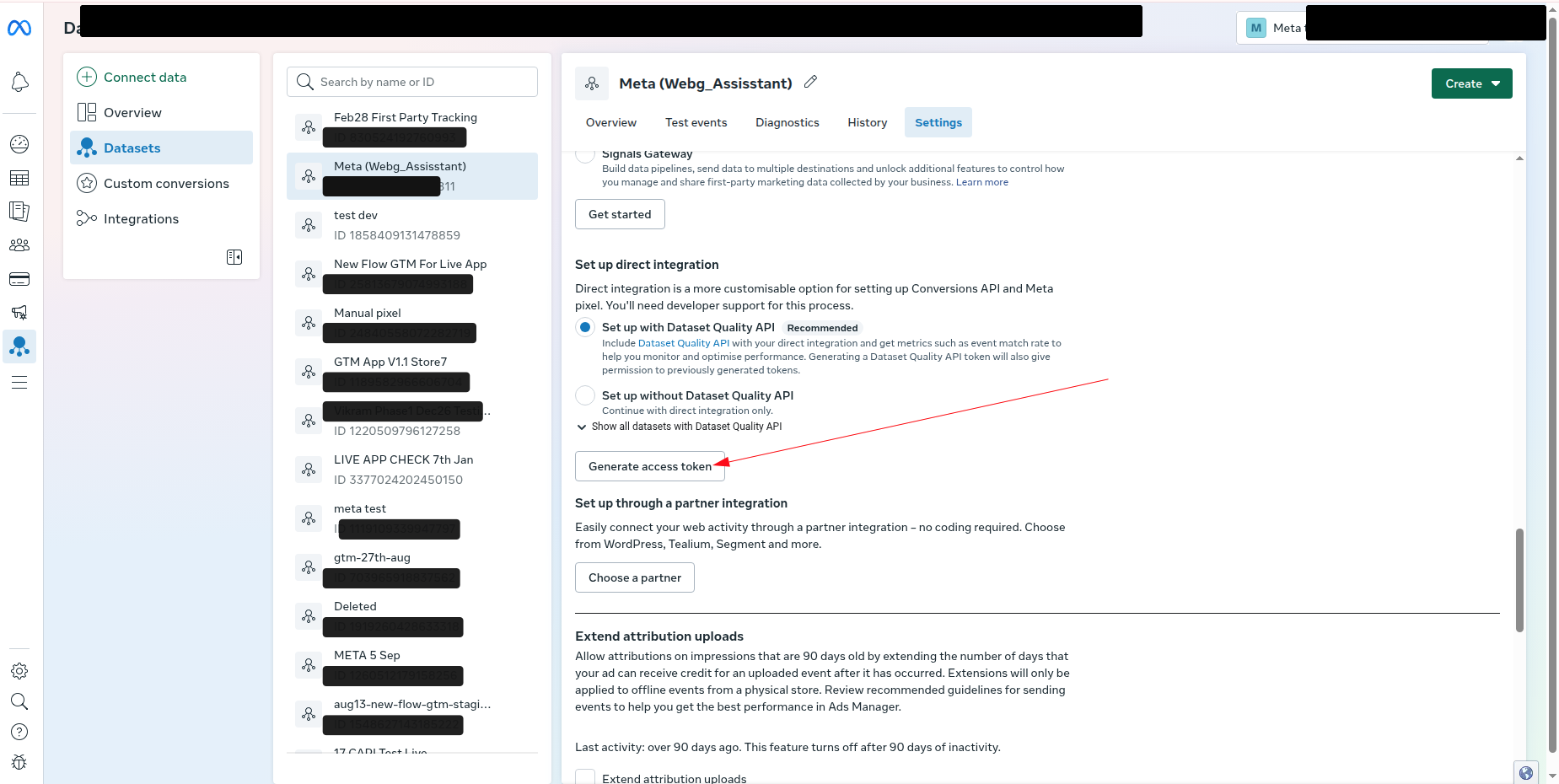
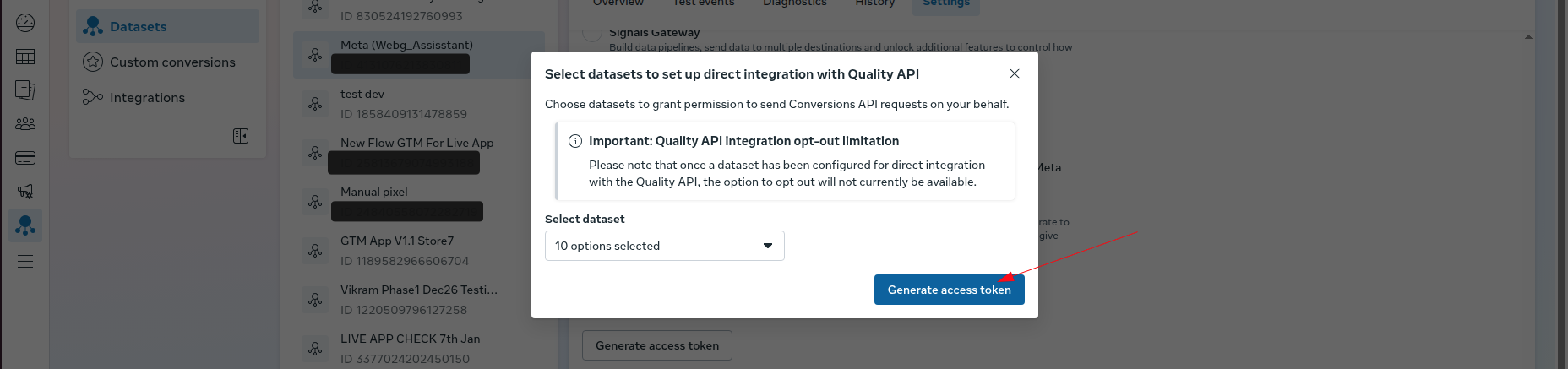
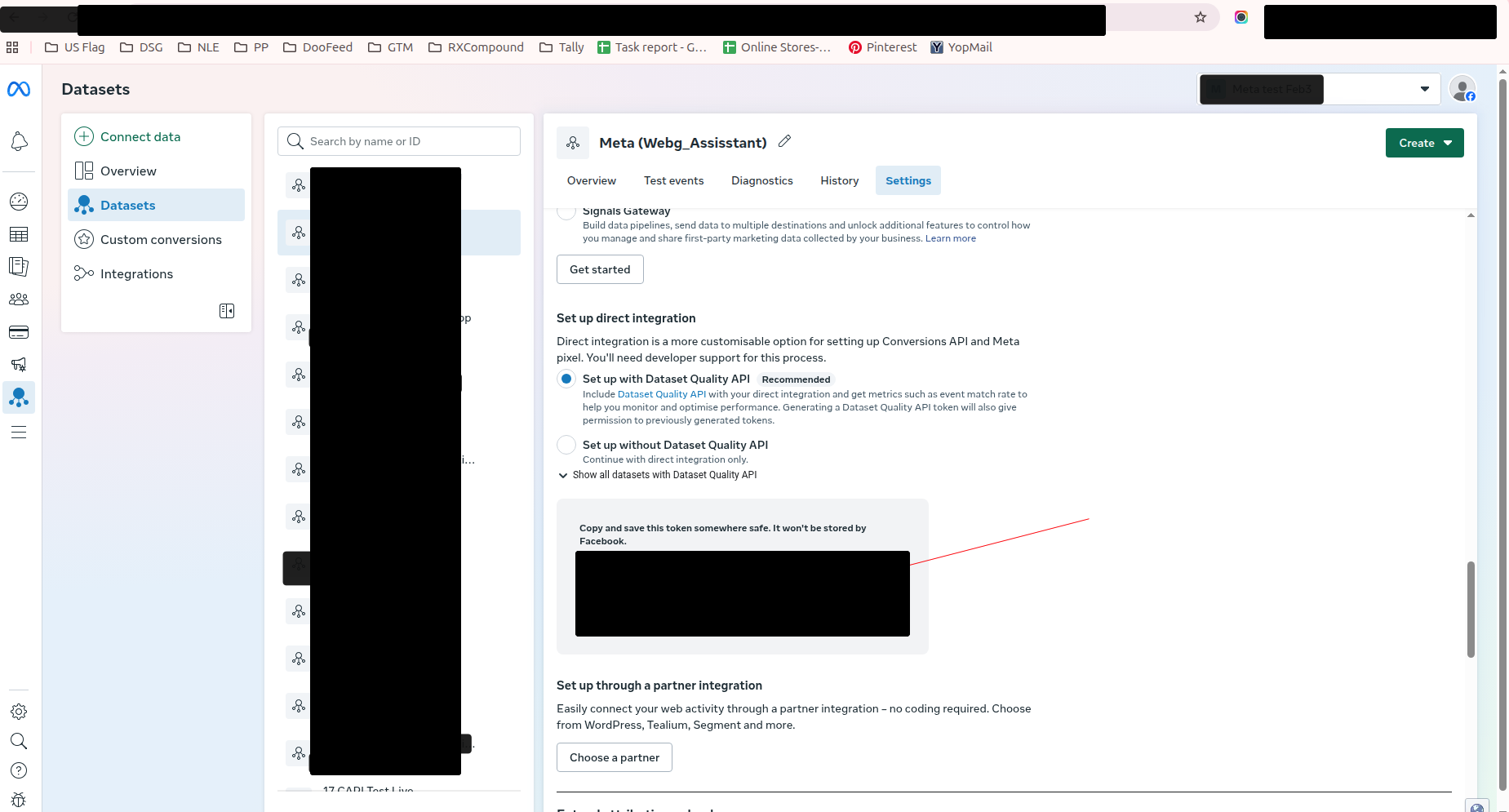
- Scroll to Set up direct integration and generate an access token.
- Copy the Conversion API token.
Connect in Webgarh GTM Assistant
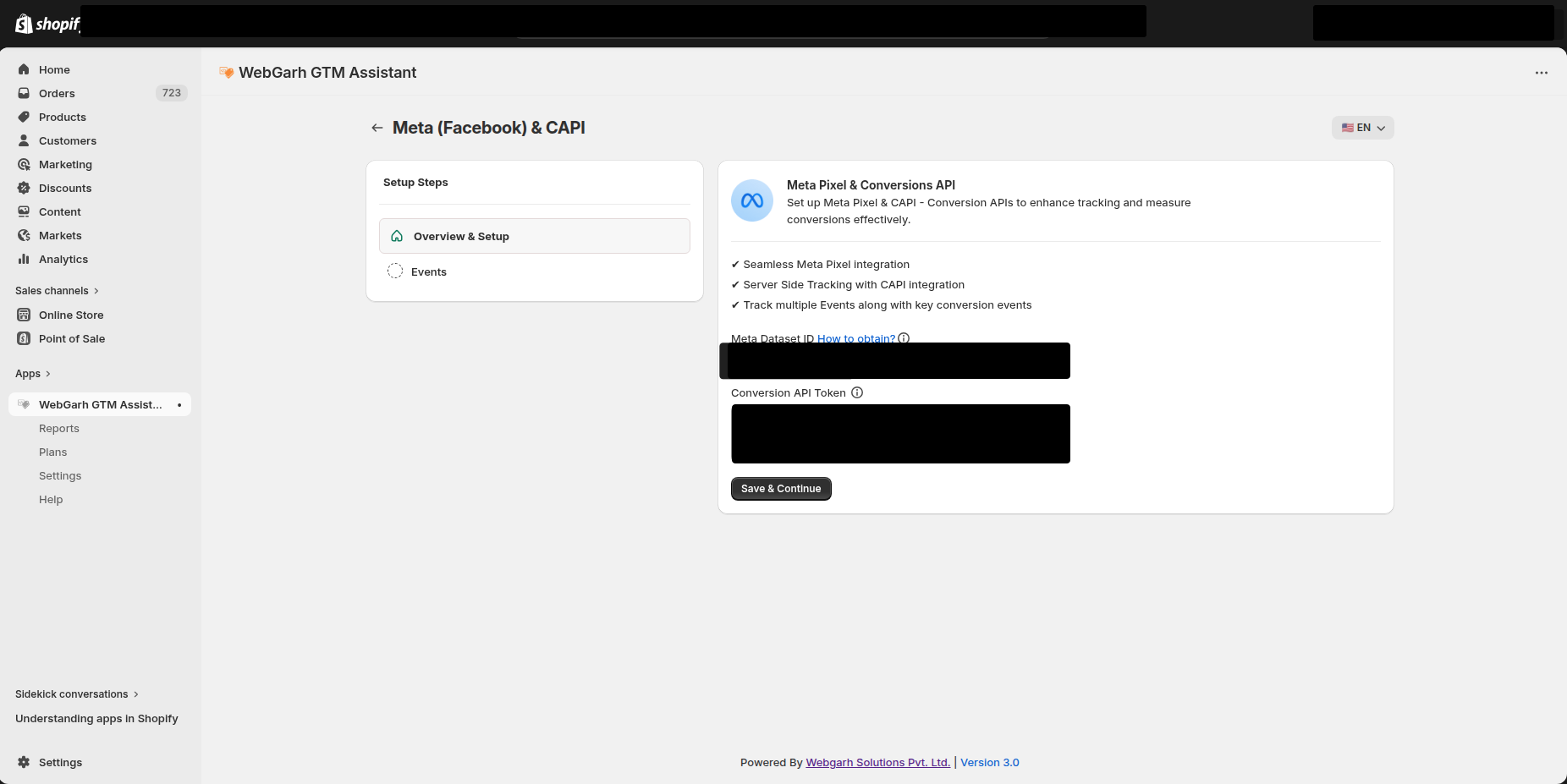
- In Webgarh GTM Assistant, click Connect for Meta.
- Paste your Dataset ID and Conversion API token.
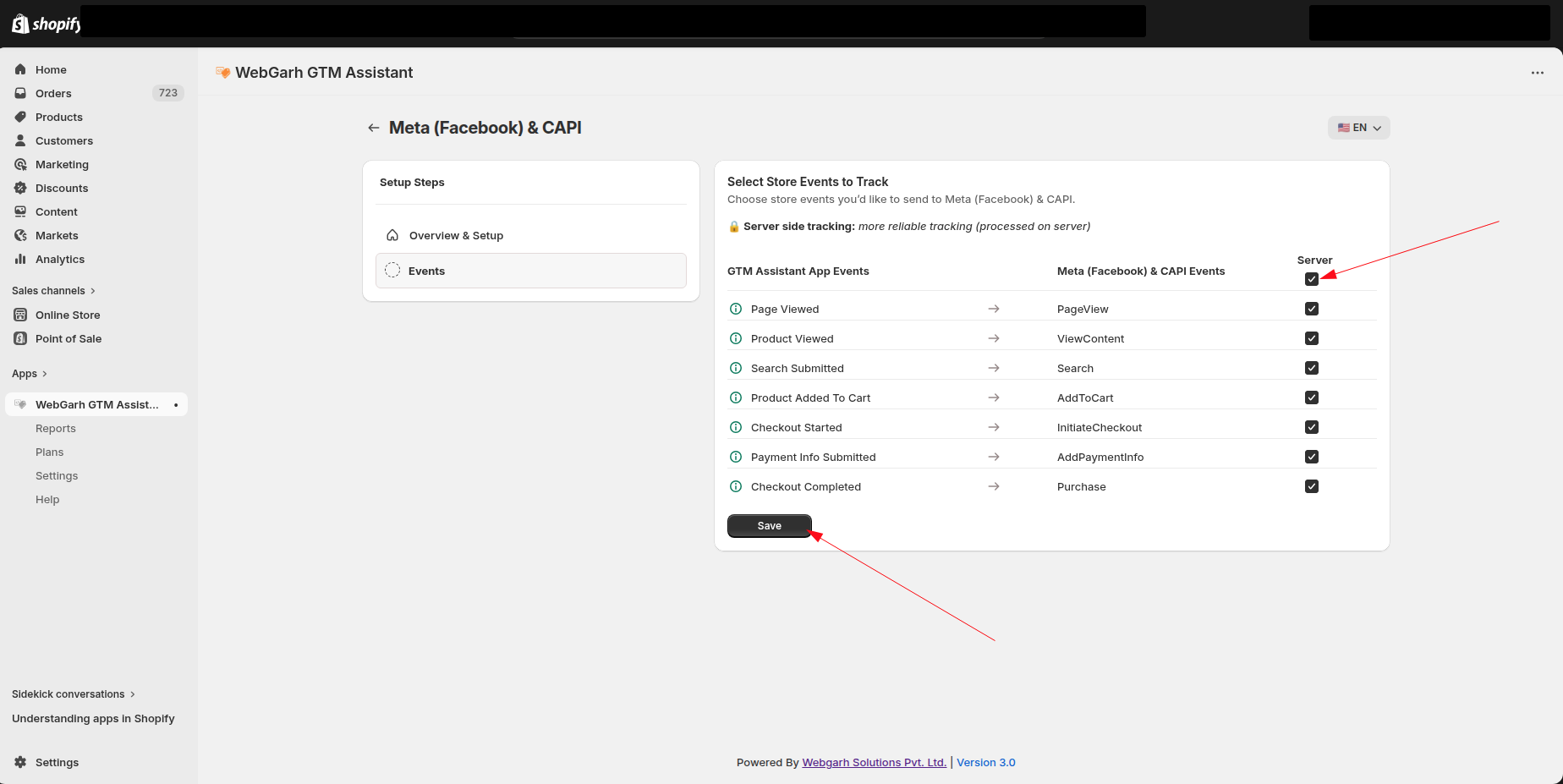
- Select the events you want to track, such as Add to Cart, Initiate Checkout, and Purchase.
- Click Save.
New datasets may take around 12 hours to show activity. Existing datasets usually sync immediately, though Meta reporting can still lag.
Visual Walkthrough
Use the screenshots below alongside the steps above to match each instruction with the correct screen in the platform.
Still need help?
Our team can walk you through this. Contact support or message us on WhatsApp.