Connect Google Ads to send conversion events from Shopify through Webgarh GTM Assistant and improve attribution quality with enhanced conversions.
Setup Steps
Connect your account
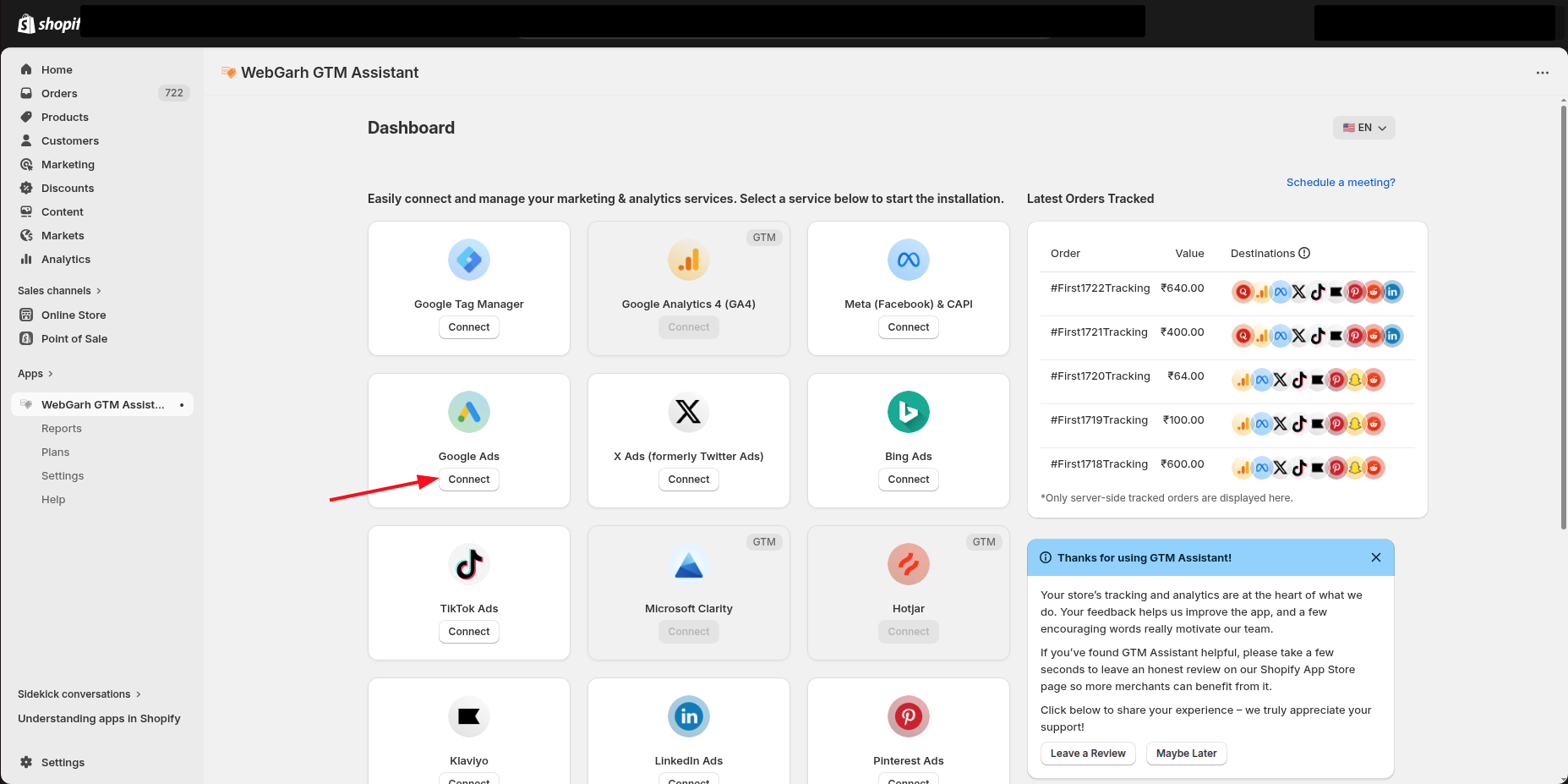
- Click Connect on the Google Ads platform card.
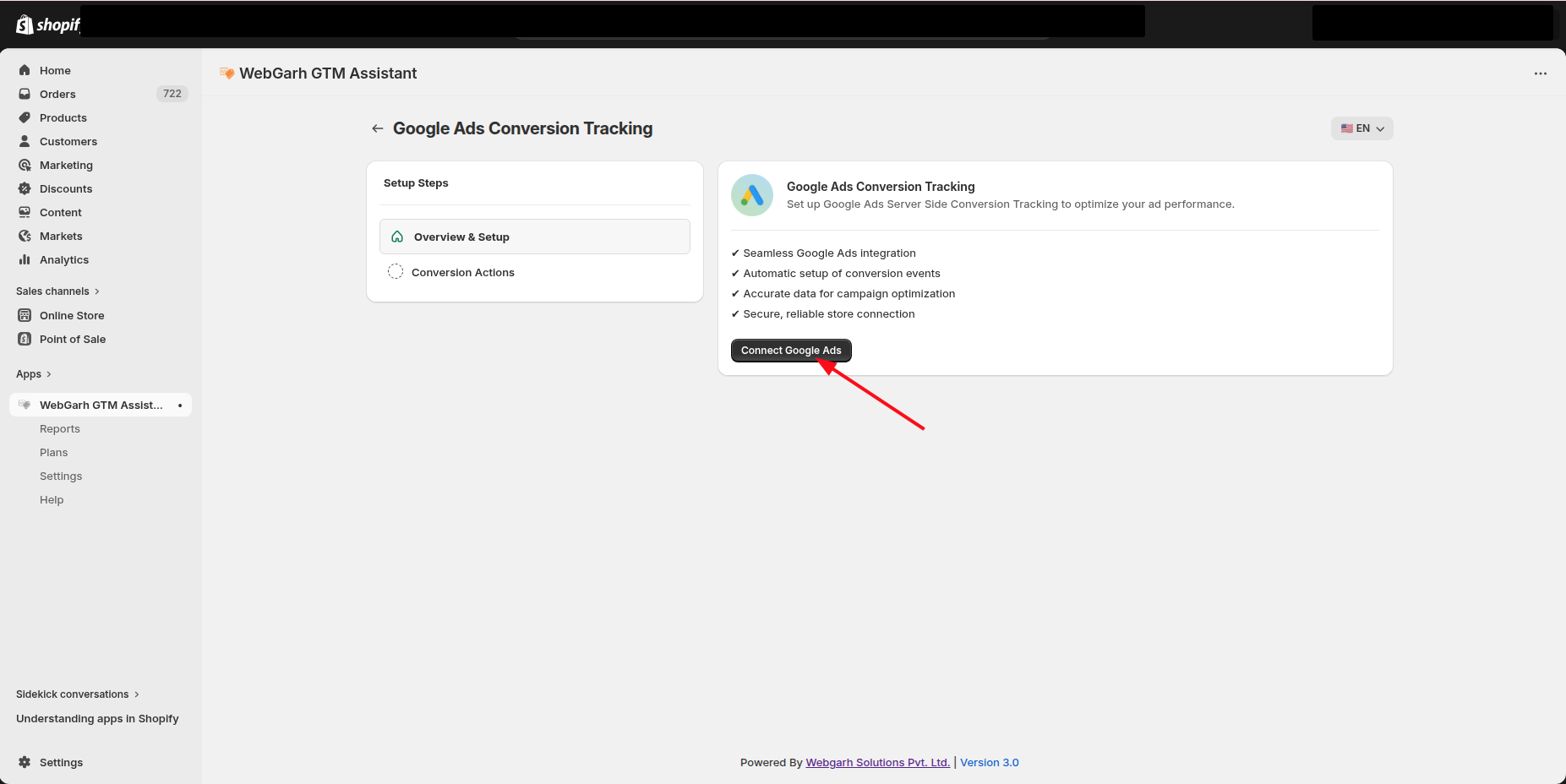
- Click Login and sign in with the Google Ads email that has access to your ad account.
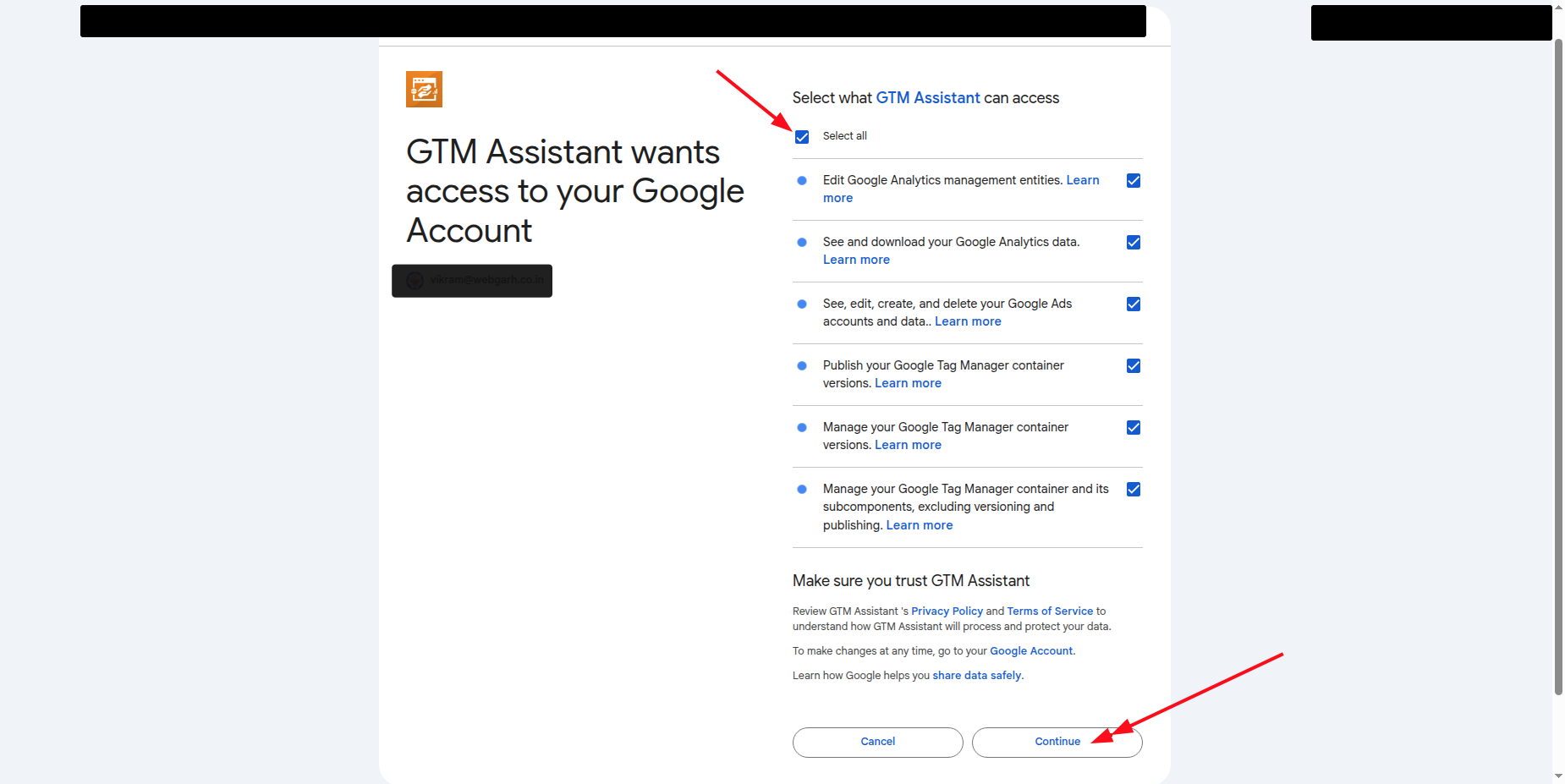
- Select all requested permissions during Google login.
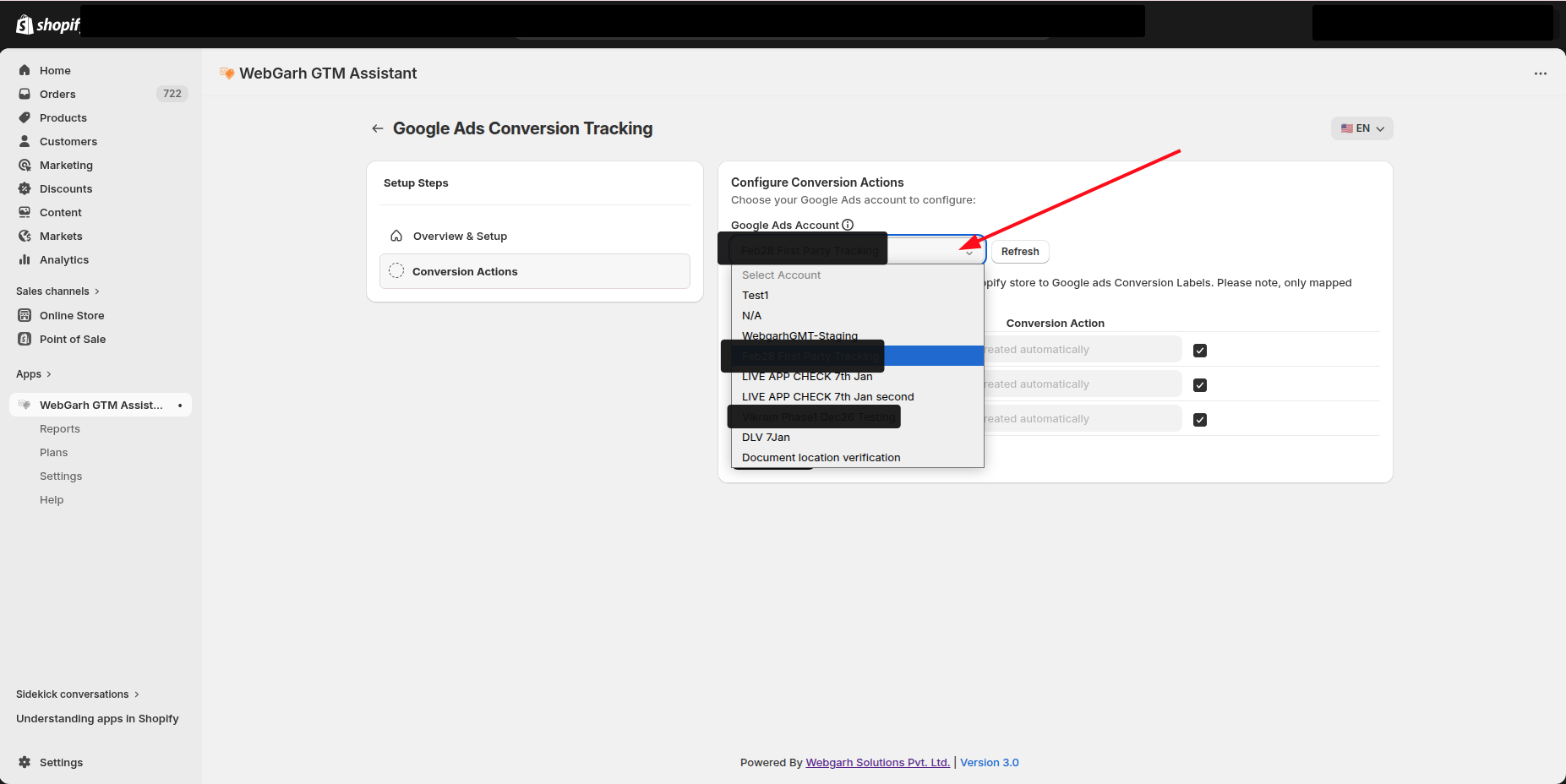
- Choose your store ad account from the list.
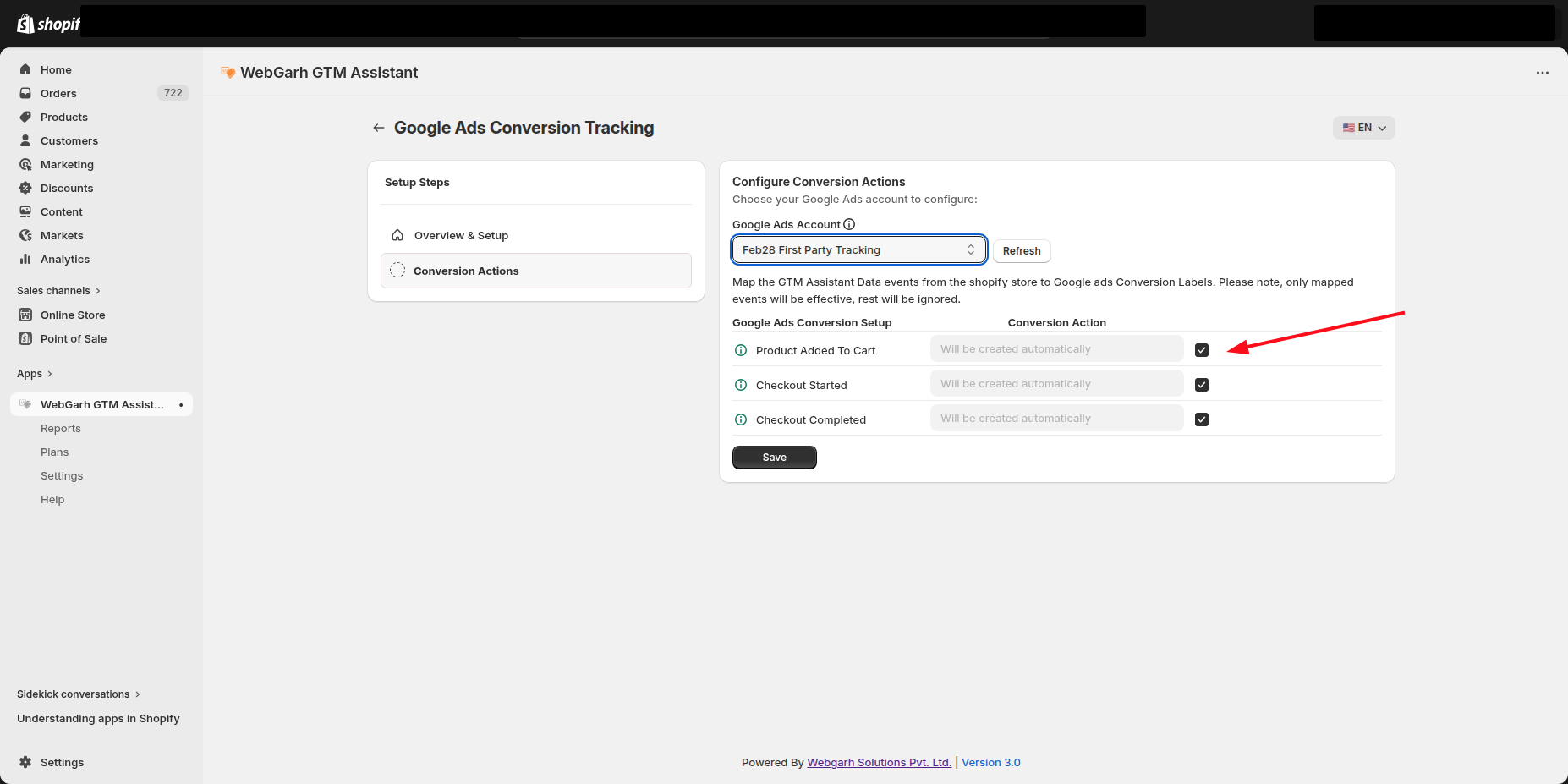
Select conversion events
- Select the events you want Google Ads to receive.
- For full-funnel tracking, select All Events so Google receives signals from Add to Cart through Purchase.
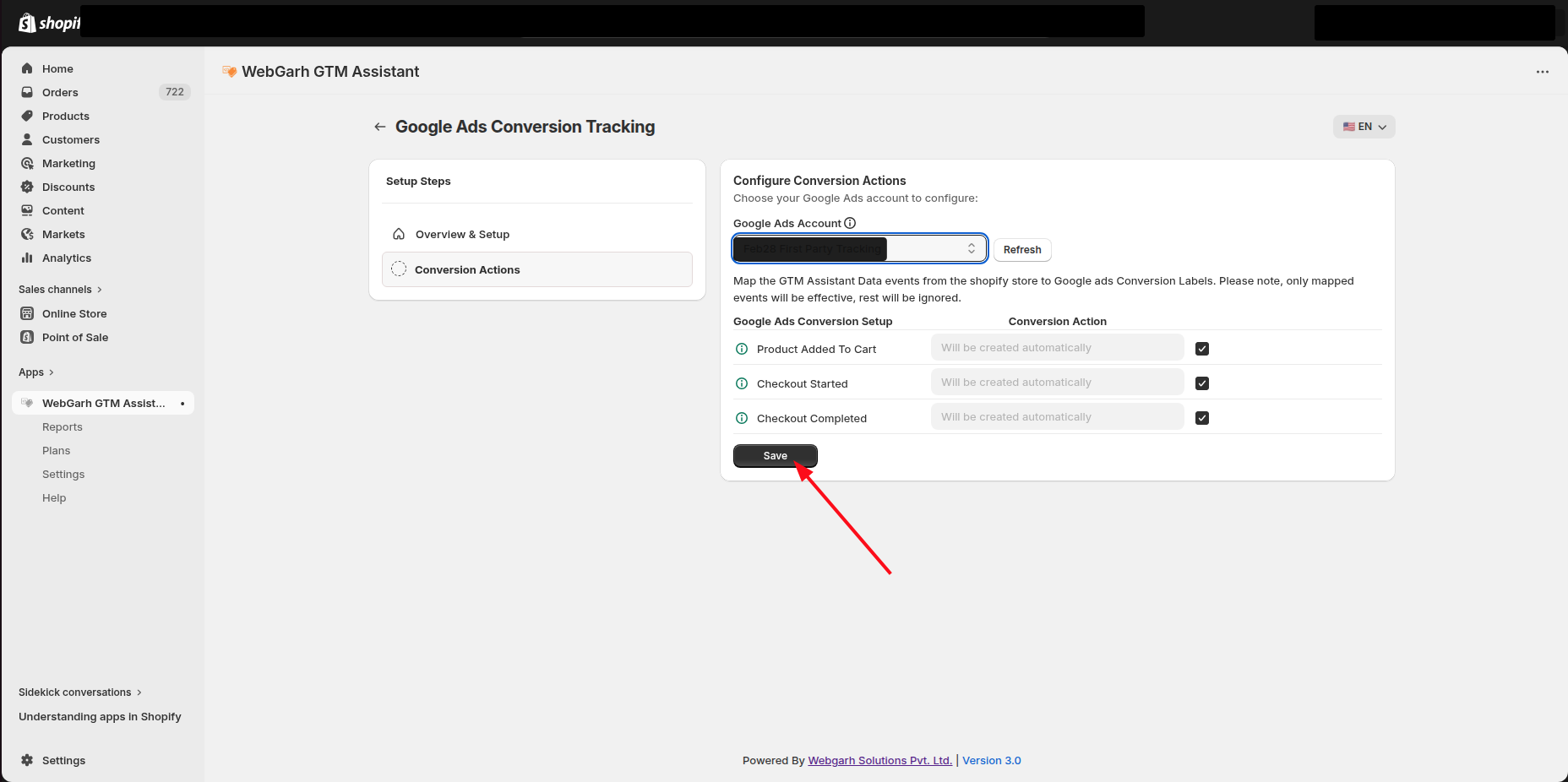
- Click Save.
Complete required Google Ads settings
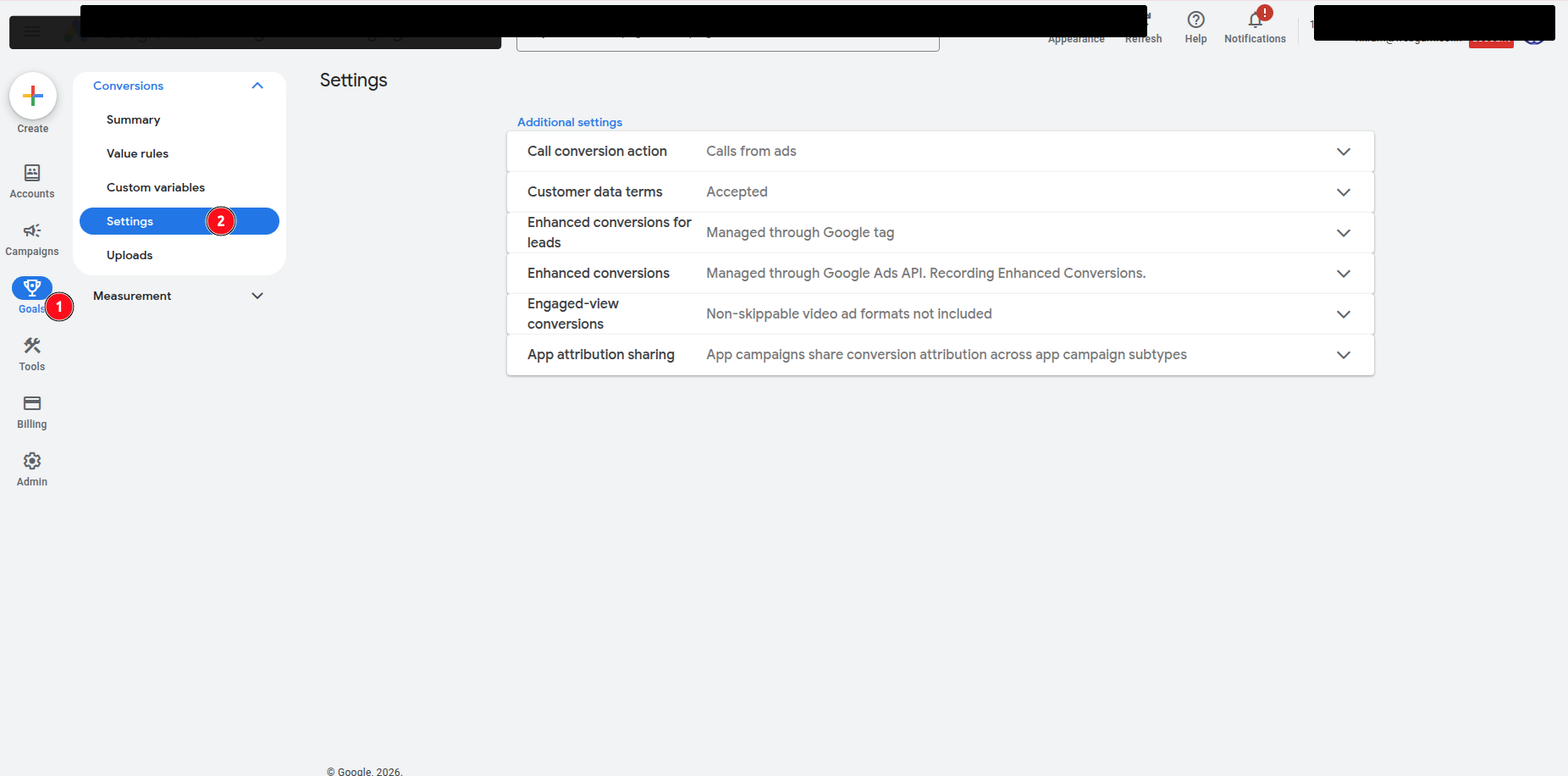
- Open your Google Ads account in a new tab.
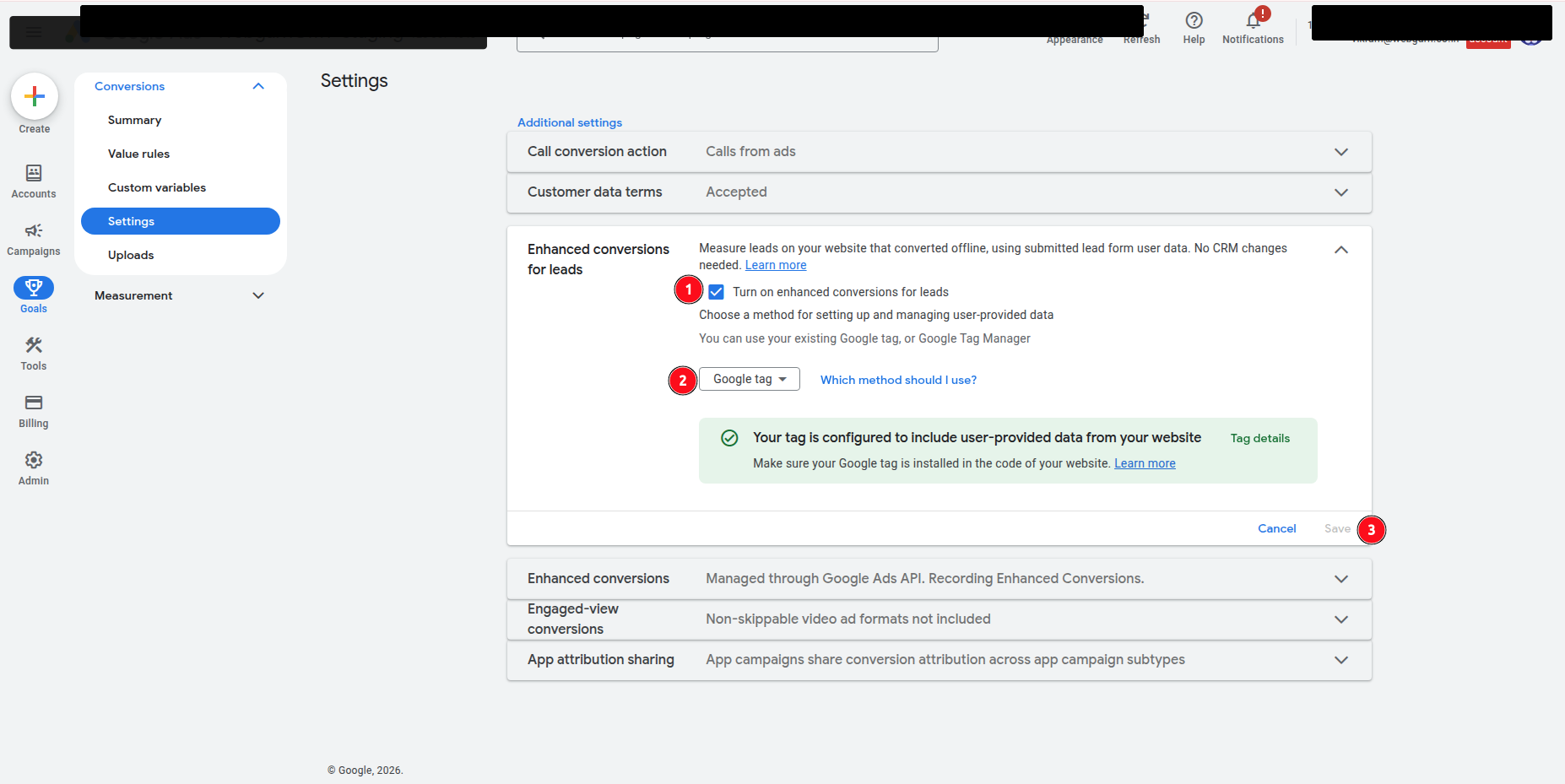
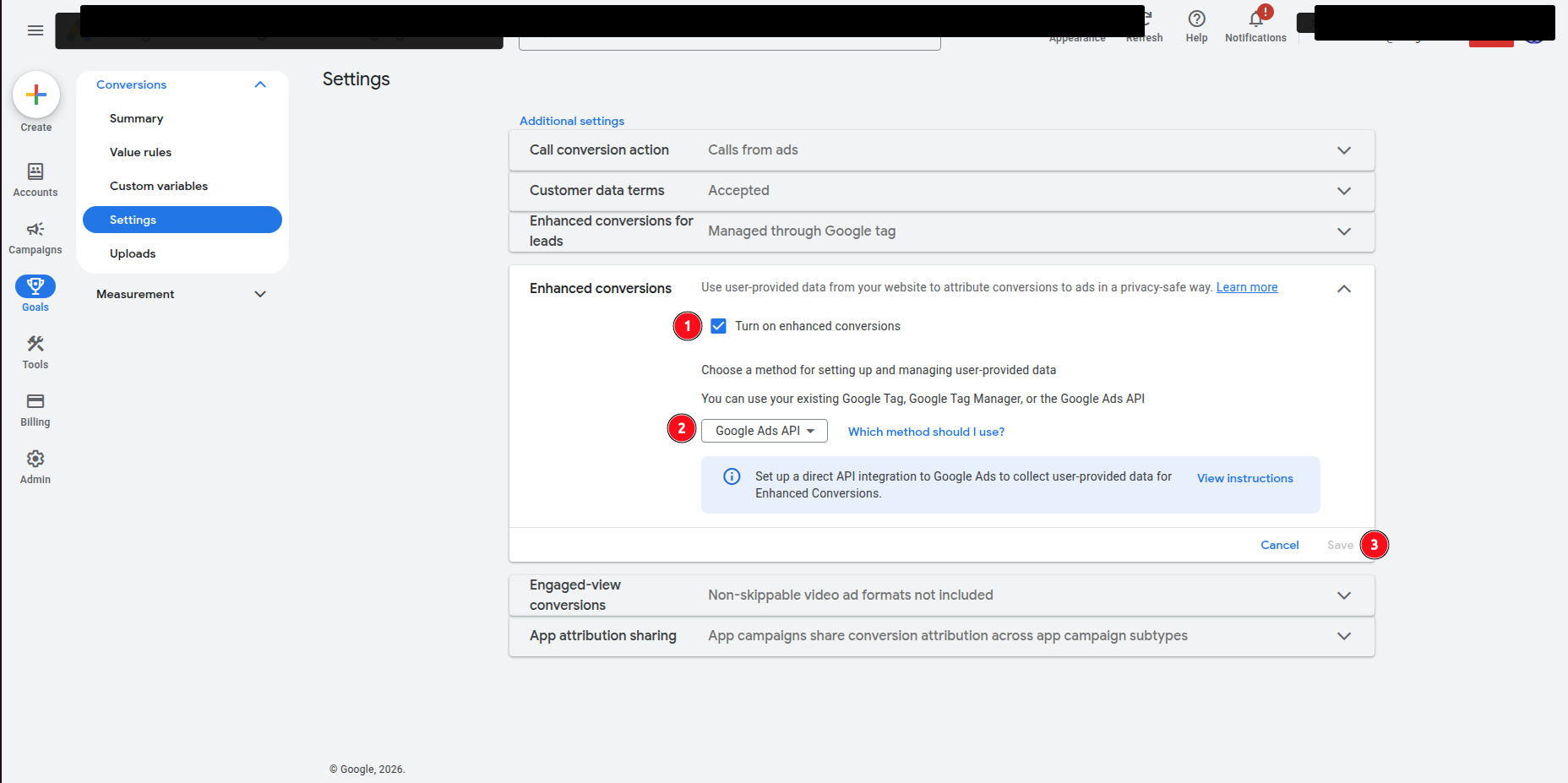
- Go to Goals settings.
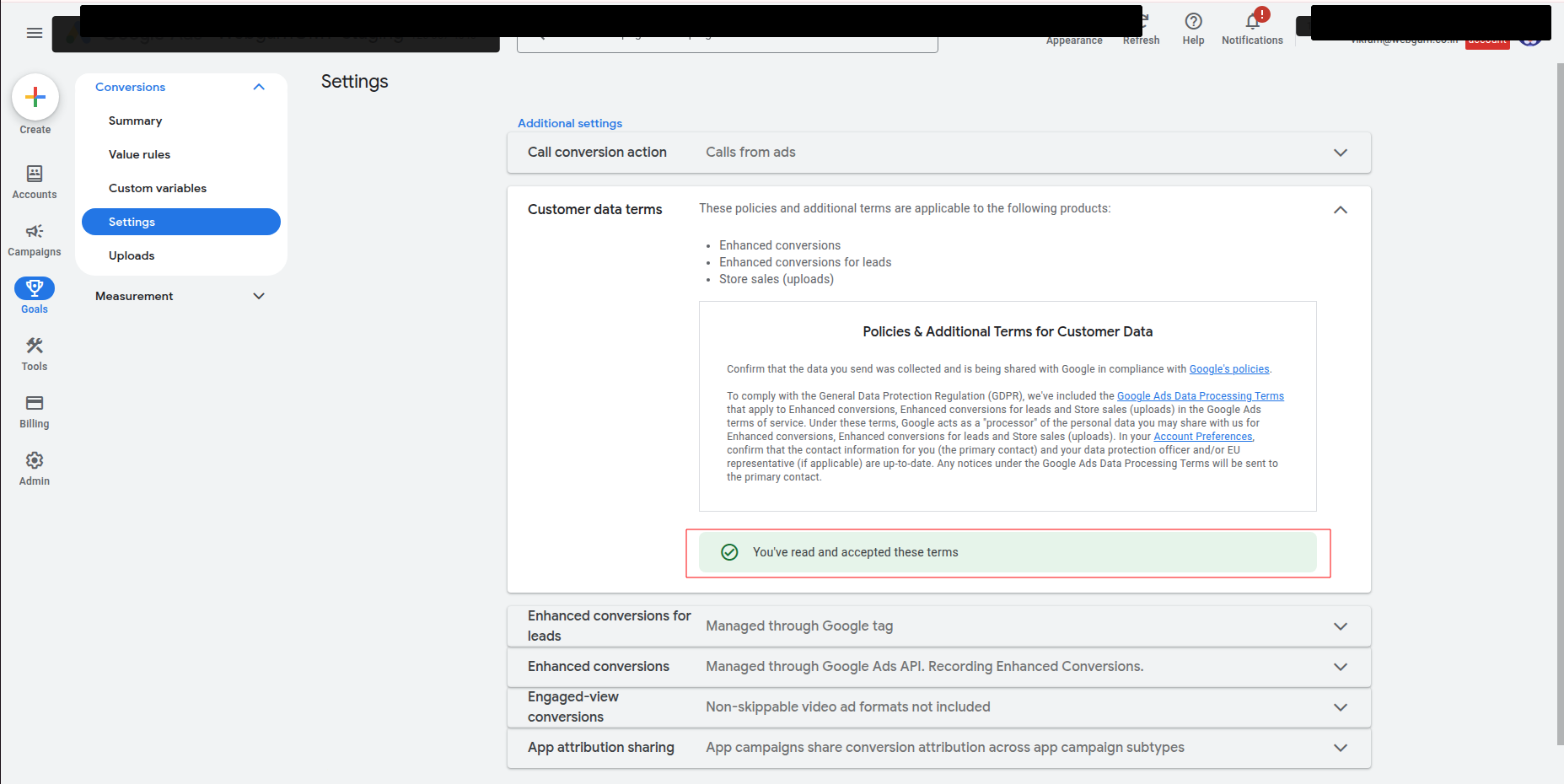
- Accept the customer data terms.
- Turn on enhanced conversions for leads if required by your setup.
- Turn on Enhanced Conversions.
Enhanced Conversions is the important manual step inside Google Ads. The connection is not fully optimized until this is enabled.
Visual Walkthrough
Use the screenshots below alongside the steps above to match each instruction with the correct screen in the platform.
Still need help?
Our team can walk you through this. Contact support or message us on WhatsApp.