Connect LinkedIn Ads by collecting the required account details from Campaign Manager and saving them in Webgarh GTM Assistant.
Setup Steps
Find your LinkedIn details
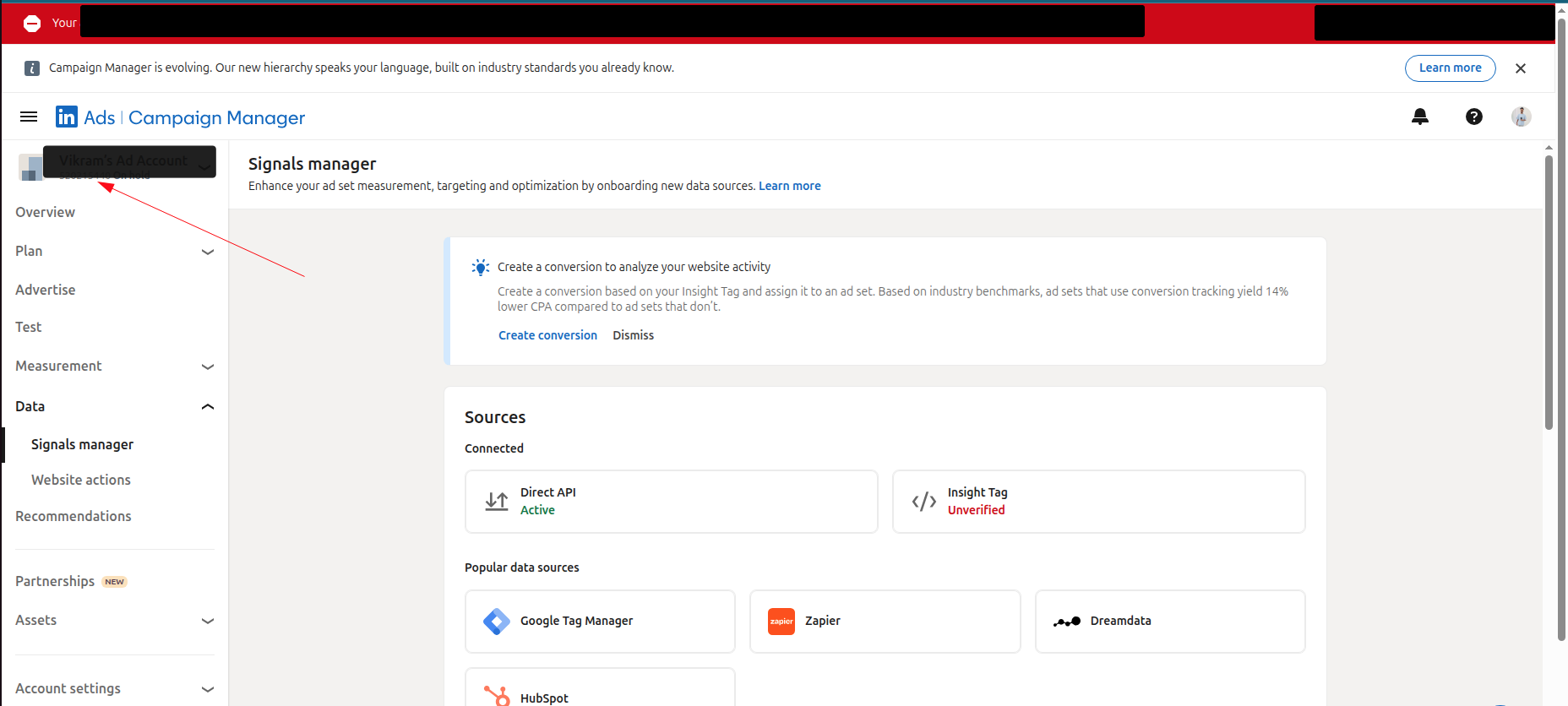
- Open LinkedIn Campaign Manager.
- Find and copy your LinkedIn Ad Account ID.
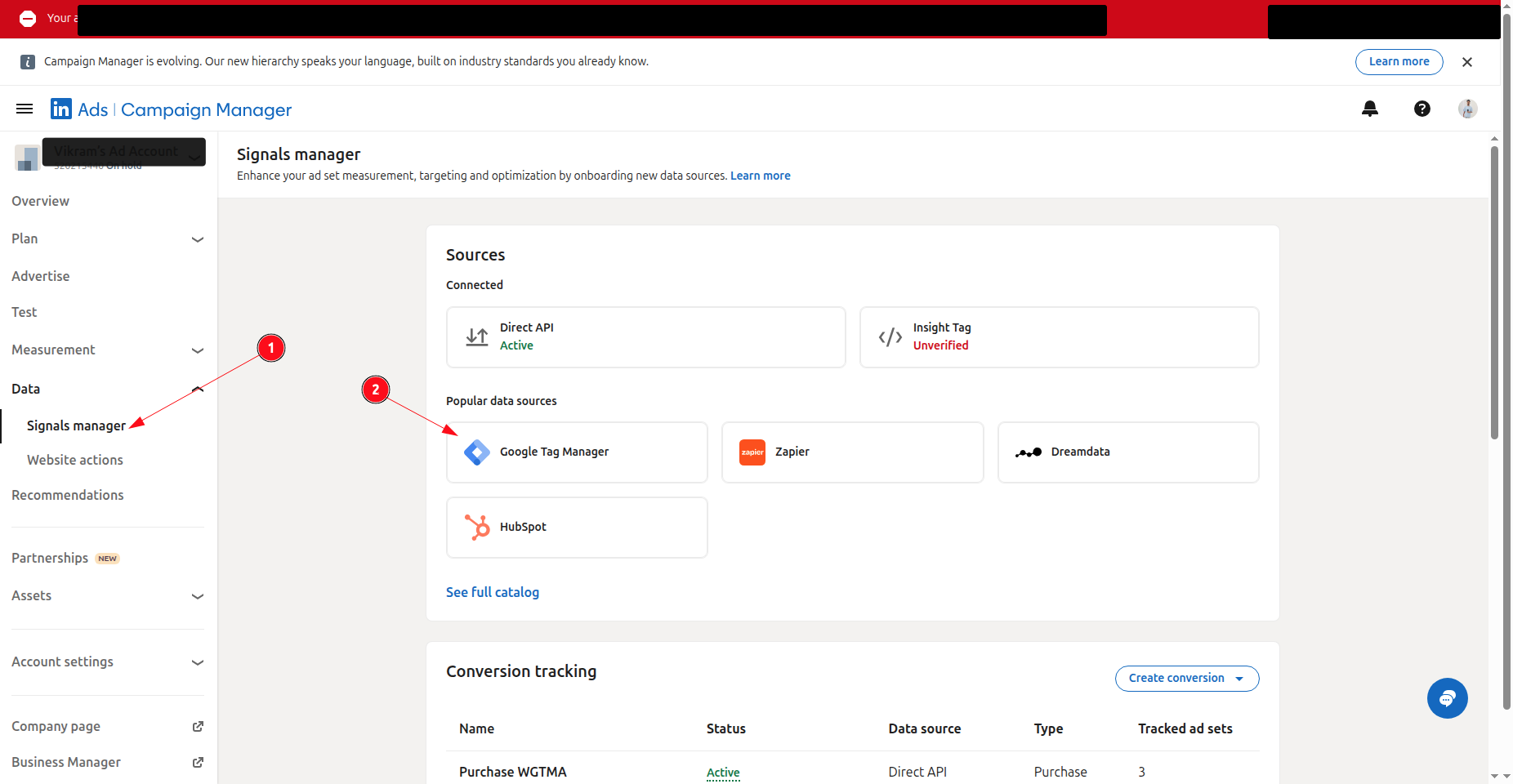
- Navigate to Data > Signal Manager > Google Tag Manager.
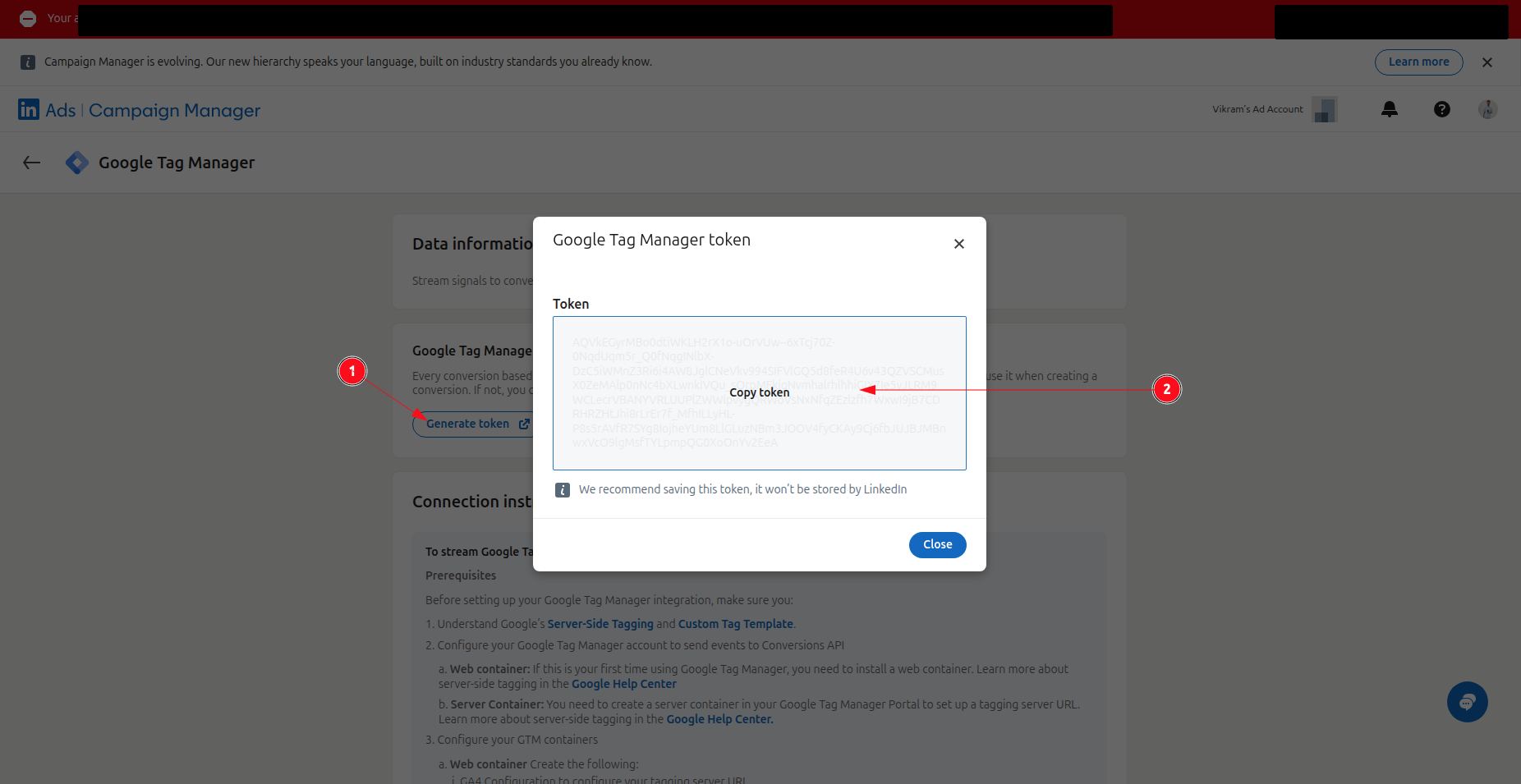
- Generate an access token and copy it.
Connect in Webgarh GTM Assistant
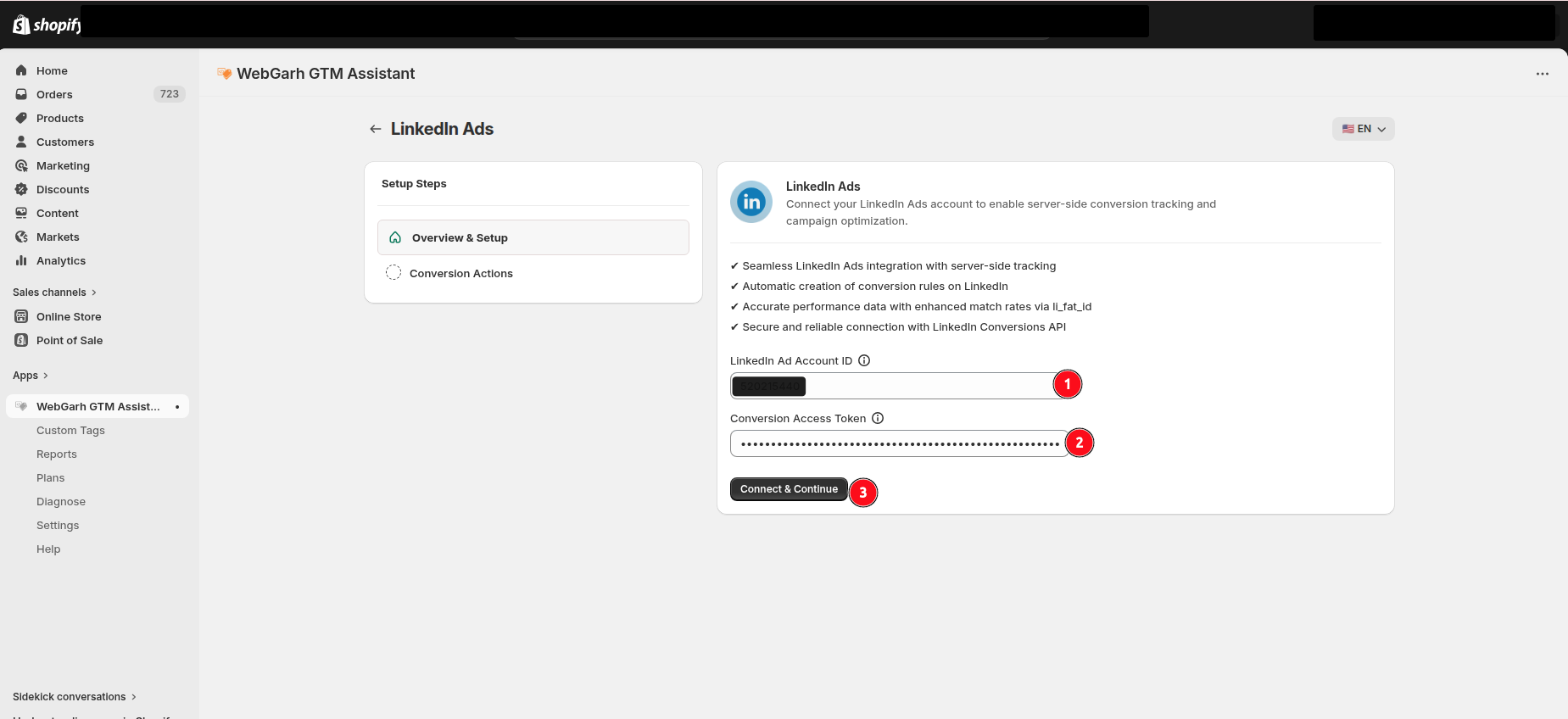
- Open the LinkedIn Ads section in Webgarh GTM Assistant and click Connect.
- Enter your Ad Account ID and Access Token.
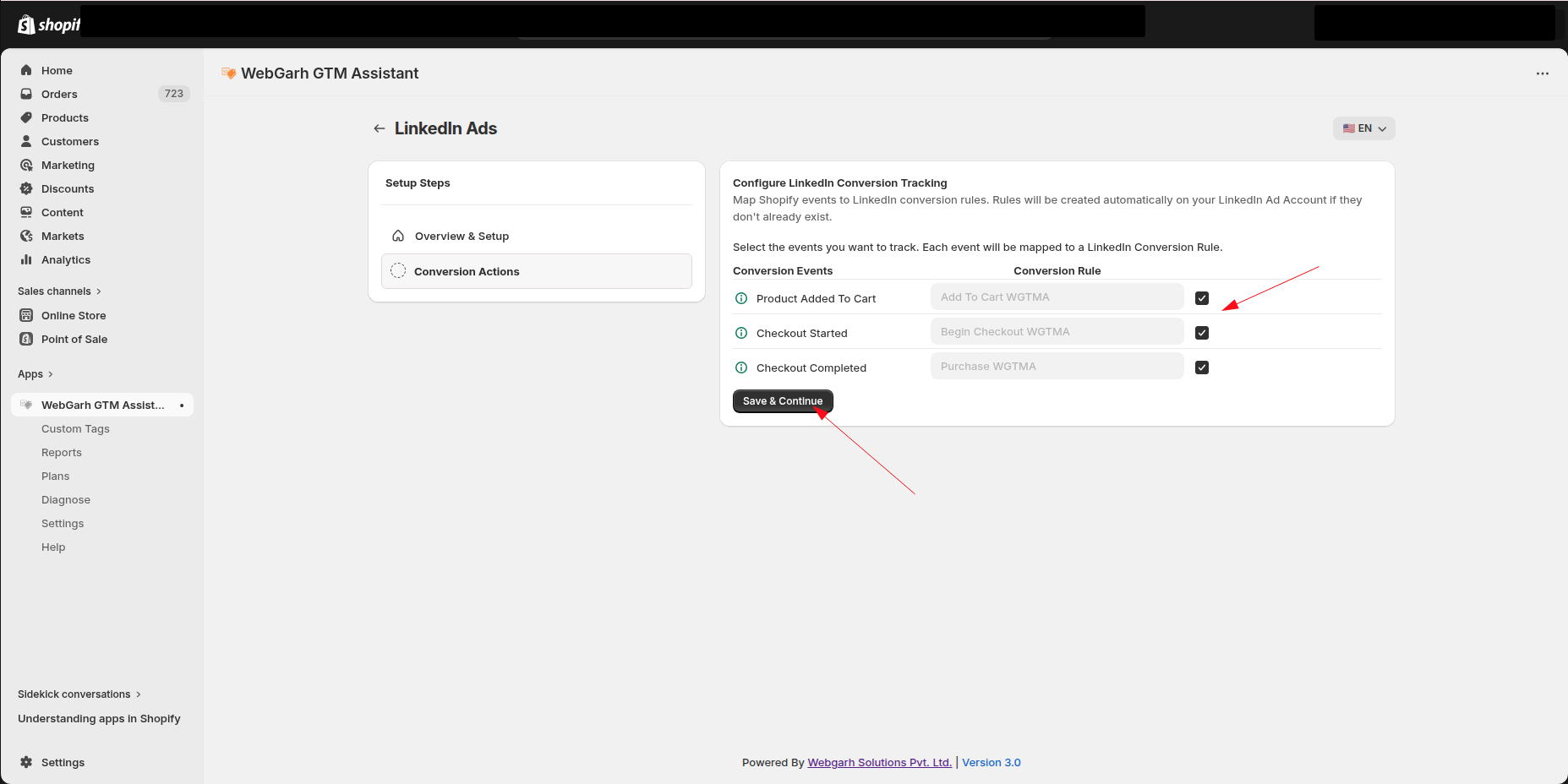
- Select the events you want to track.
- Click Save and wait for Connected status.
Select all recommended events so LinkedIn can learn from Add to Cart and Begin Checkout signals, not only purchases.
Visual Walkthrough
Use the screenshots below alongside the steps above to match each instruction with the correct screen in the platform.
Still need help?
Our team can walk you through this. Contact support or message us on WhatsApp.