Connect Hotjar so recordings and behavior analytics can be filtered by key Shopify actions.
Setup Steps
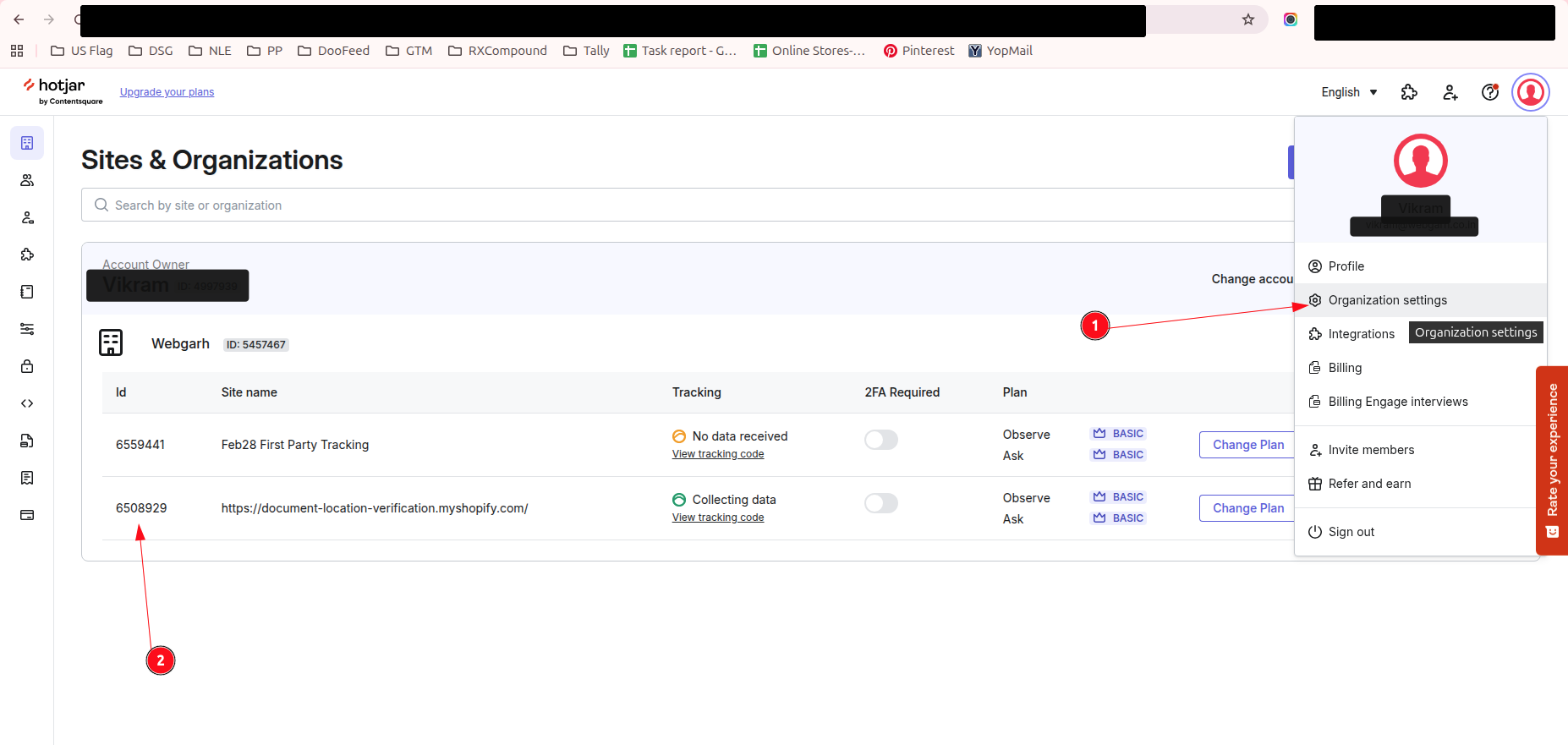
Find your Site ID
- Log in to Hotjar.
- Open the site you want to connect to Shopify.
- Click your profile or avatar and open Organization Settings.
- Find your site in the list and copy the Site ID.
Connect in Webgarh GTM Assistant
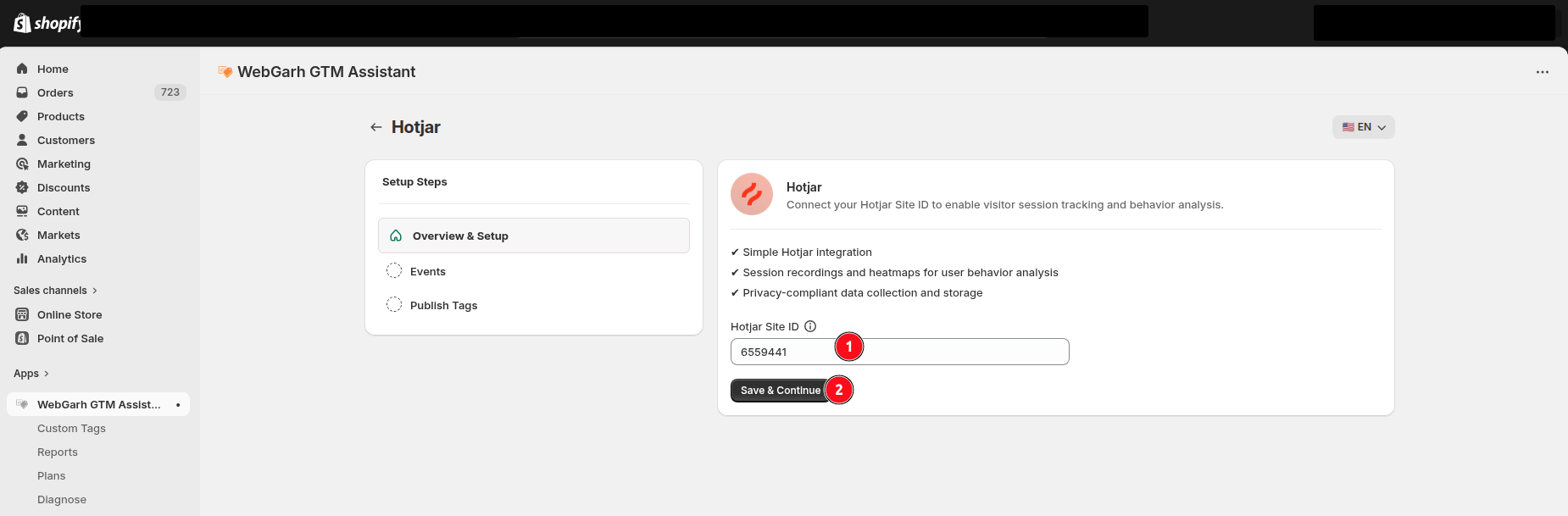
- Open the Hotjar section in Webgarh GTM Assistant and click Connect.
- Enter your Hotjar Site ID.
- Click Next.
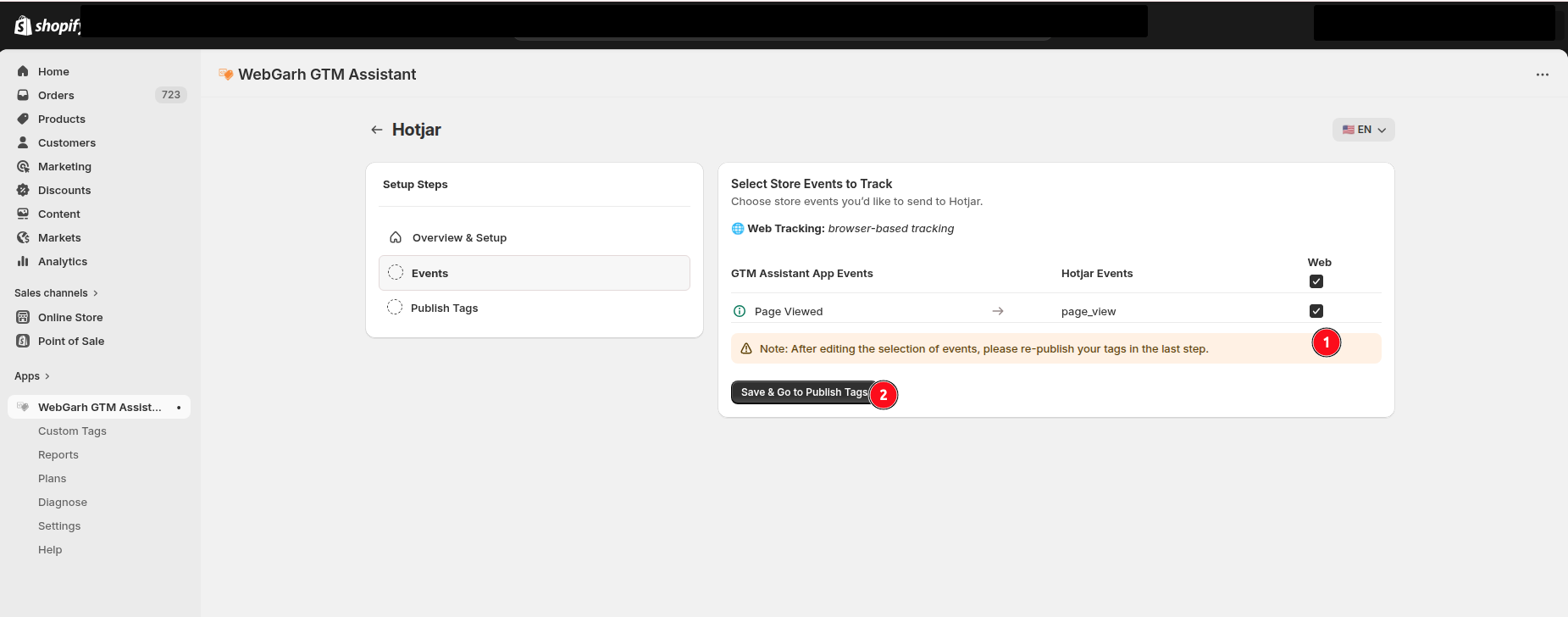
- Select the events you want to track.
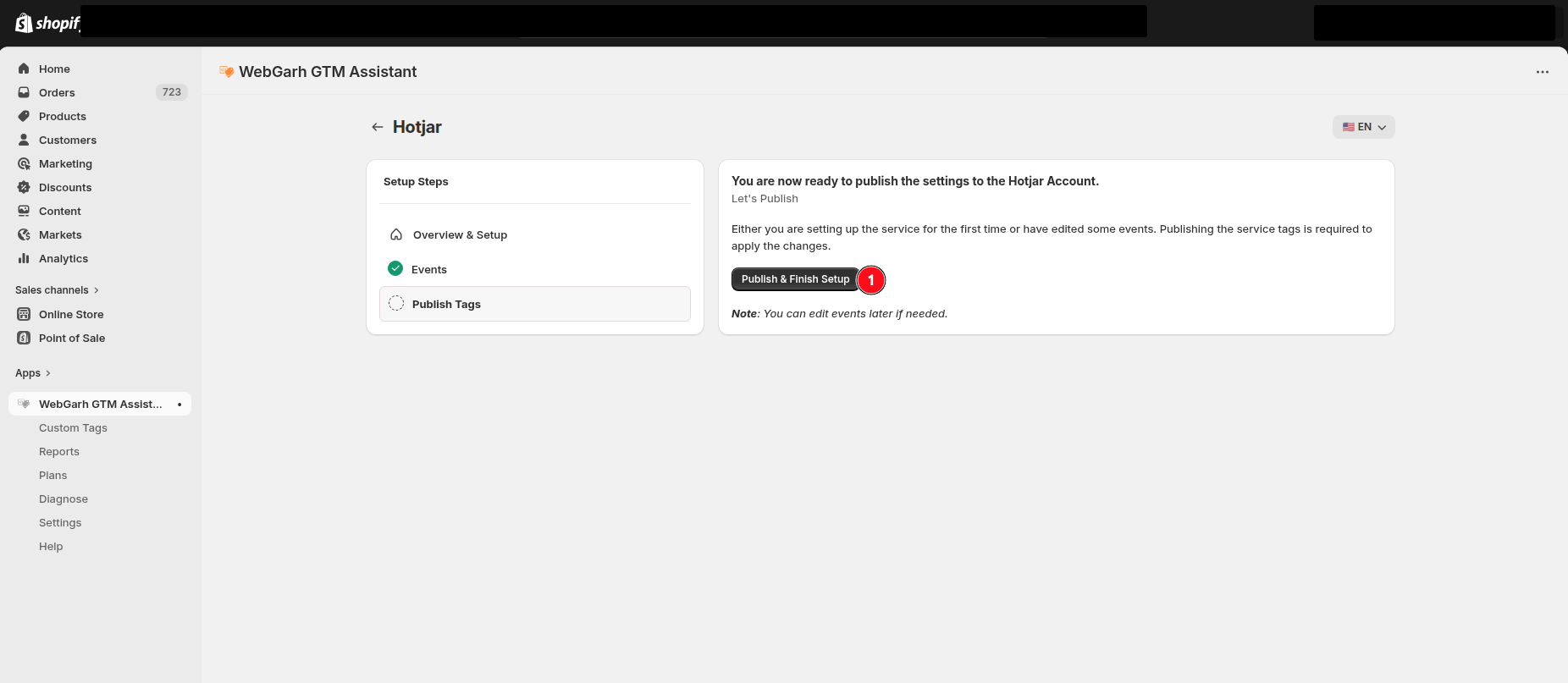
- Click Save and wait for Connected status.
Select all recommended events if you want to filter recordings by actions such as checkout clicks or add-to-cart behavior.
Visual Walkthrough
Use the screenshots below alongside the steps above to match each instruction with the correct screen in the platform.
Still need help?
Our team can walk you through this. Contact support or message us on WhatsApp.